Exposure and Original Type Settings
3-5
3
Basic Copying and Mail Box Features
NOTE
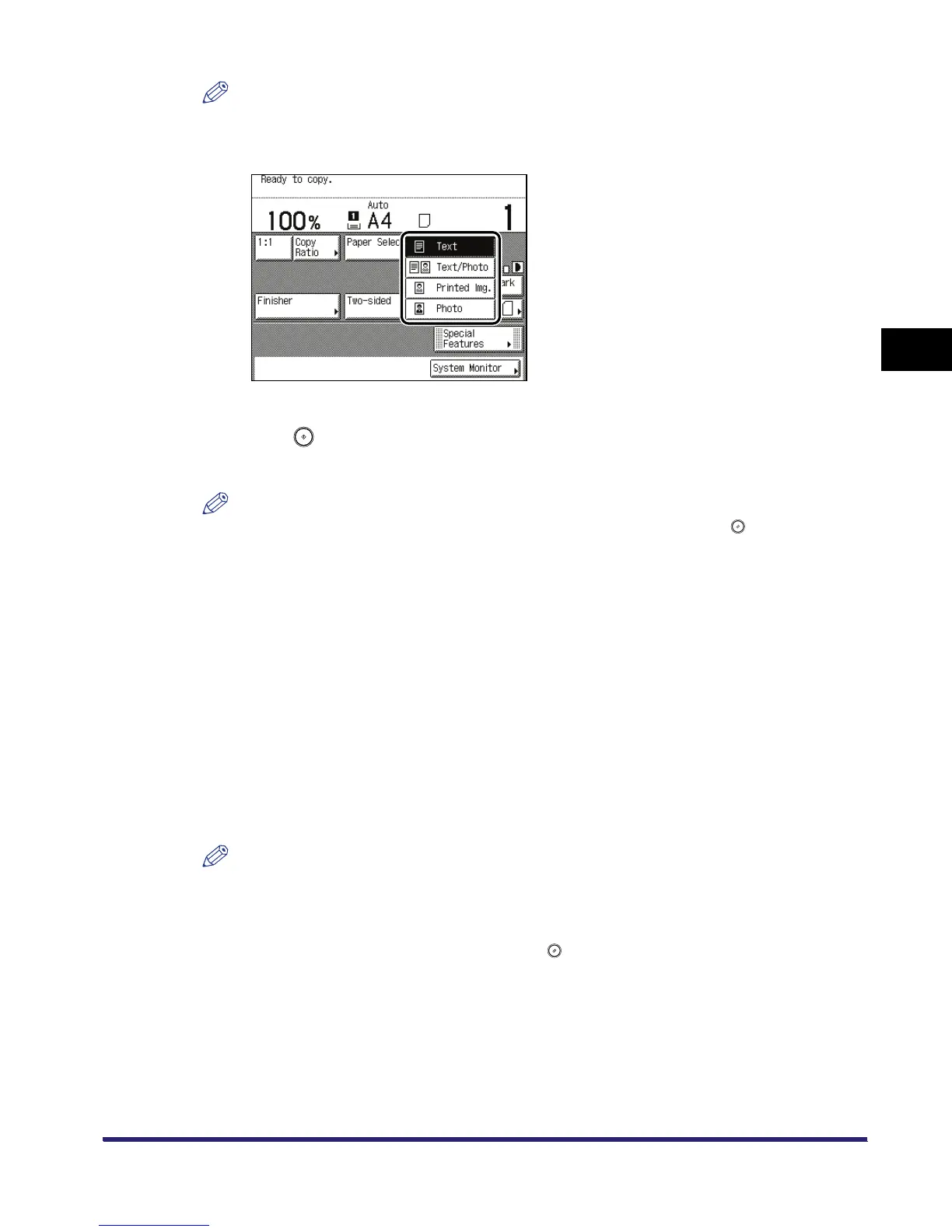
If Photo Mode in Copy Settings (from the Additional Functions screen) is set to 'On', you can
select [Printed Img.] or [Photo]. (See "Setting the Photo Mode for the Copying Function," on p.
6-8)
2
Press .
Copying starts.
NOTE
To cancel all settings and return the machine to the Standard mode, press .
Mail Box
1
Follow the procedure below to specify an inbox.
❑
Select the desired inbox number to display the Document Selection screen.
❑ Press [Scan].
If necessary, see the screen shots in steps 1 to 6 of "Storing Originals into an Inbox," on p.
2-9.
The Scan screen is displayed.
2
Select the original type in accordance with "Copying," on p. 3-4.
NOTE
•
If Photo Mode in Mail Box Setting (from the Additional Functions screen) is set to 'On', you can
select [Printed Img.] or [Photo]. (See "Setting the Photo Mode for the Mail Box Function," on p.
6-15.)
•
To cancel all settings and return the machine to the Standard Scan mode, press [Initial Settings].
To return to the Inbox Selection screen, press .



 To Next Page