Paper Selection
2-26
2
Introduction to the Mail Box Functions
Paper Selection
You can specify the paper size when printing documents stored in inboxes.
1
Select the document stored in an Inbox ➞ display the Change Print
Settings screen.
❑
Select the desired inbox number and the document to print.
❑ Press [Print].
❑ Press [Change P Settings].
If necessary, see the screen shots in steps 1 to 6 of "Printing Documents Stored in an
Inbox," on p. 2-17.
The Change Print Settings screen is displayed.
2
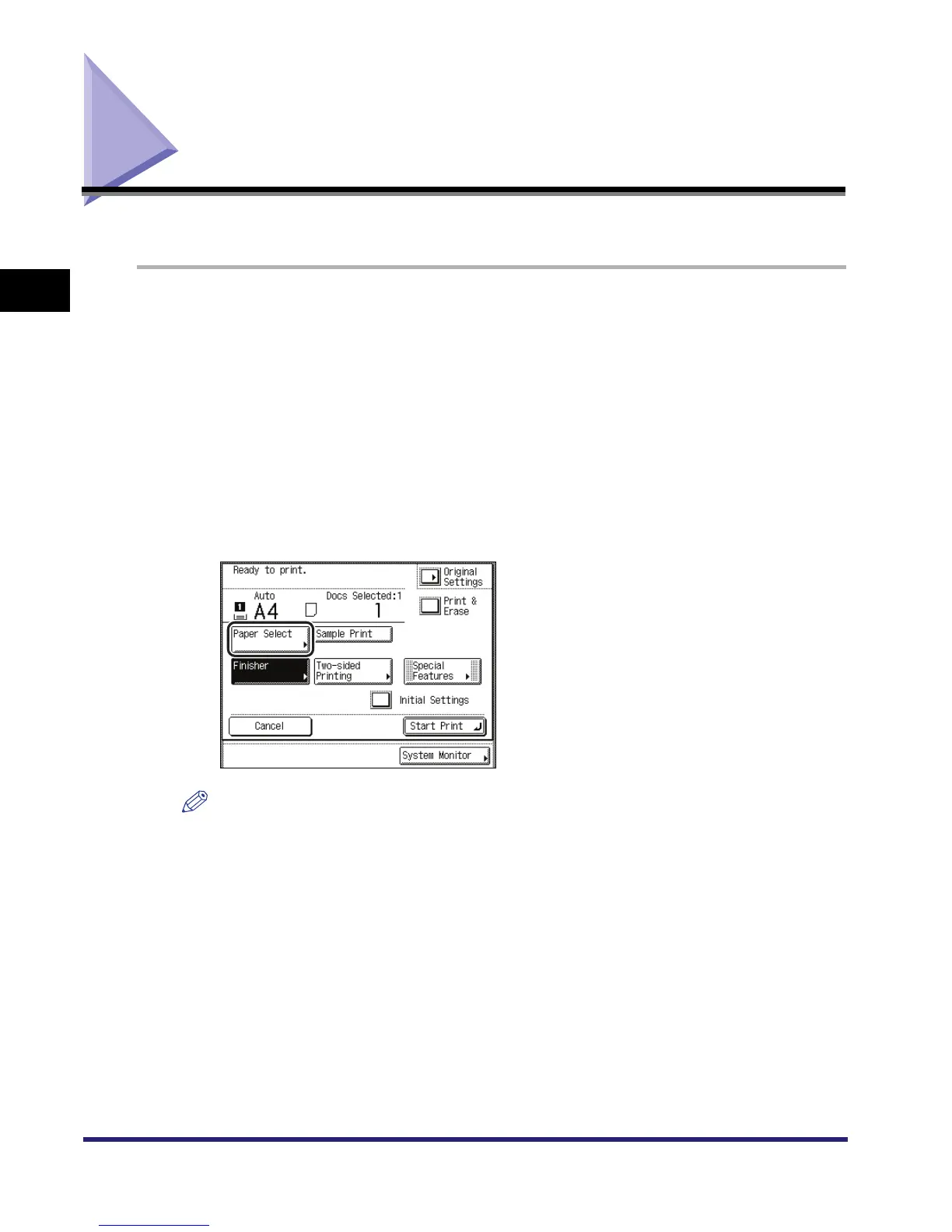
Press [Paper Select].
NOTE
•
If you press [Original Settings], the settings for documents received from a computer are
returned to the settings specified at the computer, and the settings for documents scanned and
recorded at the machine are returned to the Standard Local Print Settings. (See Chapter 4,
"Customizing Settings," in the Reference Guide.)
•
The paper size/type that can be used may vary depending on the settings for the finisher. (See
"Collating Copies/Prints," on p. 3-31.)



 To Next Page