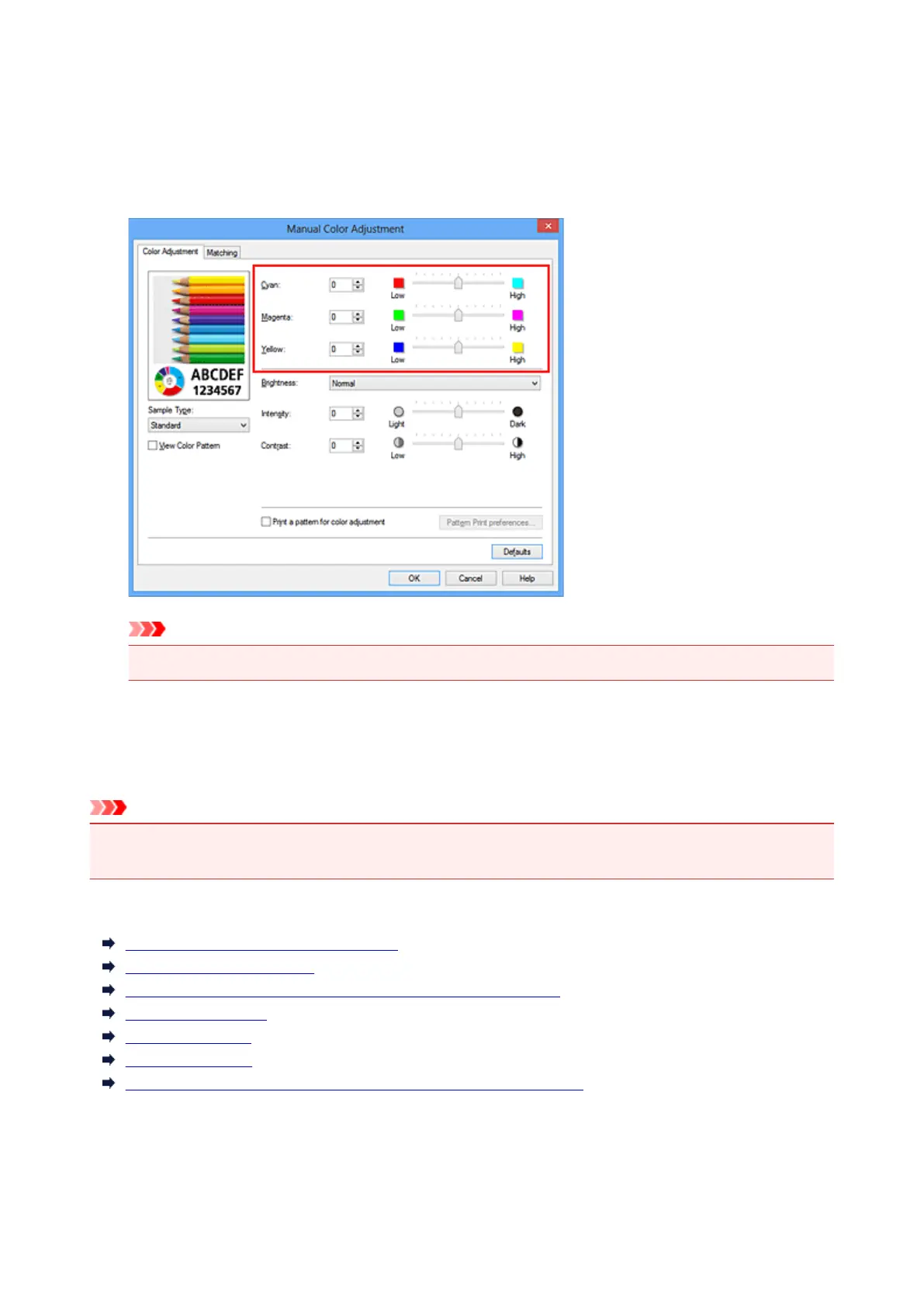
There are individual sliders for Cyan, Magenta, and Yellow. Each color becomes stronger when the
corresponding slider is moved to the right, and becomes weaker when the corresponding slider is moved
to the left. For example, when cyan becomes weaker, the color red becomes stronger.
You can also directly enter a value linked to the slider. Enter a value in the range from -50 to 50. The
current settings are displayed in the settings preview on the left side of the printer driver.
After adjusting each color, click OK.
Important
• Adjust the slider gradually.
4.
Complete the setup
Click OK on the Main tab.
When you execute print, the document is printed with the adjusted color balance.
Important
• When the Grayscale Printing check box on the Main tab is checked, the color balance (Cyan,
Magenta, Yellow) appear grayed out and are unavailable.
Related Topics
Setting the Print Quality Level (Custom)
Specifying Color Correction
Adjusting Color Balance Using Sample Patterns (Printer Driver)
Adjusting Brightness
Adjusting Intensity
Adjusting Contrast
Adjusting Intensity/Contrast Using Sample Patterns (Printer Driver)
320













 To Next Page