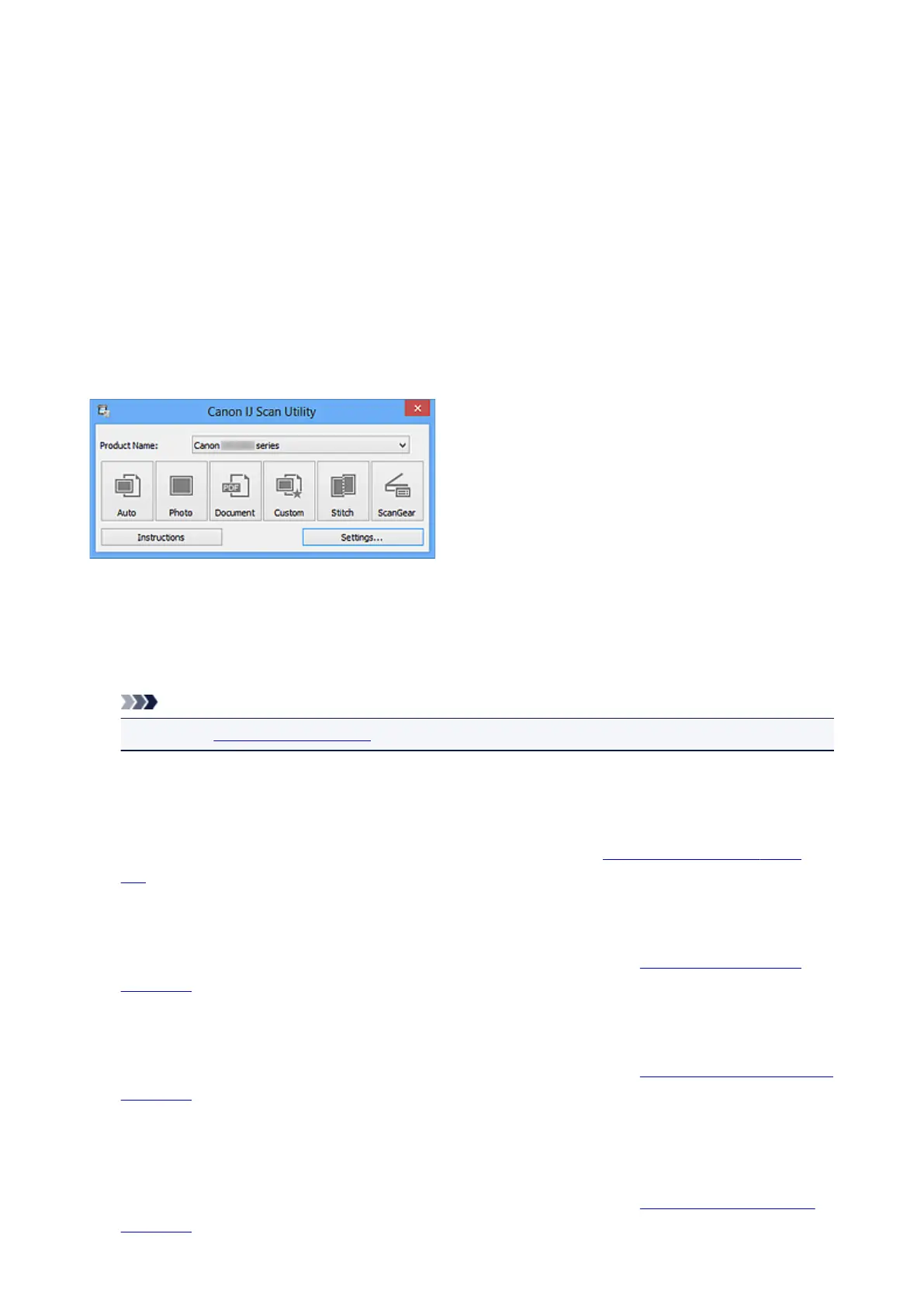
IJ Scan Utility Main Screen
Follow the steps below to start IJ Scan Utility.
Windows 8:
Select IJ Scan Utility on the Start screen to start IJ Scan Utility.
If IJ Scan Utility is not displayed on the Start screen, select the Search charm, then search for "IJ Scan
Utility".
Windows 7/Windows Vista/Windows XP:
From the Start menu, select All Programs > Canon Utilities > IJ Scan Utility > IJ Scan Utility to start IJ
Scan Utility.
You can complete from scanning to saving at one time by simply clicking the corresponding icon.
Product Name
Displays the name of the product that IJ Scan Utility is currently set to use.
If the displayed product is not the one you want to use, select the desired product from the list.
In addition, for network connection, select one with "Network" after the product name.
Note
• Refer to "Network Scan Settings" for how to set up a network environment.
Auto
Detects the item type automatically and saves them to a computer. The data format for saving will also
be set automatically.
Save settings and the response after scanning can be specified in the Settings (Auto Scan) dialog
box.
Photo
Scans items as photos and saves them to a computer.
Scan/save settings and the response after scanning can be specified in the Settings (Photo Scan)
dialog box.
Document
Scans items as documents and saves them to a computer.
Scan/save settings and the response after scanning can be specified in the Settings (Document Scan)
dialog box.
Custom
Scans items with your favorite settings and saves the images to a computer. The item type can be
automatically detected.
Scan/save settings and the response after scanning can be specified in the Settings (Custom Scan)
dialog box.
447













 To Next Page