Note
• When Document (ADF/Platen) is selected and documents are placed both on the platen and
ADF, those placed on the ADF will be scanned.
Color Mode
Select the color mode in which to scan the item.
Important
• To select Black and White, deselect the Compress scanned images upon transfer checkbox.
Paper Size
Select the size of the item to be scanned.
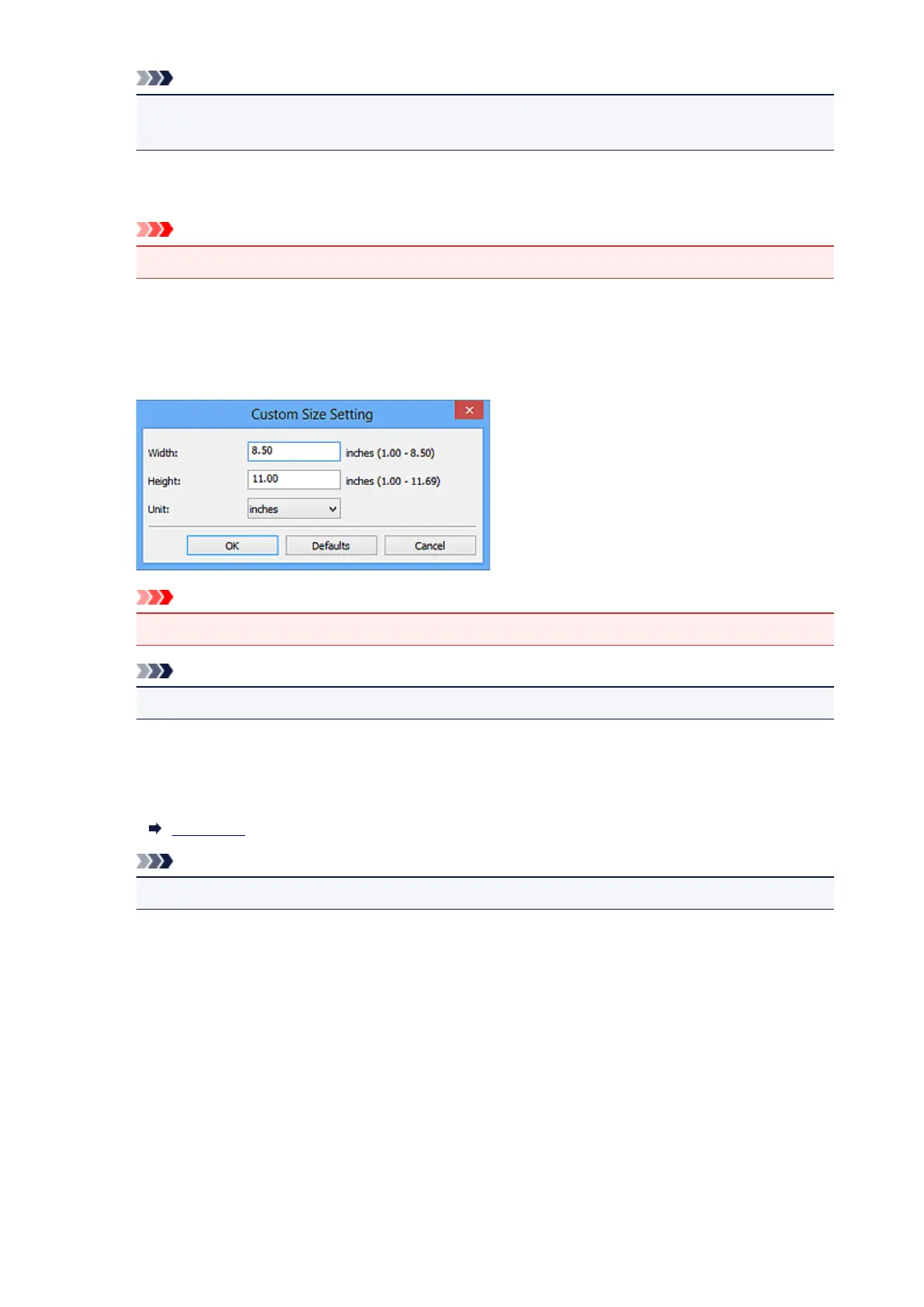
When you select Custom, a screen in which you can specify the paper size appears. Select a Unit,
then enter the Width and Height, and then click OK.
Important
• Custom cannot be selected depending on the Select Source setting.
Note
• Click Defaults to restore the specified settings to the default settings.
Resolution
Select the resolution of the item to be scanned.
The higher the resolution (value), the more detail in your image.
Resolution
Note
• Only 300 dpi or 400 dpi can be set when Start OCR is selected in Application Settings.
Document Scan Orientation Settings...
This appears when you select ADF for Select Source.
Click to display the Document Scan Orientation Settings dialog box in which you can set the
orientation and binding side of the documents to be scanned from the ADF.
458













 To Next Page