3.
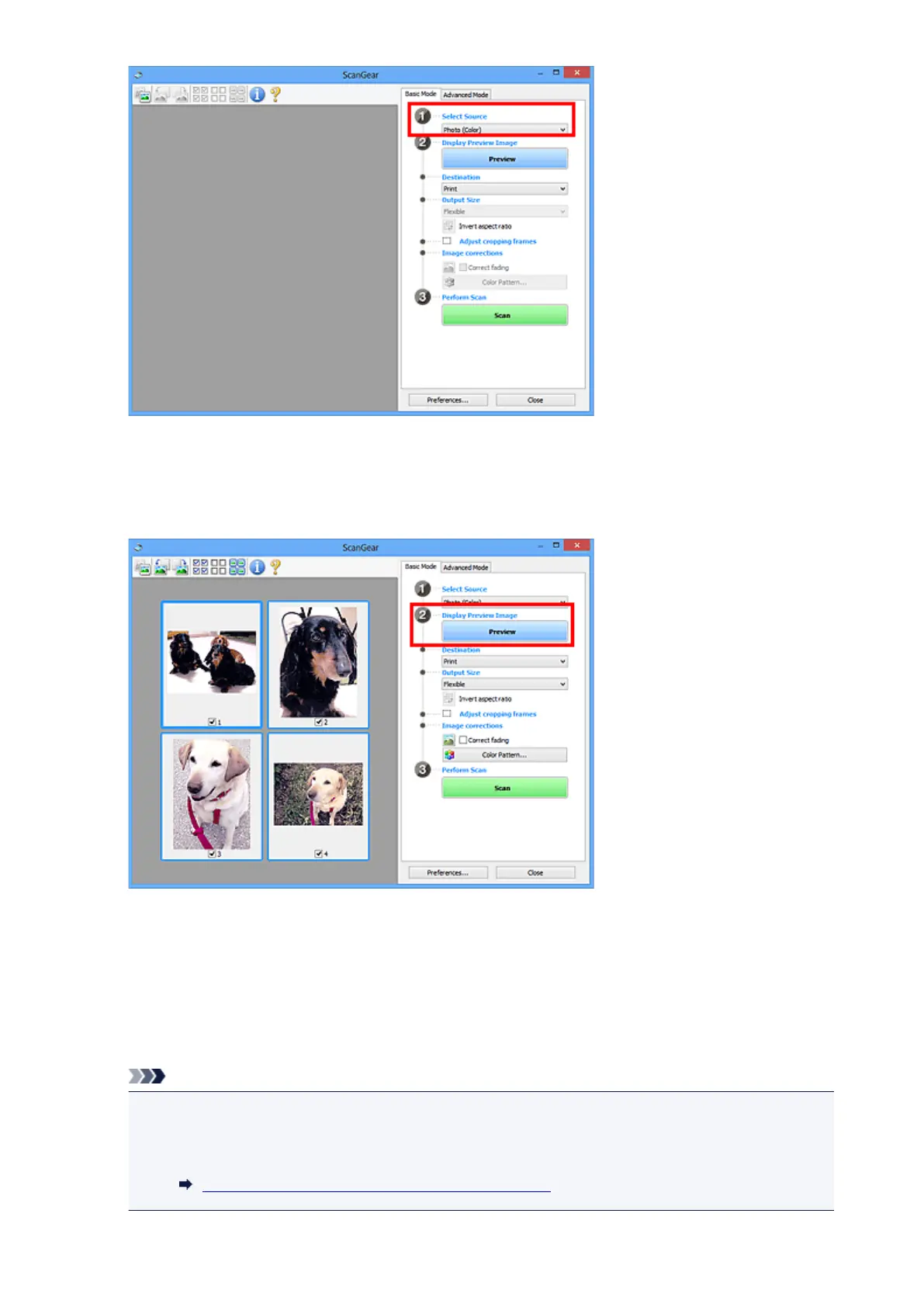
Click Preview.
Thumbnails of the preview images appear in the Preview area. Cropping frames are specified
automatically according to the document size.
4. Set Destination.
5. Set Output Size according to purpose.
6.
Adjust the cropping frames and set Image corrections as required.
Note
•
You can correct each image separately. Select the frame you want to correct.
•
In thumbnail view, you can only create one cropping frame per image. To create multiple cropping
frames in an image, scan in whole image view.
Scanning Multiple Documents in Whole Image View
509













 To Next Page