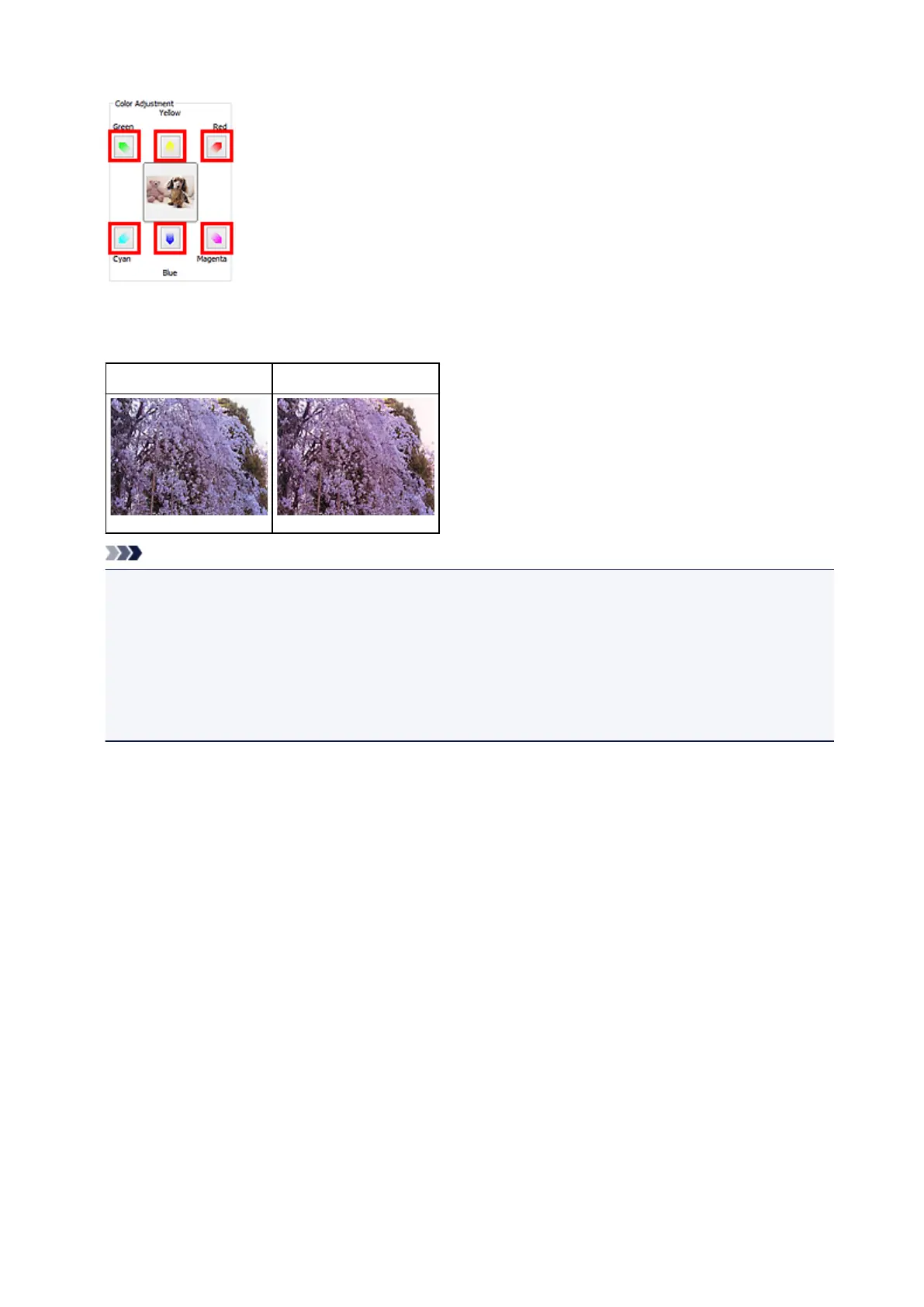
Preview image appears in the center. Preview image colors change as you adjust them.
Below is an example of correcting a bluish image.
Since Blue and Green are too strong, click the Yellow and Magenta arrows to correct.
Before After
Note
•
Color adjustments are applied only to the cropping frames (scan areas) or the frame selected in
thumbnail view.
•
You can select multiple frames or cropping frames by clicking them while pressing the Ctrl key.
•
You can also select a color tone from the color pattern displayed on the left of the Color Pattern
screen.
•
You can also use this function to add a specific tint to an image. Increase the magenta to add a warm
tint, and increase the blue to add a cool tint.
518













 To Next Page