CS 7200 User and Installation Guide (6M0940)_Ed04 37
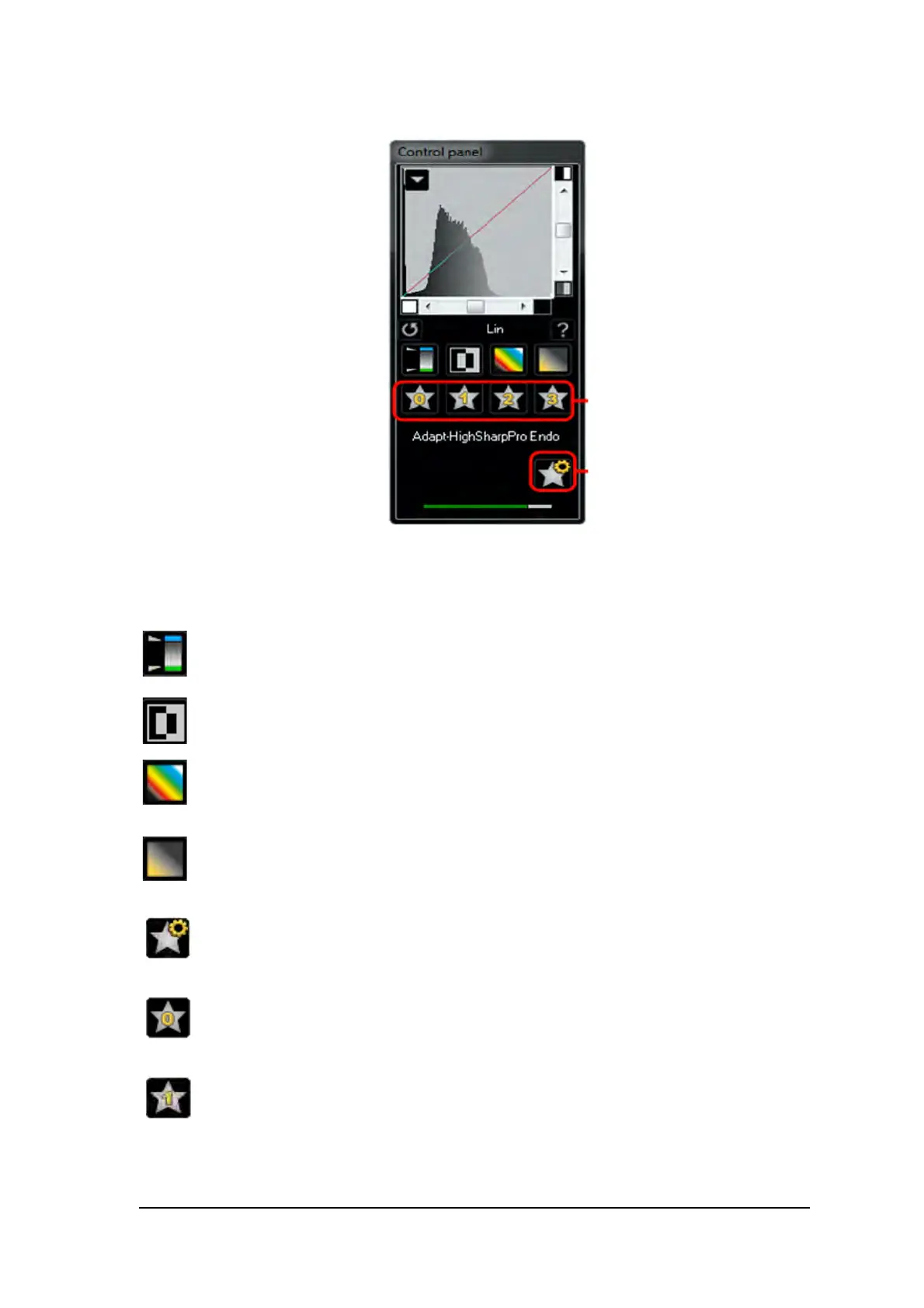
Figure 8 Control Panel with CS Adapt Buttons
Control Panel: enables you to adjust the brightness and contrast of the image. For more information on
Control Panel functions,
see the CS Imaging Software Online Help.
Optiview:Maps pure black to blue and pure white to green, leaving other shades
unchanged.
Negative: Displays the image as a photo negative.
Colors #1: Maps pure black to blue and pure white to red.
Colors #2: Maps middle-gray to orange and leaves pure white and pure black in their
original states.
CS Adapt Library: Opens the CS Adapt Library software that allows to manage your
filters.
Adapt - Unfiltered Perio: Enhances the display of periodontal tissue.
Adapt - Unfiltered Endo1: Enhances contrast at the canals and roots (produces brighter
images).


 To Next Page