Note
• The subscripts appended to the values shown in the examples indicate the base
(number mode) of each value.
Example: 1
2
... Binary 1; 1
16
... Hexadecimal 1
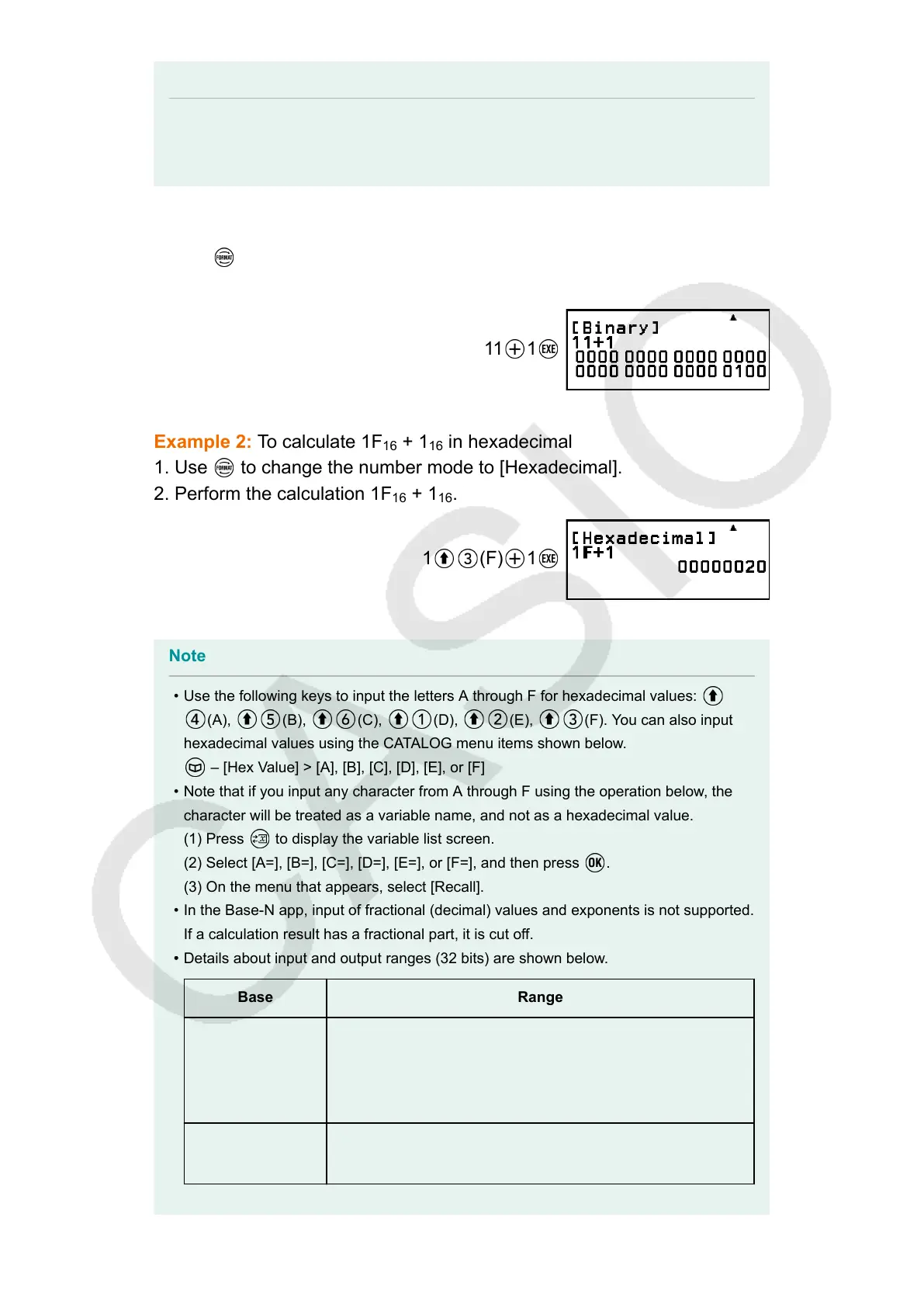
Example 1: To calculate 11
2
+ 1
2
1. Use to change the number mode to [Binary].
2. Perform the calculation 11
2
+ 1
2
.
11 1
Example 2: To calculate 1F
16
+ 1
16
in hexadecimal
1. Use
to change the number mode to [Hexadecimal].
2. Perform the calculation 1F
16
+ 1
16
.
1 (F) 1
Note
• Use the following keys to input the letters A through F for hexadecimal values:
(A), (B), (C), (D), (E), (F). You can also input
hexadecimal values using the CATALOG menu items shown below.
– [Hex Value] > [A], [B], [C], [D], [E], or [F]
• Note that if you input any character from A through F using the operation below, the
character will be treated as a variable name, and not as a hexadecimal value.
(1) Press to display the variable list screen.
(2) Select [A=], [B=], [C=], [D=], [E=], or [F=], and then press
.
(3) On the menu that appears, select [Recall].
• In the Base-N app, input of fractional (decimal) values and exponents is not supported.
If a calculation result has a fractional part, it is cut off.
• Details about input and output ranges (32 bits) are shown below.•
Base Range
Binary
Positive: 00000000000000000000000000000000 ≤ x ≤
01111111111111111111111111111111
Negative: 10000000000000000000000000000000 ≤ x ≤
11111111111111111111111111111111
Octal
Positive: 00000000000 ≤ x ≤ 17777777777
Negative: 20000000000 ≤ x ≤ 37777777777
112


 To Next Page