2. Configure settings to generate a number table from two functions.
(1) Press , and then select [Table Type] > [f(x)/g(x)].
(2) Press
.
• For information about settings, see "Maximum Number of Rows in a
Number Table According to Table Type" (page 96).
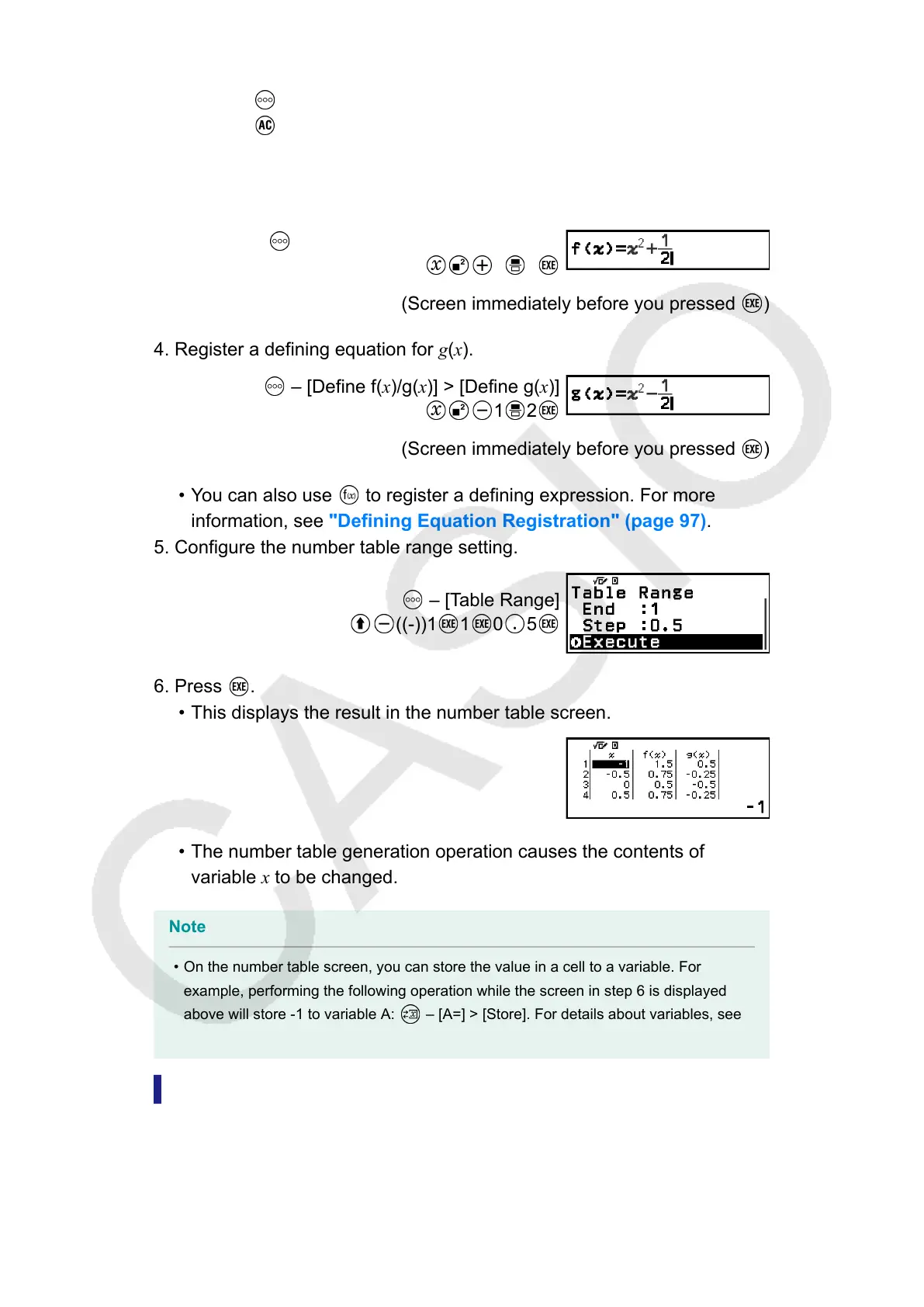
3. Register a defining equation for f(x).
– [Define f(x)/g(x)] > [Define f(x)]
1 2
(Screen immediately before you pressed )
4. Register a defining equation for g(x).
– [Define f(x)/g(x)] > [Define g(x)]
1 2
(Screen immediately before you pressed )
• You can also use to register a defining expression. For more
information, see "Defining Equation Registration" (page 97).
5. Configure the number table range setting.
– [Table Range]
((-))1 1 0 5
6. Press .
• This displays the result in the number table screen.
•
The number table generation operation causes the contents of
variable x to be changed.
Note
• On the number table screen, you can store the value in a cell to a variable. For
example, performing the following operation while the screen in step 6 is displayed
above will store -1 to variable A: – [A=] > [Store]. For details about variables, see
"Variables (A, B, C, D, E, F, x, y, z)" (page 36).
Maximum Number of Rows in a Number Table
According to Table Type
You can configure number table screen settings to show columns for both
f(x) and g(x), or for either one of them. To set it, use the menu that
96


 To Next Page