• This displays the Matrix Editor with the contents of the copy
destination.
3. Press , , or to return to the matrix calculation screen.
Matrix Answer Memory (MatAns)
Whenever the result of a calculation executed in the Matrix app is a matrix,
the MatAns screen will appear with the result. The result also will be stored
to a variable named "MatAns".
The MatAns variable can be used in calculations as described below.
• To insert the MatAns variable into a calculation, perform the following
operation: – [Matrix] > [MatAns].
• Pressing any one of the following keys while the MatAns screen is
displayed switches automatically to the matrix calculation screen, with
"MatAns" followed by the operator or function of the key you pressed:
, , , , , , , ( ), ( ).
Note
• MatAns contents are retained even if you press or turn off the calculator.
Performing any one of the operations below causes the MatAns contents to be
cleared.
- Returning to the HOME screen and launching another calculator app
- Executing
– [Reset] > [Settings & Data]
- Executing – [Reset] > [Initialize All]
Matrix Calculation Examples
The examples below use MatA =
, MatB = , MatC =
, MatD = .
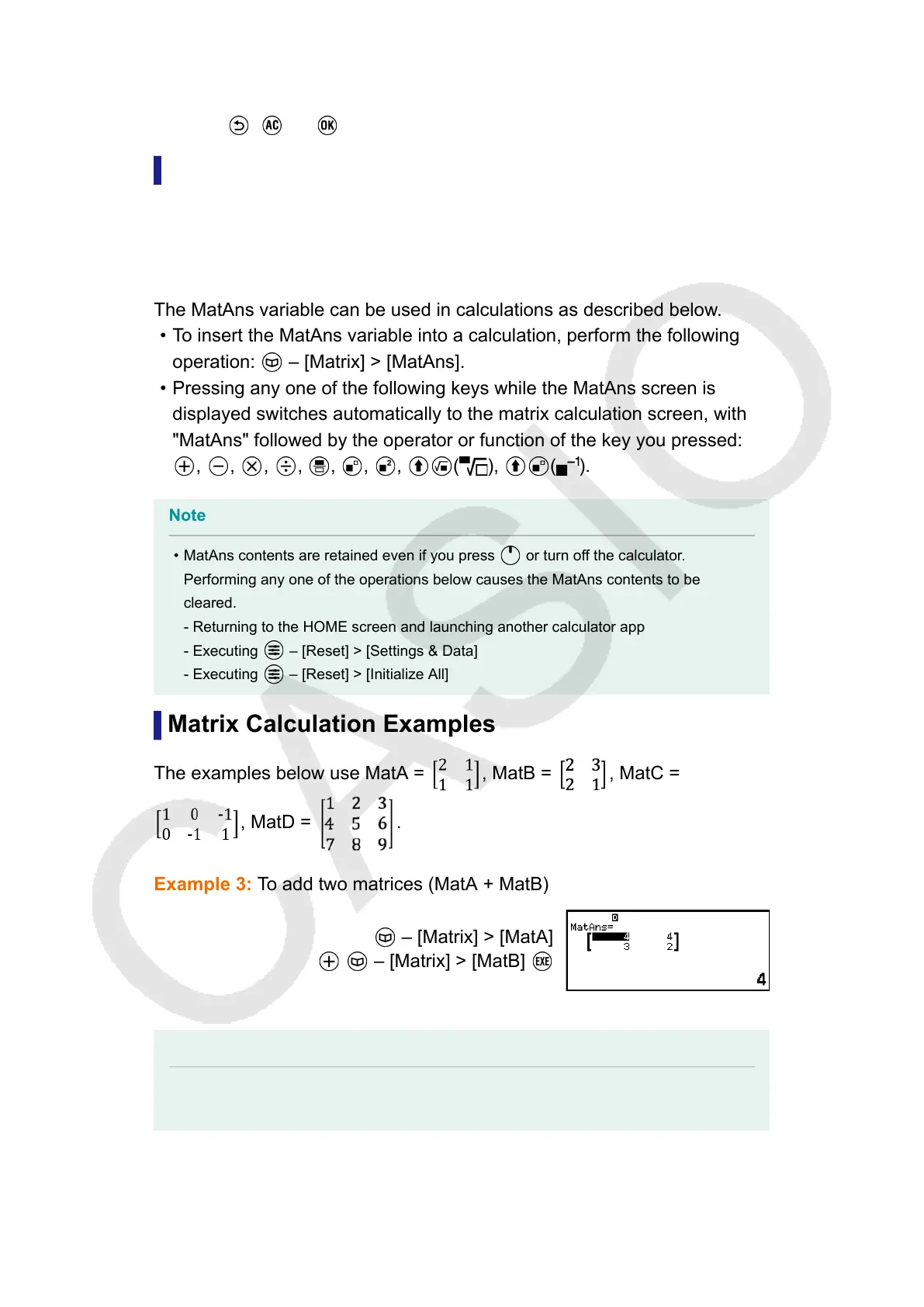
Example 3: To add two matrices (MatA + MatB)
– [Matrix] > [MatA]
– [Matrix] > [MatB]
Note
• The two matrices must have the same dimensions in order to be added or subtracted.
An error occurs if you try to add or subtract matrices of different dimensions.
Example 4: To square and cube MatA (MatA
2
, MatA
3
)
119


 To Next Page