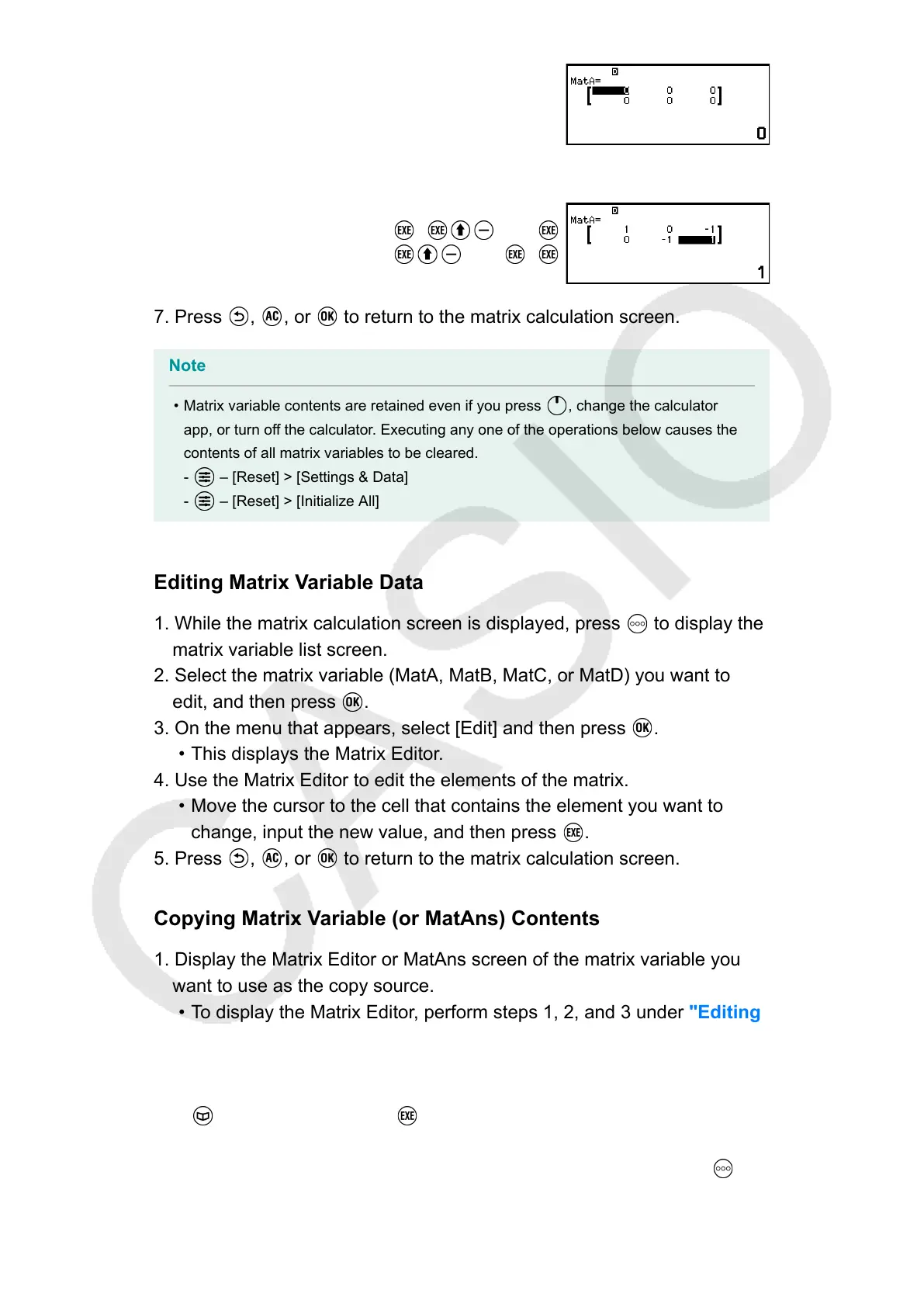
6. Input the elements of the matrix variable.
1 0 ((-))1
0 ((-))1 1
7. Press , , or to return to the matrix calculation screen.
Note
• Matrix variable contents are retained even if you press , change the calculator
app, or turn off the calculator. Executing any one of the operations below causes the
contents of all matrix variables to be cleared.
- – [Reset] > [Settings & Data]
- – [Reset] > [Initialize All]
Editing Matrix Variable Data
1. While the matrix calculation screen is displayed, press
to display the
matrix variable list screen.
2. Select the matrix variable (MatA, MatB, MatC, or MatD) you want to
edit, and then press
.
3. On the menu that appears, select [Edit] and then press .
• This displays the Matrix Editor.
4. Use the Matrix Editor to edit the elements of the matrix.
• Move the cursor to the cell that contains the element you want to
change, input the new value, and then press .
5. Press , , or to return to the matrix calculation screen.
Copying Matrix Variable (or MatAns) Contents
1. Display the Matrix Editor or MatAns screen of the matrix variable you
want to use as the copy source.
•
To display the Matrix Editor, perform steps 1, 2, and 3 under "Editing
Matrix Variable Data" (page 118).
•
To display the MatAns screen, perform the steps below while the
matrix calculation screen is displayed.
– [Matrix] > [MatAns]
2. Select the matrix variable copy destination.
•
For example, to copy to MatD, perform the following operation: –
[Store] > [MatD].
118


 To Next Page