(2) None
Indicates that nothing is stored to the matrix variable.
Displaying the matrix variable list screen
Depending on the currently displayed screen, perform one of the
operations below.
• When the matrix calculation screen is displayed:
Press .
• When the Matrix Editor or MatAns screen is displayed:
Press , select [Define Matrix], and then press .
Storing New Data to a Matrix Variable
Example 2: To store the 2×3 matrix
1. While the matrix calculation screen is displayed, press to display the
matrix variable list screen.
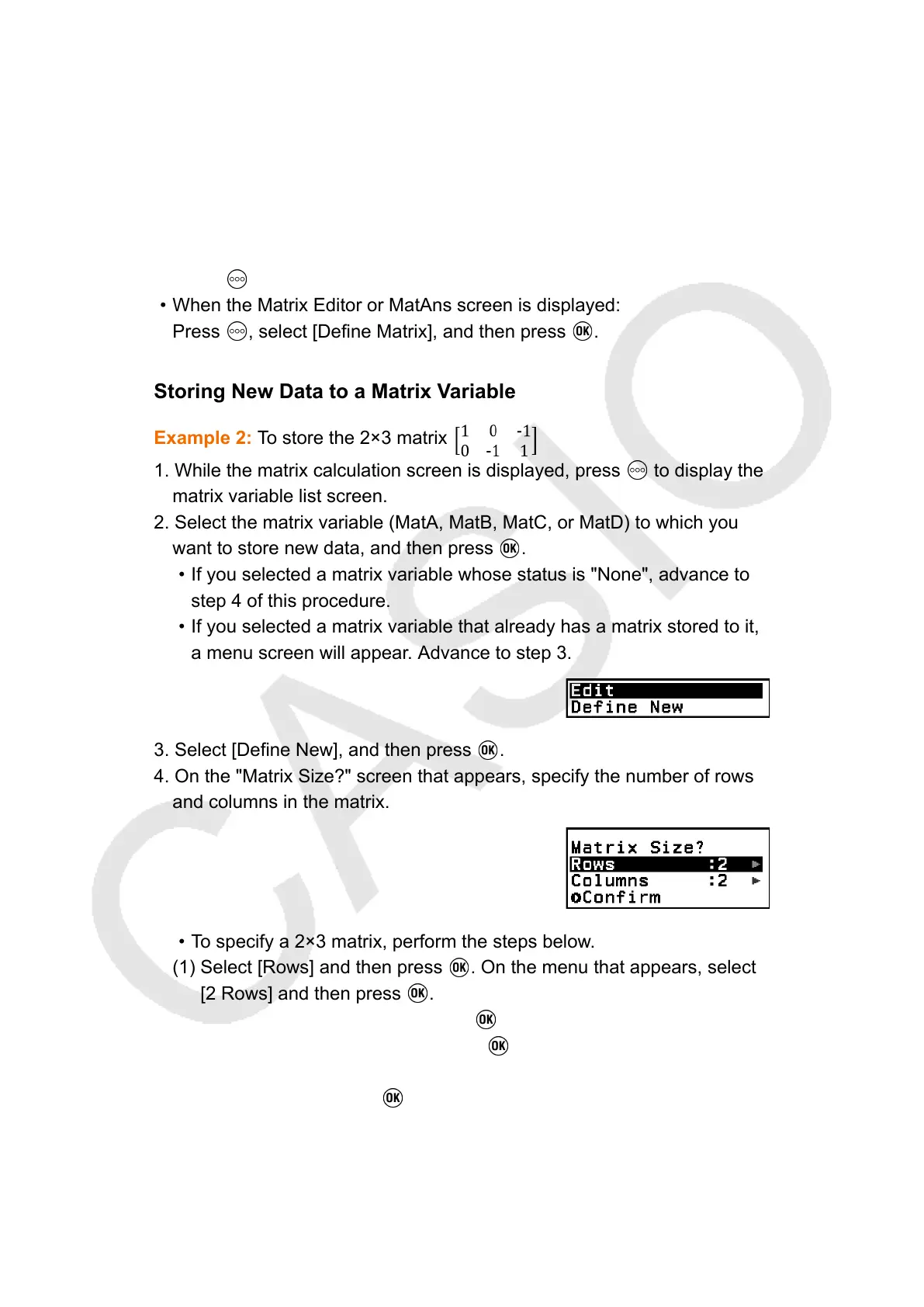
2. Select the matrix variable (MatA, MatB, MatC, or MatD) to which you
want to store new data, and then press .
• If you selected a matrix variable whose status is "None", advance to
step 4 of this procedure.
• If you selected a matrix variable that already has a matrix stored to it,
a menu screen will appear. Advance to step 3.
3. Select [Define New], and then press .
4. On the "Matrix Size?" screen that appears, specify the number of rows
and columns in the matrix.
•
To specify a 2×3 matrix, perform the steps below.
(1) Select [Rows] and then press . On the menu that appears, select
[2 Rows] and then press .
(2) Select [Columns] and then press . On the menu that appears,
select [3 Columns] and then press .
5. After the row and column specifications are the way you want, select
[Confirm] and then press
.
•
This displays the Matrix Editor.
117



 To Next Page