expression (such as 7+3, sin30, A1×2, etc.) that does not have an equal
sign (=) in front of it.
Formulas: A formula that starts with an equal sign (=), such as =A1×2, is
executed as it is written.
Note
• A maximum of 49 bytes can be input into a cell (number of bytes before the input is
confirmed by pressing ) that is being edited. How the number of bytes is counted is
shown below.
- Numerals, variables, symbols: 1 byte per character
- Commands, functions: 1 byte each
Each entire command or function is counted as one byte. For example, the following
are one byte: "√ (", "Sum(".
• The number of bytes consumed after the input is confirmed is as shown below,
according to the contents entered in each cell.
- Constants: 14 bytes, regardless of the number of input digits*
- Formulas: Number of input bytes (49 bytes maximum) + 15 bytes
* If you enter a constant with 11 or more significant digits, the value will be converted
to 10 significant digits when the input is confirmed.
Example: If you input 12345678915 (11 digits), the value will be converted to
1.234567892 x 10
10
(10 digits).
To display the remaining input capacity
Press
, select [Available Memory], and then press .
Inputting a Constant and Formula into a Cell
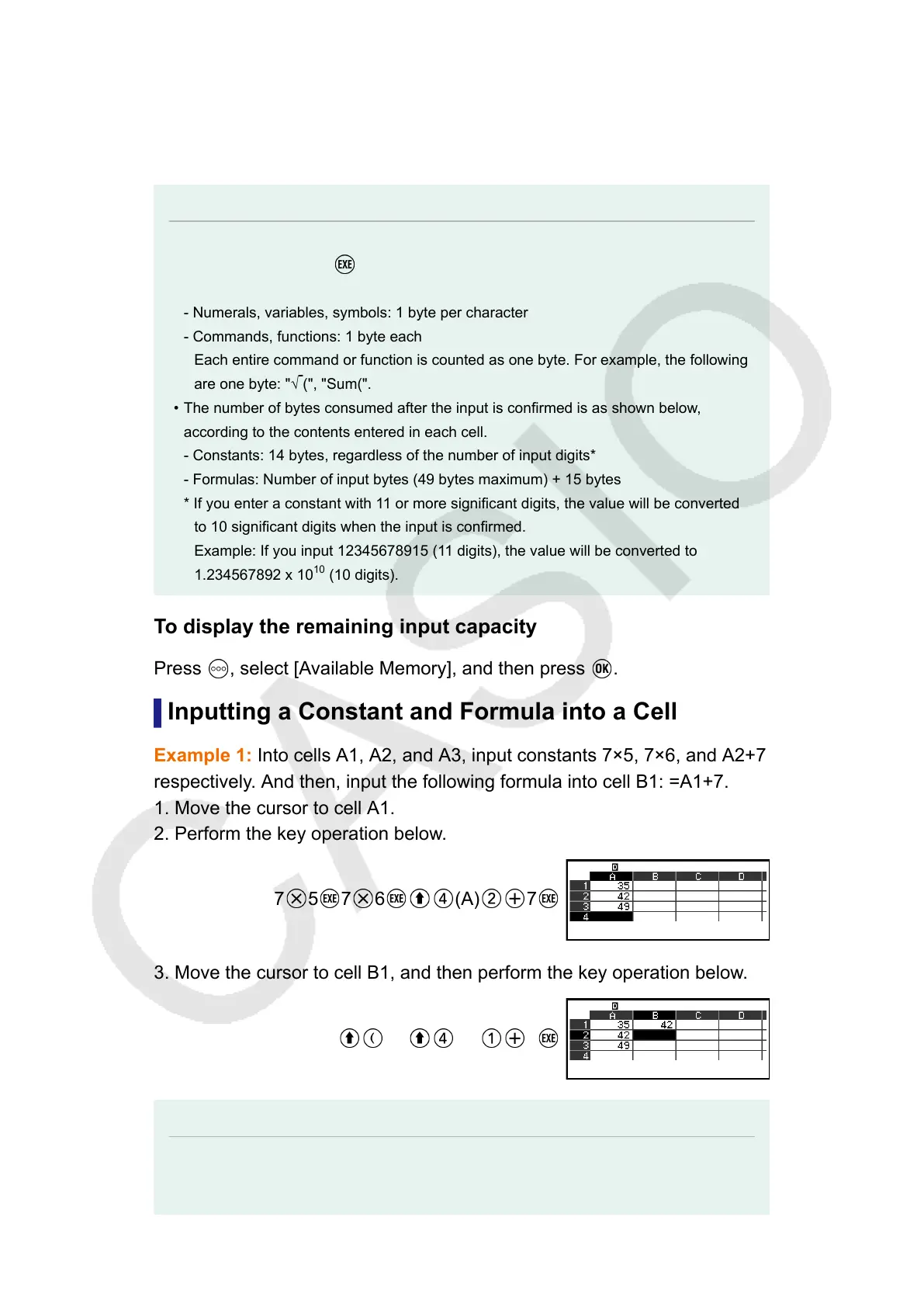
Example 1: Into cells A1, A2, and A3, input constants 7×5, 7×6, and A2+7
respectively. And then, input the following formula into cell B1: =A1+7.
1. Move the cursor to cell A1.
2. Perform the key operation below.
7 5 7 6 (A) 7
3. Move the cursor to cell B1, and then perform the key operation below.
(=) (A) 7
Note
• On the spreadsheet screen, you can store the value in a cell to a variable. For
example, performing the following operation while the screen in step 3 is displayed will
89


 To Next Page