Auto Calc and Recalculate
"Auto Calc" is a setting item on the TOOLS menu (see "Spreadsheet App
Setting Items" (page 94)).
With the Spreadsheet app’s initial default setting (Auto Calc: On), formulas
in a cell are automatically re-calculated each time the cell contents are
edited. Depending on the content of the spreadsheet, auto re-calculation
can take a long time to complete. When Auto Calc is disabled (Off), you
need to execute re-calculation manually as required.
To execute re-calculation manually
Press
, select [Recalculate], and then press .
Note
• Even if the Auto Calc setting is On, you should execute [Recalculate] in the cases
below.
- When the SETTINGS menu is used to change the Angle Unit setting
- When a cell contains a formula using the function "f(" or "g(" and the corresponding
defining equation (f(x) or g(x)) is updated
- When a cell contains a formula using a variable and the corresponding variable is
updated
Creating a Number Table
You can use the Table app to create a number table based on the defining
equations registered for functions f(x) and g(x).
General Procedure for Creating a Number Table
Example : To generate a number table for the functions f(x) = x
2
+
1
2
and
g(x) = x
2
-
1
2
for the range -1 ≤ x ≤ 1, incremented in steps of 0.5
1. Press
, select the Table app icon, and then press .
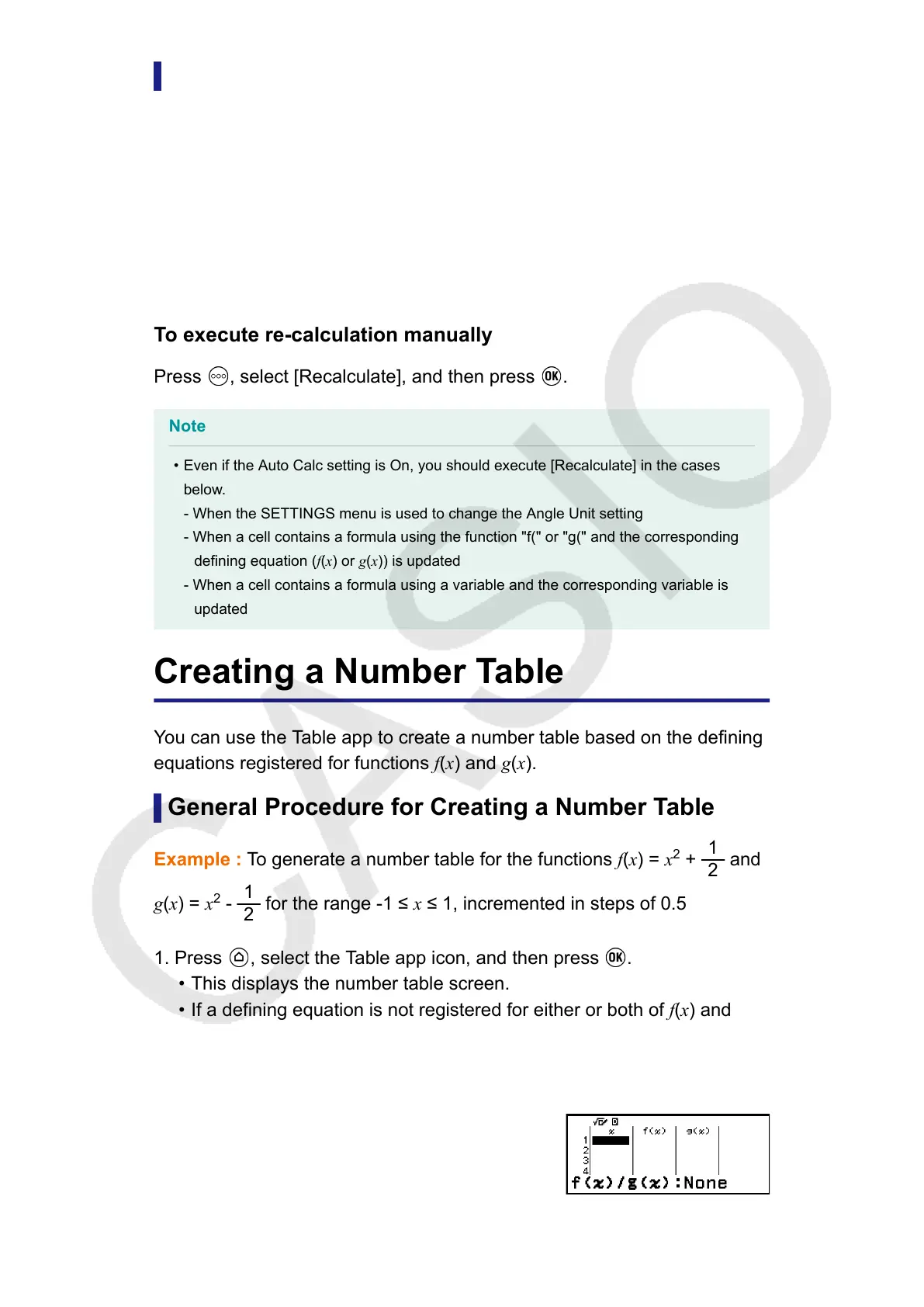
• This displays the number table screen.
•
If a defining equation is not registered for either or both of f(x) and
g(x) and the data at the cursor selection position is empty, a message
will appear at the bottom of the screen indicating that the defining
equation is not registered.
95


 To Next Page