30
Users
Users
The name of the user that is logged in is displayed at the top right corner of the screen. Users can be activated by
disabling “Auto Login.” While there may be multiple administrator, standard and basic users, every system must
maintain at least one administrator.
Enable Users/User Groups
Auto login occurs until “Auto Login” is disabled. An administrator must be logged in to disable Auto Login.
1. From the Home screen, press the System Menu icon in the top right corner of the screen.
2. Press “Users.”
3. Press the Settings tab.
4. Change the “Enable User” toggle to off.
• If Auto Login is set to “OFF”, the operator will have to choose a user and login each time the system is
powered on.
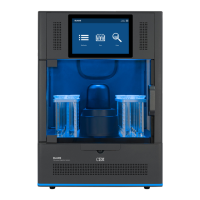
• If Auto Login is set to “ON”, the Home Screen will be displayed once the BLADE completes the initial power
up.
5. Press the Save icon. The next time the power is cycled, a log-in screen will appear.
Create User
Only an administrator can create a new user.
1. From the Home screen, press the System Menu icon in the top right corner of the screen.
2. Press “Users.”
3. Press the New icon in the upper right corner.
4. Enter the “ID” and “Name.”
5. Assign the user as an administrator, standard or basic.
6. Ensure that “Enabled” is toggled on.
7. Press “OK”.
8. Using the keypad, enter the desired password and press “OK”.
9. Re-enter the password and press “OK” to save.
10. The software will indicate that an additional user has been entered into the database.
11. Additional users can be added at this time.
Edit/Delete User
Only an administrator can edit/delete a user.
1. From the Home screen, press the System Menu icon in the top right corner of the screen.
2. Press “Users.”
3. Select the user to edit/delete.
4. Press the Edit icon or Delete icon.
• If Edit is pressed, make the appropriate changes, and press the Save icon.
• If Delete is pressed, conrm that the user wishes to delete the selected user.


 To Next Page