32
System Settings
System Settings
Customize System Settings
System settings are determined by the administrator(s); therefore, an administrator must be logged in as the
current user to adjust the settings. Changes made to these settings will be applied for all users.
1. Press the System Menu icon in the top right corner of the screen.
2. Press “Settings” and then press the Localization tab.
3. If English is not the preferred language, press Language to scroll through and select the applicable system
language.
NOTE
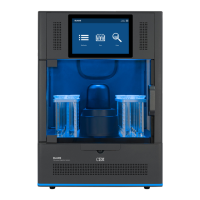
If the language is changed, the BLADE will reboot once the Save icon is selected.
4. Press Date Format to enter the desired format for displaying the date (MM/DD/YYYY, DD/MM/YYYY or YYYY/
MM/DD).
5. Press Time Format to enter the desired format for displaying the time (12 Hour or 24 Hour).
6. Press Date/Time, and set the correct Date and Time.
7. Additional System Settings can be adjusted at this time.
8. Press the Back icon to return to the Home Screen.
Image Capture
The Image Capture option takes an image of the vessel once cooling is complete but before the vial is removed
from the cavity. Activating the Image Capture option saves the image with the associated run data. The image can
be viewed from the run data screen or by exporting the method to a pdf. The image capture is defaulted to OFF.
Only an administrator can turn the Image Capture ON/OFF.
1. Press the System Menu icon in the top right corner of the screen.
2. Press “Settings” and then press the Run tab.
3. Locate “Image Capture” and toggle to ON.


 To Next Page