36
Software Update
Software Update
How to Update Software
The software/rmware should be updated when a revised version is released. The software/rmware can be
obtained from CEM’s website www.cem.com. One user should be responsible for updating the software.
1. Using a computer, create a folder titled “CEM” on the USB.
2. Download the BLADE software and copy into the “CEM” folder on the USB.
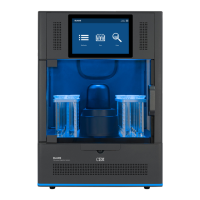
3. Insert the USB containing the software update bundle (*.cib) into the USB port located on the side of the unit.
4. Press the System Menu icon in the top right corner of the screen.
5. Press “Tools.”
6. Press “System Update.”
7. Select the available software version and highlight the latest software version.
NOTE
If contents of the USB do not appear within ten (10) seconds, then the USB may need to be
reformatted to FAT32. Contact CEM Corporation for details.
8. Press “Install.” The software will begin updating, and the system will automatically restart.
9. Upon restart, verify the software version. Press the “System Menu” > “Information” > “System.”


 To Next Page