40
1. Using your smartphone, navigate to https://m.chargepoint.com.
2. Log into the ChargePoint mobile site from your smartphone with your installer login.
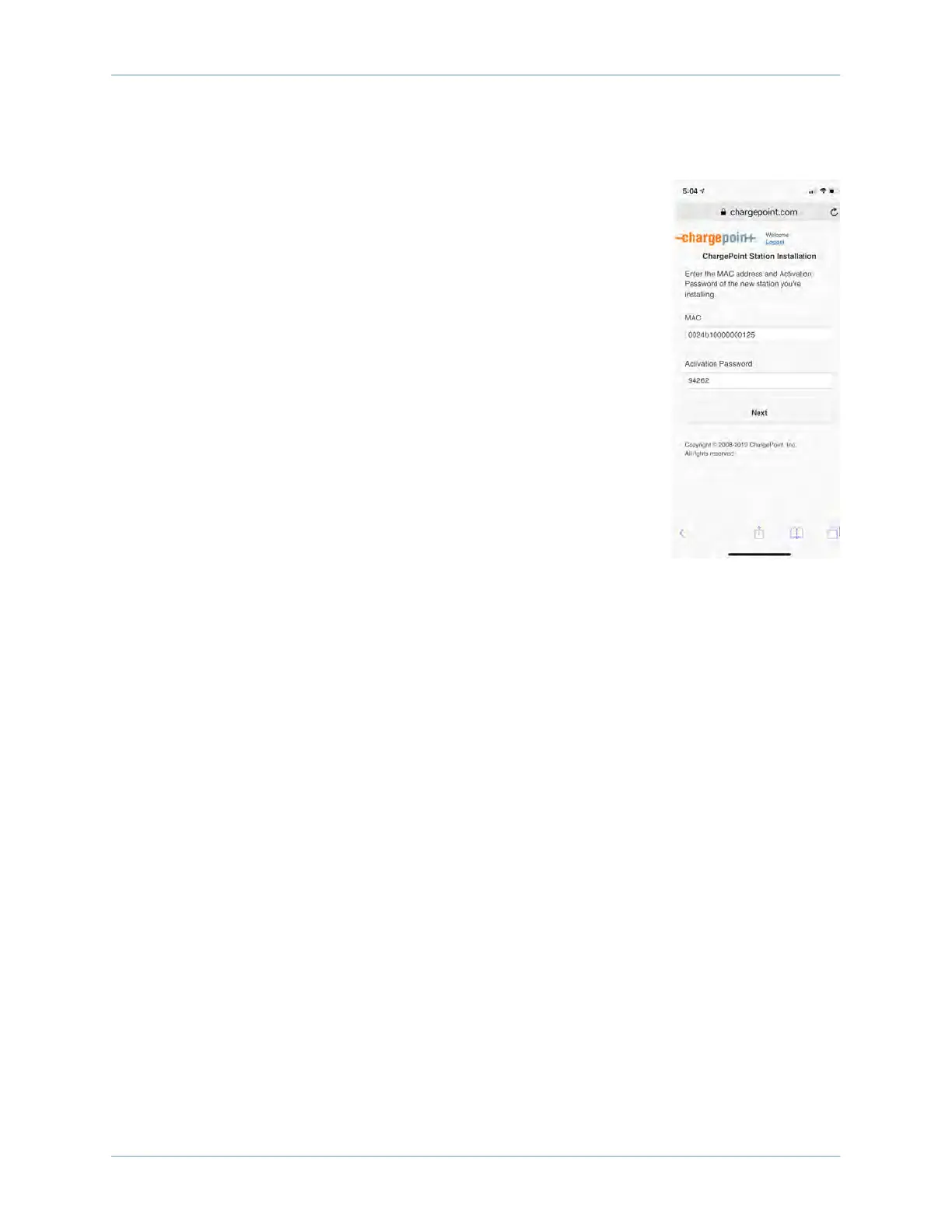
3. Enter the MAC address and activation password printed on the
activation label, and touch Next.
4. Confirm that you are installing a new charging station.
5. When prompted, touch OK to share your GPS location data with the
ChargePoint mobile site.
6. When prompted, touch OK to review the station’s location on Google
TM
Maps.
7. Review the station address and zoom in to review the initial position of
the station’s pin on the map.
8. Using your finger, move the pin to the correct parking spot location.
9. If needed, manually adjust the address of the CPF50 location.
10. Take a picture of the station using your smartphone.
11. Scroll down to “Upload a Station Picture” and choose the station
picture.
12. Add any helpful information for drivers.
13. Touch Submit to pinpoint the CPF50 on the ChargePoint map. The
mobile page displays a 3-digit PIN code.
Start a Charging Session
Once the pinpointing is complete, use the ChargePoint app to start a test session. Verify that you
can:
• Initiate a charging session
• Plug the handle into a vehicle or a vehicle emulator (if available)
• Return the handle to the holster



 To Next Page