Configuring the Routing Table
R81.10.X Quantum Spark 1500, 1600, 1800, 1900, 2000 Appliances Centrally Managed Administration Guide|219
Route Monitoring
Above the IPv4 Routing table, click Monitor.
Explanation
The Route Monitoring window opens.
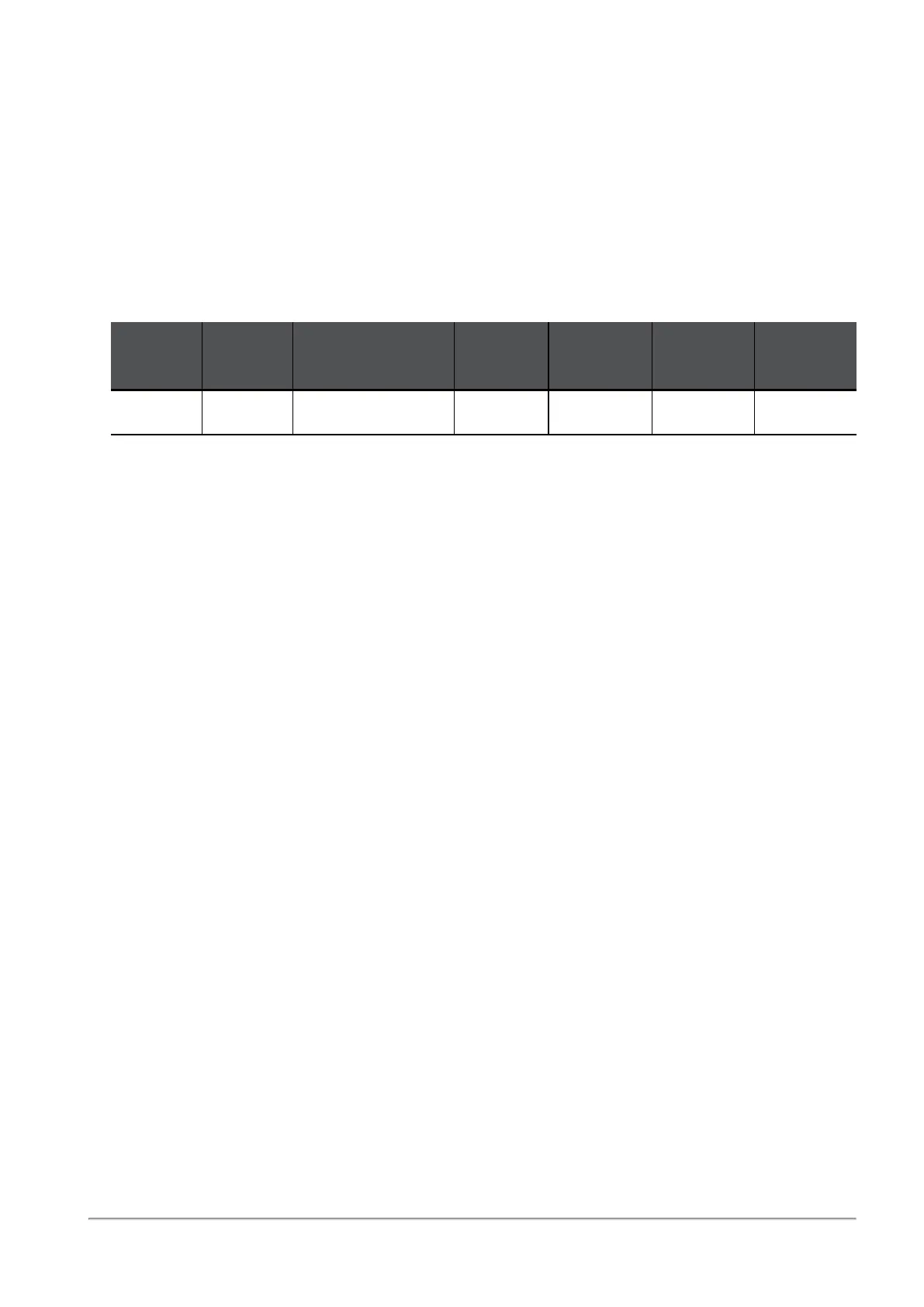
Every row represents a server that the route probes to and its statistics.
Example:
Next
Hop
Route
Status
Server
Packet
Loss
Failures
Min
Latency
Avg.
Latency
1.1.1.1 Active dns.google.com 0 0 4 5.7
Each monitored route can have a maximum of 3 rows (one for each server).
Route Status:
n
Active (green)
n
Inactive (red)
n
Reconnecting (orange)
Managing Installed Certificates
On the Installed Certificates page, you can create and manage appliance certificates or
upload a P12 certificate. Uploaded certificates and the default certificates are displayed in a
table. To see certificate details, click the certificate name.
You can upload a certificate signed by an intermediate CA or root CA. All intermediate and root
CAs found in the P12 file are automatically uploaded to the trusted CAs list.
On the Device > Device Details page, you can select and assign a Web portal certificate from
the list of installed certificates (with the exception of the Default certificate). The new certificate
must be configured on the Installed Certificates page first.
Installed certificates are used in the Web portal.
To export the signing request:
Click Export.






 To Next Page