Advanced Configuration
R81.10.X Quantum Spark 1500, 1600, 1800, 1900, 2000 Appliances Centrally Managed Administration Guide|301
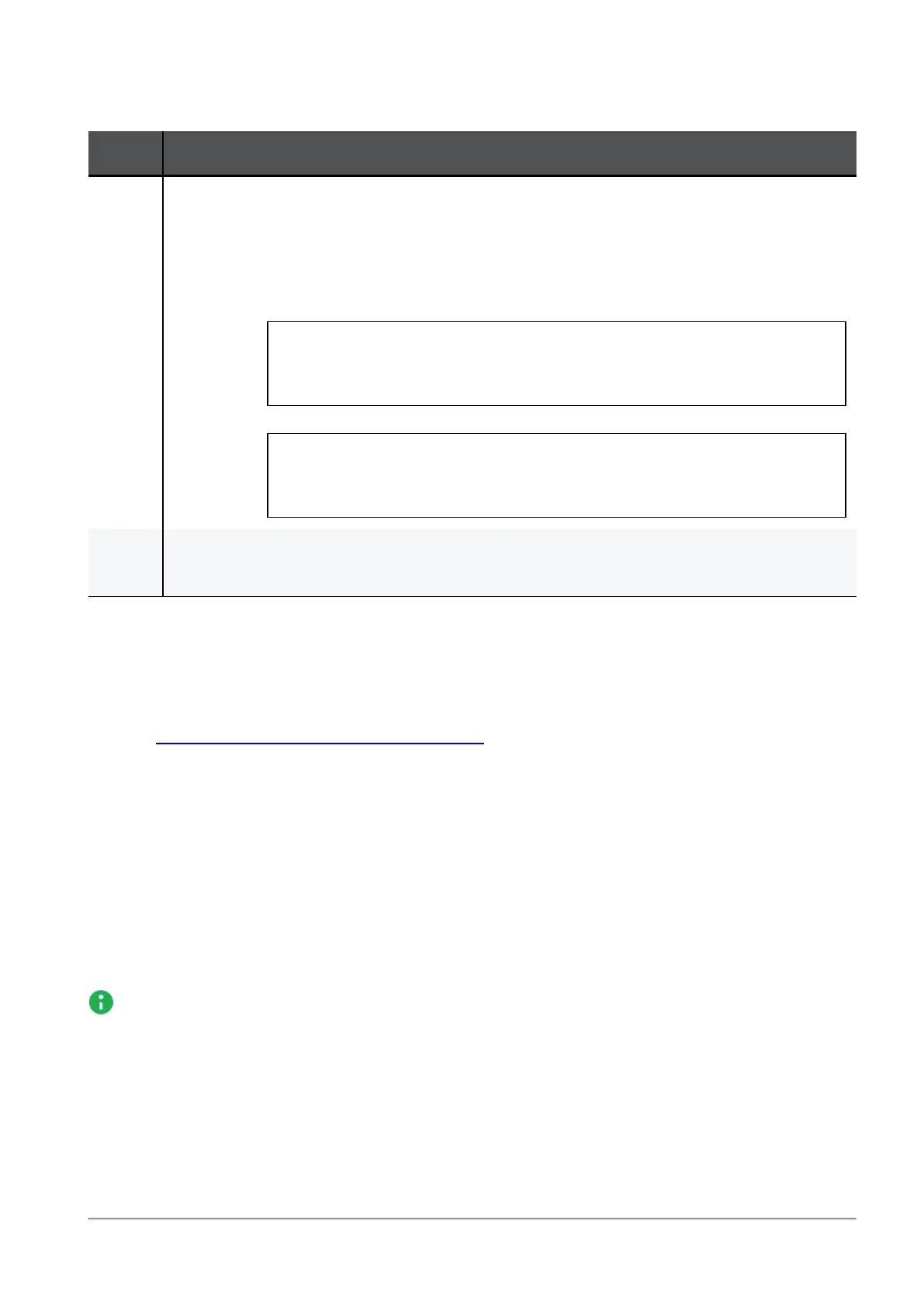
Accessing SmartUpdate
Step Instructionss
1 Open the SmartUpdate in one of these ways:
n
In SmartConsole, in the top left corner, click Menu > Manage licenses &
packages.
n
On the SmartConsole client, run this executable file directly:
l
On Windows OS 32-bit:
C:\Program
Files\CheckPoint\SmartConsole\<Rxx>\PROGRAM\SmartDistributo
r.exe
l
On Windows OS 64-bit
C:\Program Files
(x86)\CheckPoint\SmartConsole\<Rxx>\PROGRAM\SmartDistributo
r.exe
2 In the top left corner, click Menu > View > Menu Bar.
The menu names appear at the top of the GUI.
Upgrading in SmartProvisioning
If you manage your appliance in SmartProvisioning using a SmartProvisioningProfile, then you
can install a firmware package in SmartProvisioning.
See the
SmartProvisioning Administration Guide
for your version >Chapter "Security Profiles
for Small Office Appliances Gateways" > Section "Creating a Small Office Appliances
Gateway in SmartProvisioning" > Section "Configuring Firmware in a Provisioning Profile for
Small Office Appliances".
Upgrade Using a USB Drive
This section explains how you can upgrade the appliance with a USB drive without a console
connection to the appliance. For more information, see
"Upgrade Using Boot Loader" on
page307
.).
Note - A USB storage device used for clean installation of a new image on the 1500
series must be formatted with the FAT32 file-system.






 To Next Page