-Print Using Application Programs
1. Specify the paper as 53.98mm x 85.60mm to print cards using application
programs e.g. Excel, Word.
2. Click “Print” in the “File” menu to open the print settings.Select “Card
Printer” in the settings and click “Print” or “OK” to print.
Make sure that the orientation of the image matches the print settings.
You can use the preview option to confirm the print output.
- You can cancel print jobs from either the application program or print spooler.
- If the card is jammed while printing, then press the "EJECT" button in the front
side of the printer.
Note
-Configure Printer Default Settings in
Application Programs
Each time you change the print settings in the application program, it will be
reset to the default settings when you exit the program.
Click “Print” in the “File” menu to open the print settings.
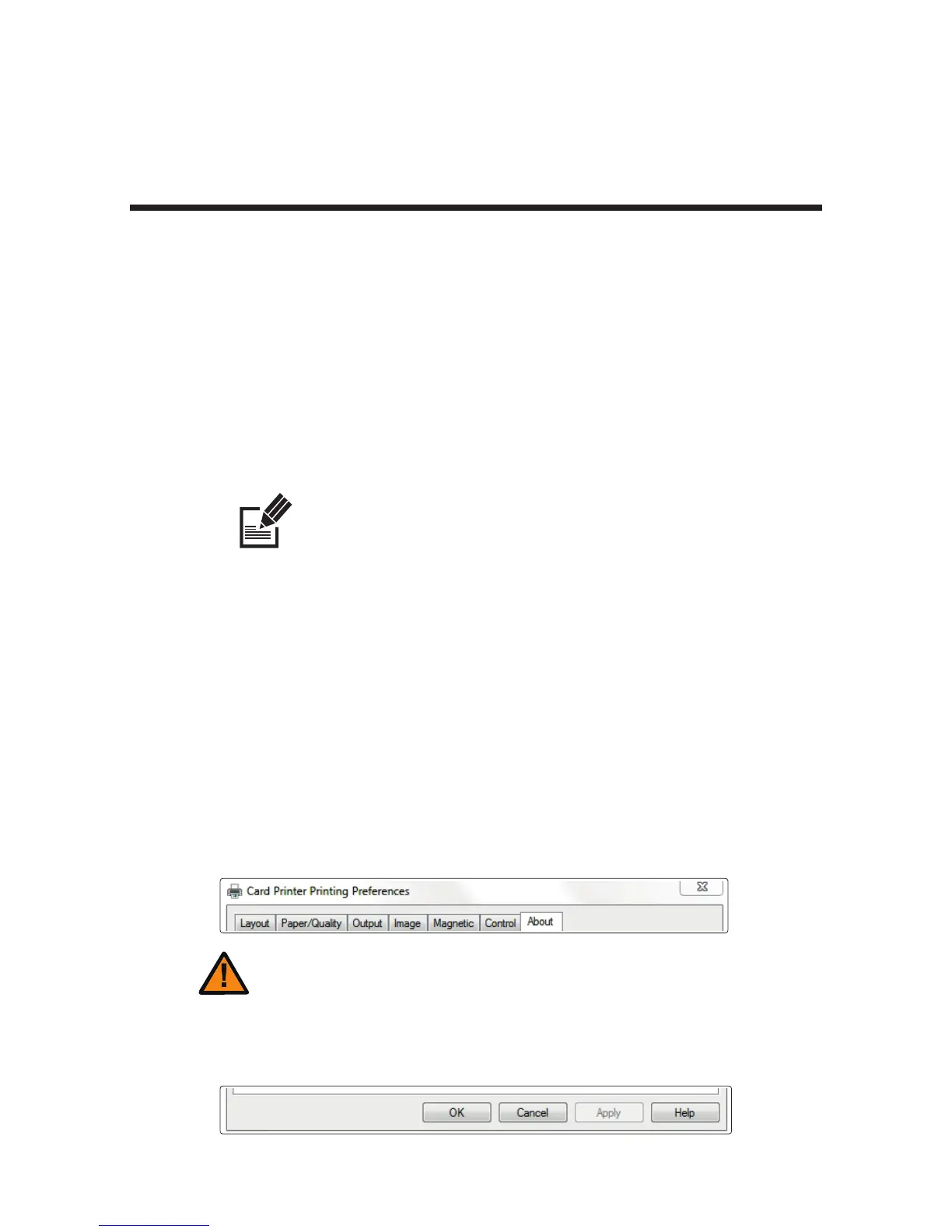
Go to “Printer Properties → Card Printer Printing Properties” in the printer
section and change the settings in the “Layout, Output, Image, Magnetic,
Control, and About” tabs. (Click each tab to open the settings.)
Click "OK" to complete the process.
The card printer does not use the "Paper/Quality" tab in the Card Printer
Document Properties.
Print Using Application Programs &
Configure Driver Settings
Caution
55
CIM User Guide Manual


 To Next Page