GE+ ACDC Installation and operation manual v11
84 / 121
The LCD touchscreen will freeze or unfreeze (illuminate) the available parts where
the user can introduce the parameters depending on the equipment (AC or DC and
voltage source or current source)
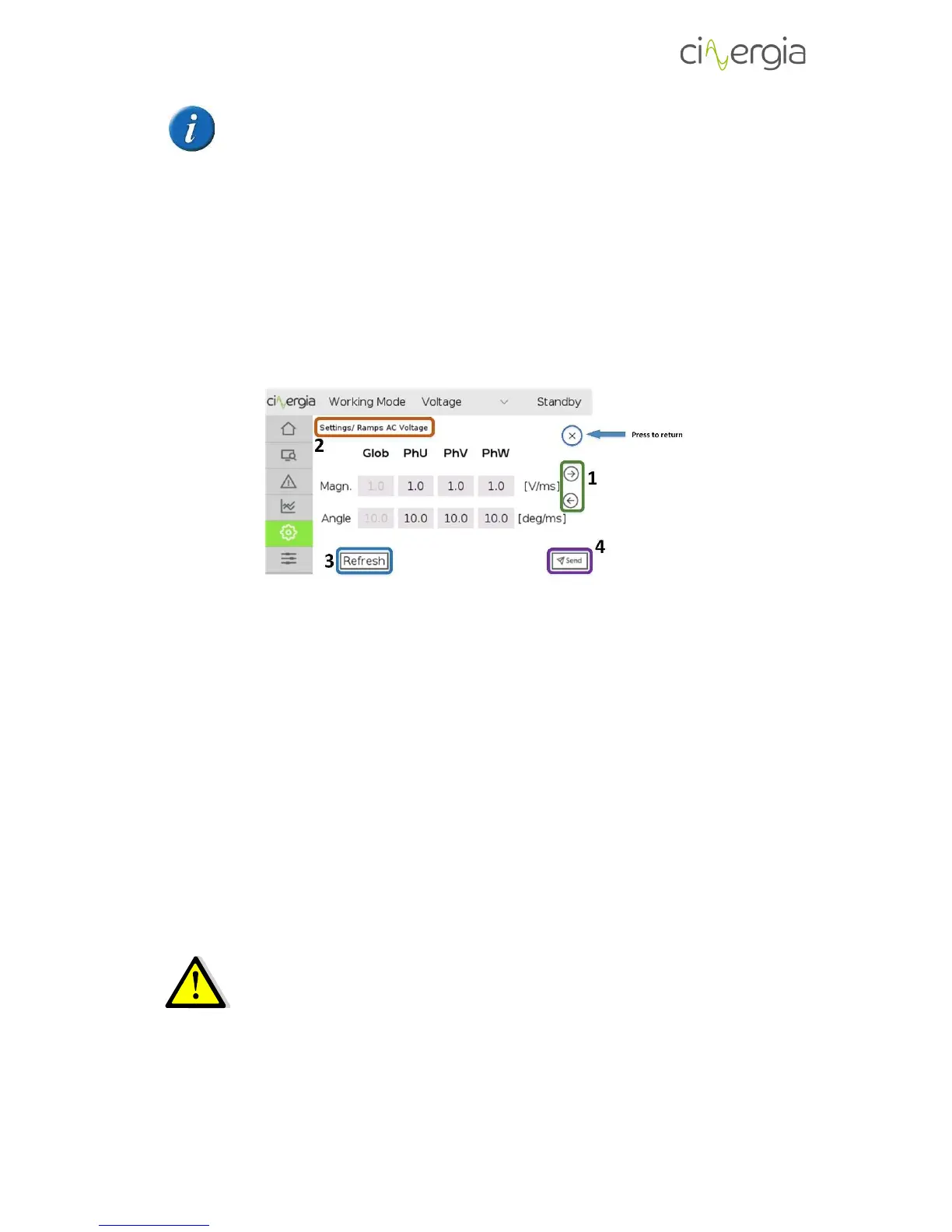
Each ramp window is practically the same, the main difference are the values to introduce. For
example, in AC there are differences between each channel whereas in DC, each ramp is for all
three channels at the same time. The interface allows to configure the three channels with
different values each one. Frequency ramp is also for all three channels at the same time. The
following image details one of these window with the buttons to navigate in it.
1. Change the ramp window with the left and right arrows.
2. The actual window is indicated so that the user can see which are the ramps to
introduce. For example, this image above is for the AC Voltage Ramps, and the
equipment is in voltage mode, so the values can be changed and the windows are
illuminated. However, the equipment is not in parallel mode, so the Global values are
frozen and the user cannot touch them.
To change the values, touch the number and the keyboard explained in the chapter 3.2.
Keyboard will appear.
3. Refresh button is used for show which are the ramps in the equipment. It is useful to
touch this button when the user sets new ramps in the converter to see if the new values
have been correctly introduced.
4. Press Send when all the values are ready in the window.
A setpoint with a ramp higher than 5A/ms will produce over peaks bigger than
10%.


 To Next Page