Page 10 | 53
2.3 Mouse Input
Operate the NVR using the mouse (left button, right button, and scroll wheel).
Left click
2. Inserts the cursor to enter or modify the value of a parameter
3.Click the timeline during playback to switch the playback progress
Right click
1. Interface not locking - accesses the system menu pop-up
2. Interface locking on a real-time preview interface - login interface pop up
3.When on the submenu returns the user to the previous menu
Switches between single and multi-screen when in the preview and playback state
Mouse drag
1. Rotates the direction when in the pan/tilt control state
2. Sets the area range when in the video occlusion alarm and motion detection alarm
area settings
3. Select the area for electronic zoom
4. Selections a channel and switches to other channel locations when in the preview
interface
5. Switches the playing video file in the progress bar
Scroll wheel
1. Allows time setting modification
2. Selects drop-down menu values
3. Switches preview channels
4. Zooms in and out of a video image
2.3 Mouse Input
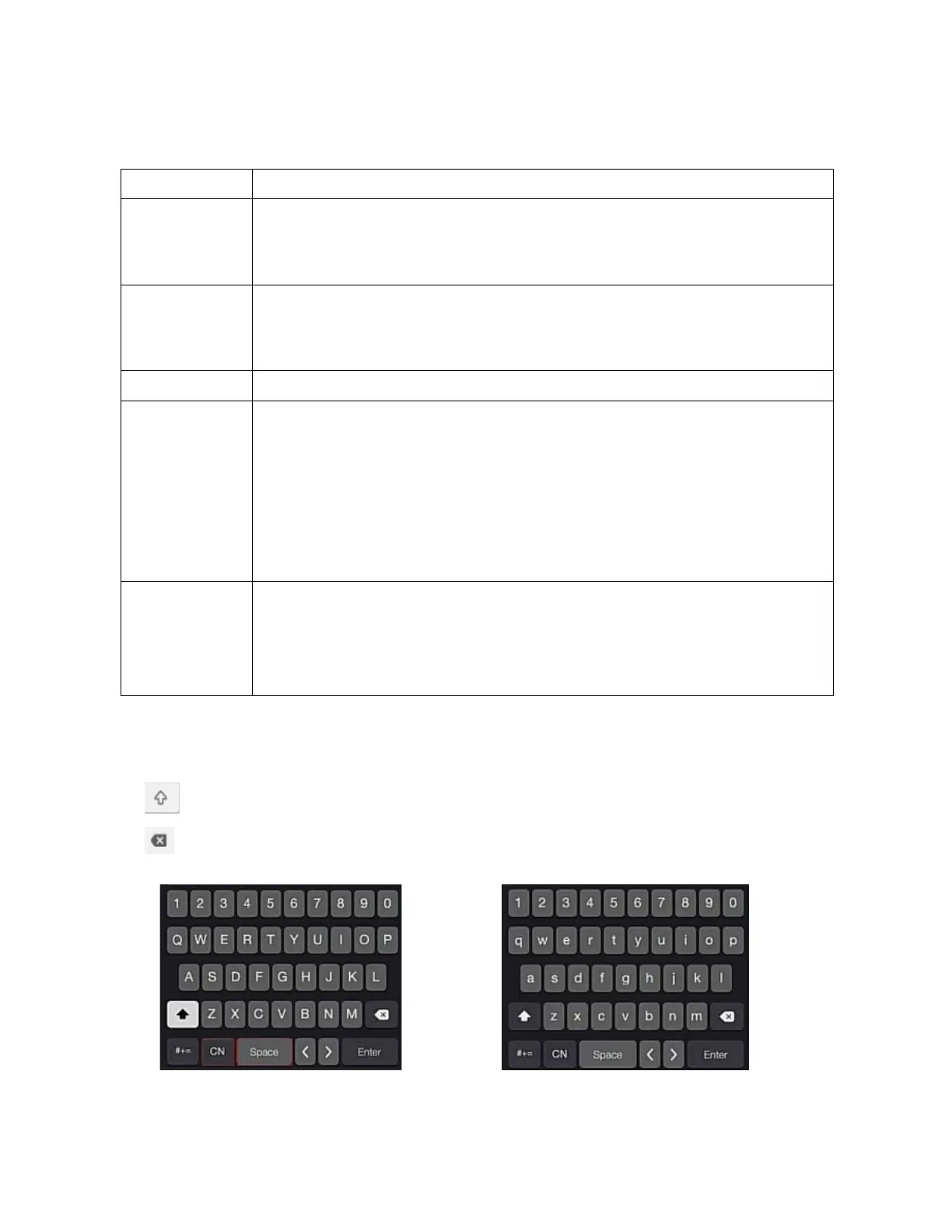
Input method includes lowercase and uppercase English letters.
Click on the left to switch the input method and symbol.
Click to backspace and delete incorrect/accidental input.


 To Next Page