Page 48 | 53
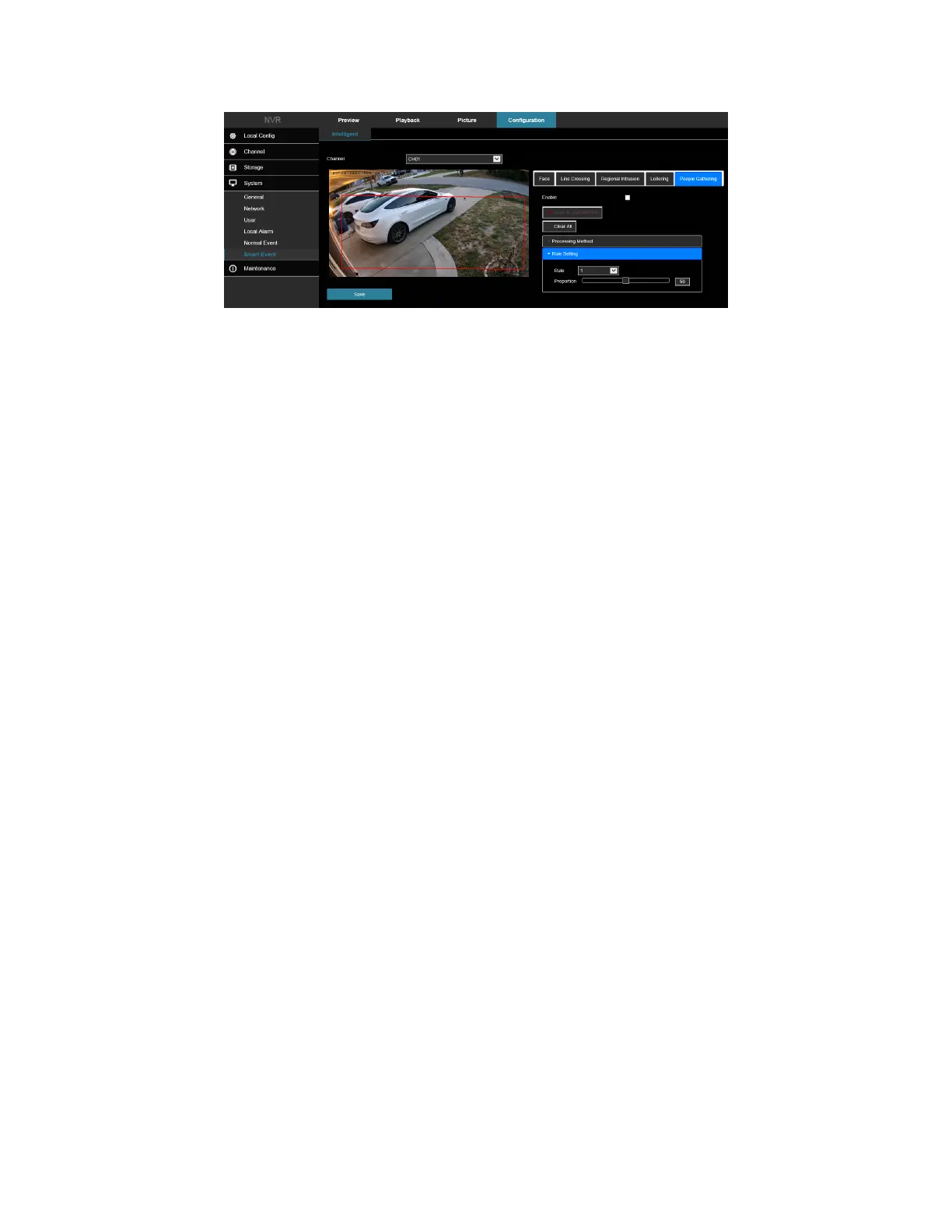
Figure 7-59
1. Select the channel you need to set the people gathering, and then click people gathering to enter people
gathering setting mode.
2. Check “Enable” → Rule Setting, to set the rule of loitering, the specific steps are shown as below:
a. People gathering can set 4 rules, you can choose any rule.
b. Set the proportion of rules.
Proportion: Represents the proportion of personnel in the entire warning area, when the
proportion of personnel exceeds the set proportion value, the system alarm is triggered,
otherwise the system does not alarm.
c. Click Draw A Quadrilateral, and then move the mouse to the preview screen and click the left
mouse button in sequence to draw the endpoints of the quadrilateral warning zone to complete
the zone drawing.
NOTE: You can modify the drawn warning line using Clear All and Draw A Quadrilateral.
3. Click "Processing Method", set alarm linkage (Buzzer, E-mail Notification, Channel Recording, Full Screen
Monitoring), and Trigger Alarm Output as required.
4. Click "Apply" to save the settings.
NOTE: When the device supports an external alarm device, the alarm processing method can trigger the alarm
output.
Chapter 8: Maintenance
8.1 Device
In the main interface, click Configuration → Maintain → Device to enter the version information interface, Figure
8-60. You can view the system's hardware features, software version, and release date on the version information
interface.


 To Next Page