Page 51 | 53
3. Additional settings can be restored to default including camera and system settings.
Chapter 9: Video Playback
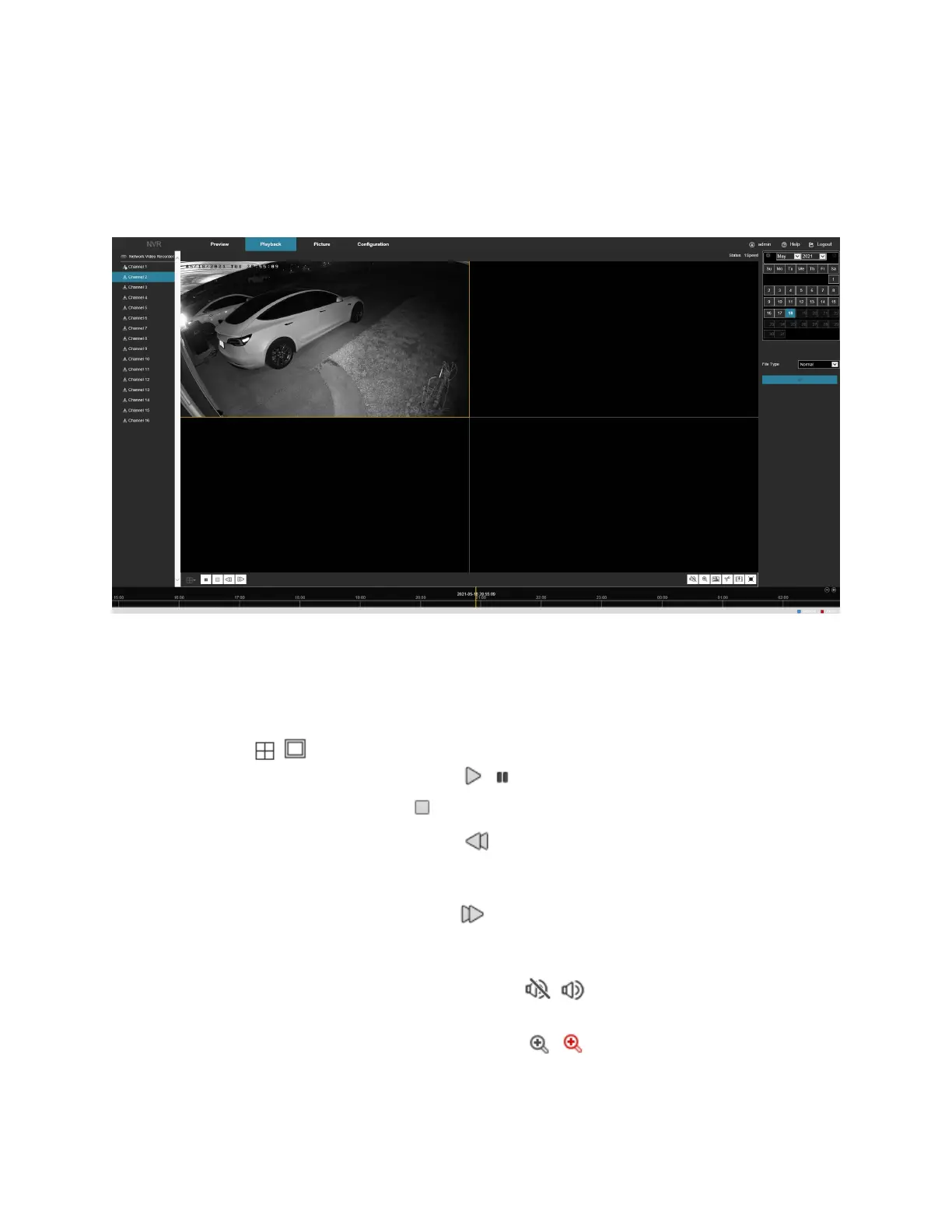
In the main interface, click Playback to enter the playback interface, Figure 9-65. Here you can view the equipment
video, capture, download and other actions.
Figure 8-65
• Timeline: Displays the type of recording under the current conditions and the time period in which it is
located. In the 4-picture playback mode, 4 playback time corresponding to the selected four channels can
be displayed. In the other single-screen playback modes, only one time axis is displayed. Use the mouse to
click a point in the blue area and drag to the yellow line position, that is, playback from that point in time.
• Layout: Click / to toggle the video playback window.
• Play/Pause: After querying the video file, click / to start/pause playback of the searched video.
• Stop: When the video is played, press to stop playing the video.
• Slow Forward: When the video is played, click . The video plays slowly, the specific speed of choice
1/2, 1/4, 1/8. After switching, you can check the playback speed in the status of the upper right corner of
the preview interface.
• Fast Forward: When the video is played, click . The video will be slow to play, the specific speed of
choice 2, 4, 8. After switching, you can check the current playback speed in the status of the upper right
corner of the preview interface.
• Mute/Open the Sound: When the video is played, click / to turn on/off the sound of the
recorded video.
• Enable Electronic Zoom: When the video is played, click / to turn on/off the electronic zoom
function of the recorded video. Turn on the electronic zoom function by holding down the left mouse


 To Next Page