Page 52 | 53
button, and then select the position to zoom in on the playback screen. Release the mouse, select the
location screen is placed, and then click , the magnification screen is restored.
• Snapshot: When the video is played, click to capture the settings to the local configuration settings.
• Clip: When the video is played, click to start recording, and then click Save Clip File again, storing the
clip in the local configuration settings.
• Download: After querying the video file, click to enter the video file list, select the download file,
click Download, and then the video file starts to download. The file download interface is shown in Figure
6-49. The "First Page", "Prev Page", "Next Page", and "Last Page" are used to scroll through all video files.
You can use "Edit" under "Set date/time manually" to intercept and download the video file.
• Full Screen: When the video is played, click the full-screen playback video. Press Esc on the keyboard
to exit the full-screen playback interface.
• Drag and drop: Drop and drag the video playback, using the left mouse button click on the time axis to
play the position. Drag left and right, drag it to the middle of the yellow time point position, and playback
channel to play the point in time recording.
Chapter 9: Picture
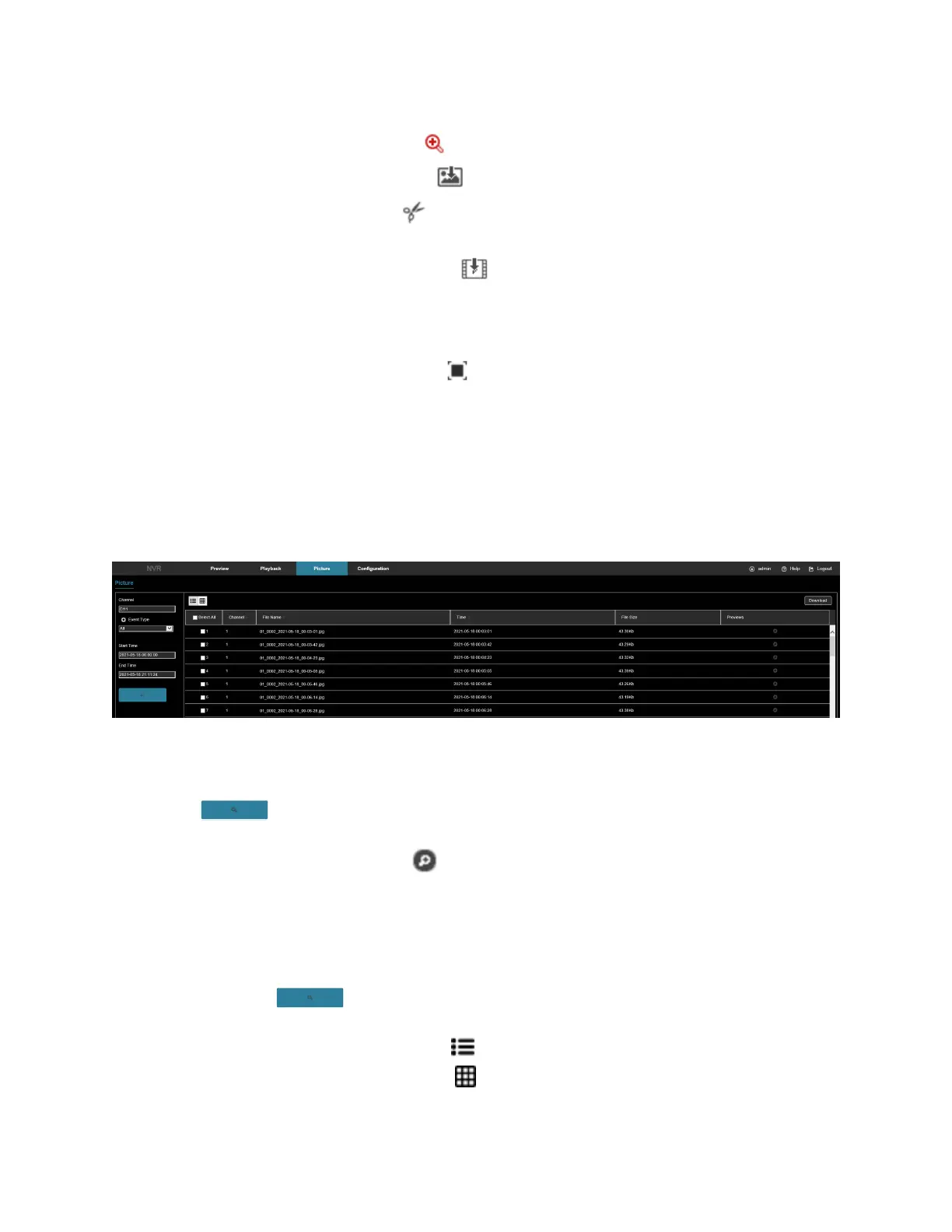
In the picture interface, you can view and download all the pictures captured on the device side. Figure 9-67
Figure 9-67
1. Access the main interface, and then click Picture to enter the picture interface.
2. Select the channel, click OK, select the event type, and then set the search time range.
3. Click , the searched image is displayed on the right side of the interface.
4. Select the picture, click Download to select the storage path, click OK, and then select the image to
download to the specified folder. Click corresponding to the preview position to view the image.
• Channel: Select the channel to search for image files. Select one channel individually or multiple
channels or Select All at the same time.
• Event Type: Capture image type, the drop-down box option consists of All, Manual capture, Motion
capture, Face detection, Regional Intrusion, Crossover, Wandering, and Staff Gathering.
• Start/End Time: The time range for capturing image files.
• Query: Click , the system will query the corresponding picture file according to the set
channel, event type and time range, and display it in the file list.
• Details: The image searched by clicking is displayed in the list as detailed information.
• Big icon: The image searched by clicking is displayed in the list as a large icon. Figure 9-68.


 To Next Page