Page 15 | 53
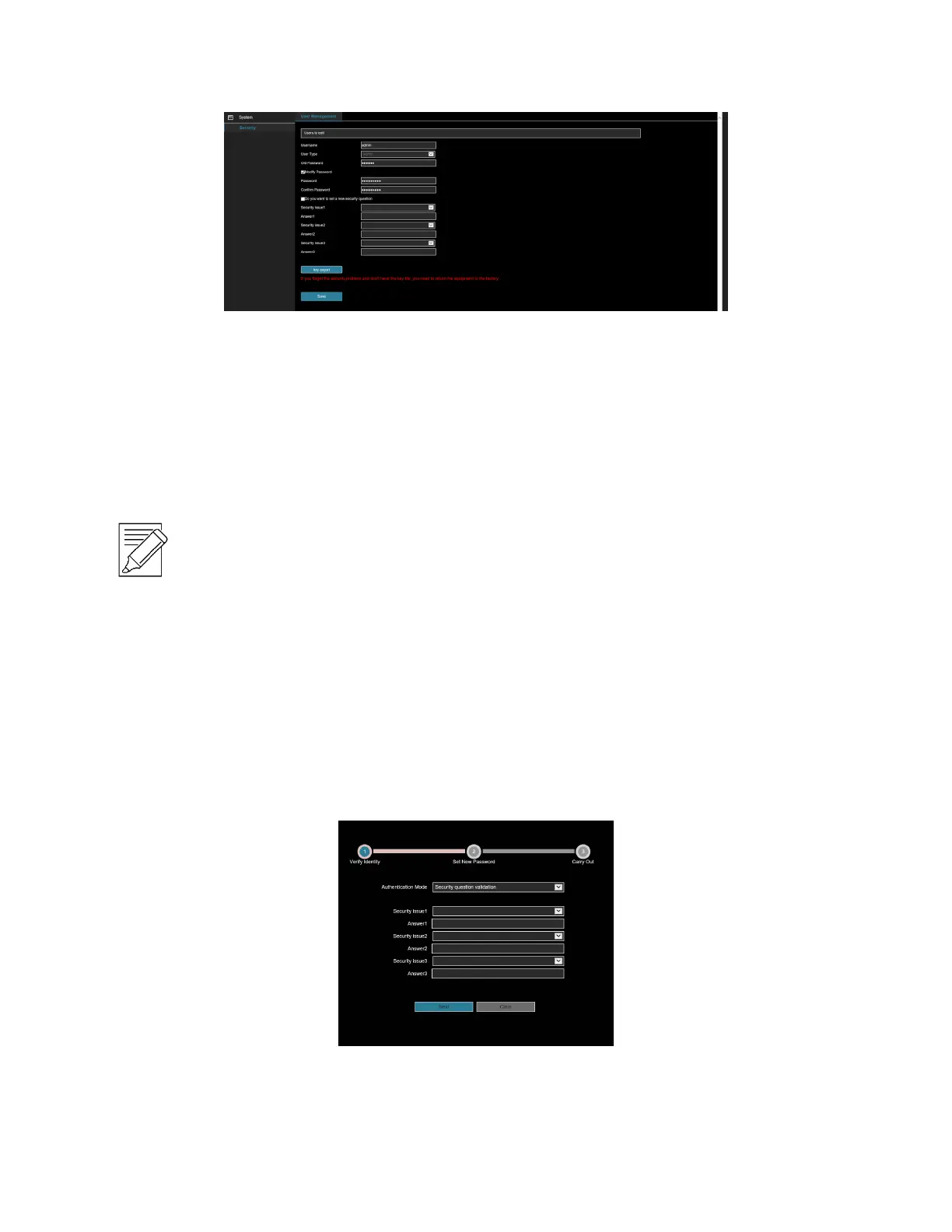
Figure 4-4
To change your password, follow these steps:
1. Enter the old password and enter the new password in the Password and Confirm Password fields.
2. Set security questions 1, 2, and 3, and enter the answers.
3. Click "key export" to save the key file to your computer. It is recommended to have the customer save
this key file in their email or on their computer.
4. Click "Save" to complete the password modification.
IMPORTANT NOTE:
When setting a new password, you must set at least 8 characters and contain both letters and
numbers.
4.2.3 Forgot password
If you forget your password, you can reset the password by using the security question verification or security key
verification.
Security question verification
1. On the login interface, click "Forgot Password".
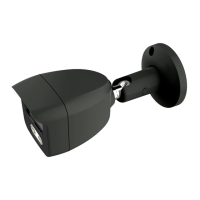
2. Select the verification method as "Security question validation" (as shown in Figure 4-5), enter the
answers to security questions 1, 2, and 3, and click "Next"
3. Enter the new password and confirm the password (as shown in Figure 4-6) and click "Next".
Figure 4-5


 To Next Page