Page 20 | 53
1. System Menu: Including Live View, Playback, Picture, Configuration, Help, Logout, and show login
username.
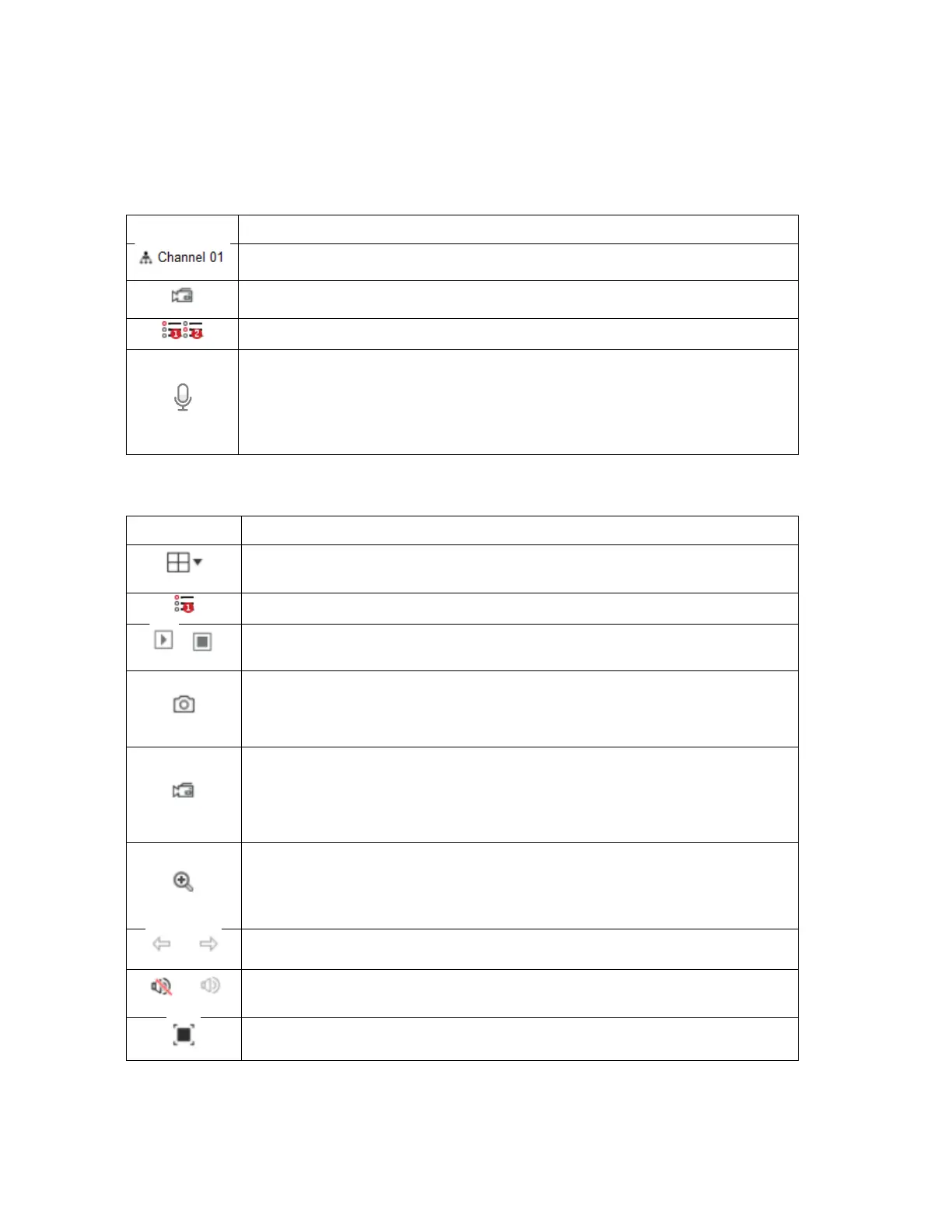
2. Real-time Monitoring Channel: Open/Close Preview, record, and stream switching.
Open/close corresponding preview channel.
Start/stop recording, save video on local computer hard drive.
Main/sub bit stream switching.
For voice calls, click to automatically connect to the device to make a real-time call.
Prerequisites for local device calls: There are audio input/audio output interfaces on
the local device, and both mic and speakers have been connected.
Note: The app and web interfaces cannot talk to the local device at the same time.
3. Real-time Monitoring Channel: Open/Close Preview, record, and stream switching.
Preview window toggle. From left to right are: 1 split screen, 4 split screen, and 9
split screens. The preview number varies per device.
Switch all preview channel master, sub streams, and open previews.
/
Open/Close all preview channels.
Click this icon to take a picture.
The default storage path of the picture is C:\Record. You can enter the Configuration
→ Local Config interface to modify the storage path.
Click this icon to start recording on all channels; click the icon again to stop
recording.
The default storage path of the recording is C:\Record. You can enter the
Configuration → Local Config interface to modify it.
Local electronic zoom, click this icon to open the electronic zoom function, select to
enlarge the channel, hold down the left mouse button to select the area to be
zoomed in, release the left button, and select the area to be enlarged; in the zoom
channel, click the right mouse button to restore the original status.
1 Split screen preview, click to switch between channels.
/
Turn on/off the speaker. If the audio is not turned on, there is no sound when
listening.
Full-screen playback, press the keyboard Esc to exit the full screen.


 To Next Page