Chapter 3: Operate the system
Use a computer 33
3333
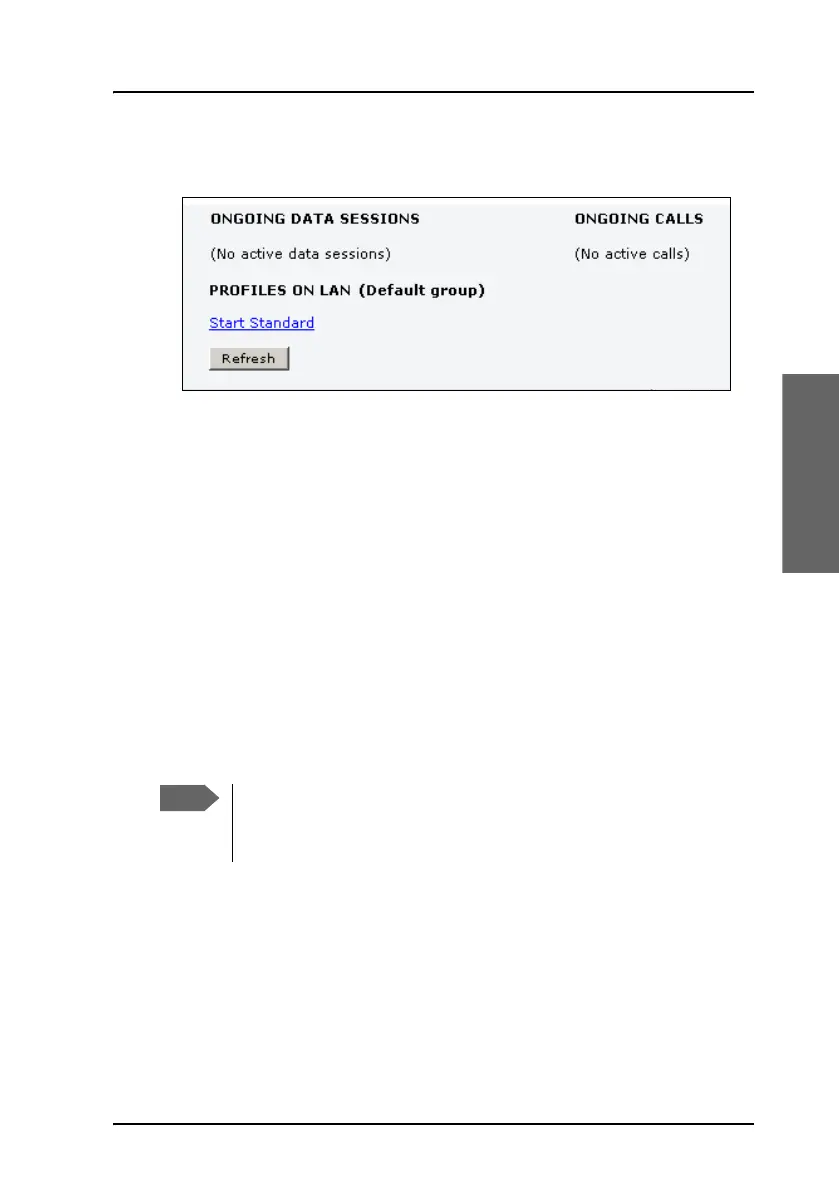
3. Click Start <name of profile>, in this case: Start Standard, or Stop
<name of profile> to stop the connection.
4. Click Refresh to update the current state of the connection(s). Note
that there might be some latency when updating the connection status,
you might have to wait and click Refresh again to update the
Dashboard to the current state.
Start or stop a Streaming connection
The AVIATOR 200 is limited to the streaming classes 8 and 16 kbps.The
AVIATOR 300 supports the streaming classes 8, 16, 32, 64 and 128 kbps.
The AVIATOR 350 supports the streaming classes 8, 16, 32, 64, 128 kbps
and X-Stream. Note that streaming classes are charged by the time the
service is being used (per minute charge). A started Streaming session will
stay active until you manually stop it.
On the Dashboard you can see whether the network user group you belong
to has been set up to support streaming sessions.
To start or stop a streaming session do as follows:
1. Open your Internet browser and enter the IP address of the AVIATOR
200/300/350 system (default: http://192.168.0.1) to access the
Dashboard of the web interface.
2. Locate STREAMING PROFILES ON LAN.
You can only start a Streaming session if the administrator has set
up a Streaming profile for your user group. Contact your system
administrator if you need a streaming connection.



 To Next Page