Chapter 4: Using the web interface
98-129217-D Setting up the interfaces 80
Configuring the Phone/Fax interface
To configure the Phone/Fax interface do as follows:
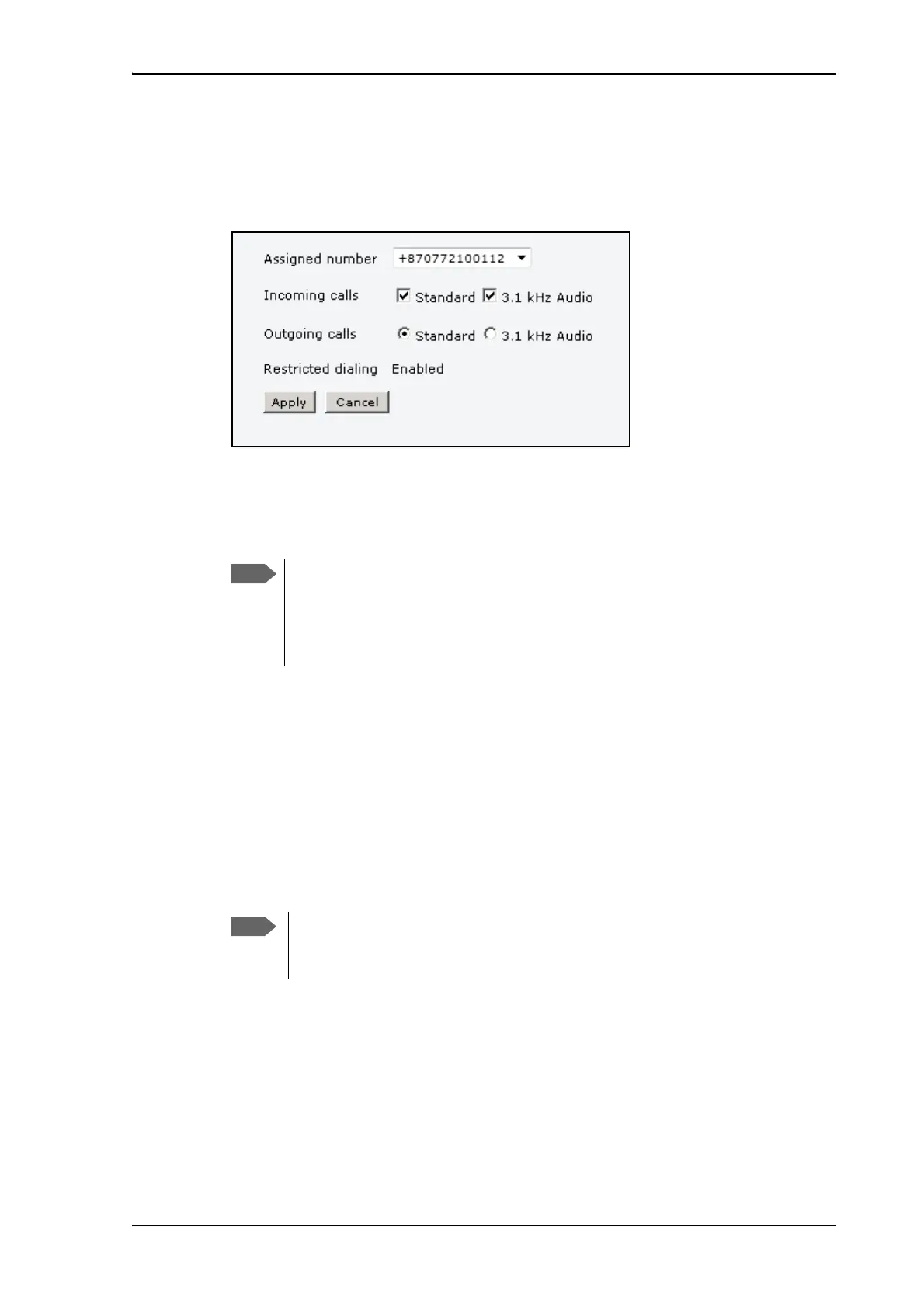
1. Select SETTINGS > Phone/Fax from the left navigation pane.
2. If you have additional numbers from your airtime provider and you want to assign them to
the Phone/Fax port, use the Assigned number drop down list to select the number you
want to use.
When this number is called, only the handset connected to that port will ring.
3. Set the call type for incoming and outgoing calls.
The call types are described in more detail in Selecting the call type on page 26.
•For Incoming calls, you can select Standard or 3.1 kHz Audio or both.
If you select both, any device connected to the Phone interface will react (ring) on
incoming calls.
If you select e.g. Standard, the Phone interface will only react on calls made to the
Standard phone number.
•For Outgoing calls, you can select either Standard or 3.1 kHz Audio. The selected type
will be used by default, if possible, for any outgoing call. Note, however, that fax
machines must use 3.1 kHz Audio.
4. Click Apply.
To be able to use the additional numbers, you must first
select Use additional numbers in the Multi-voice
page and enter the additional numbers under PHONE
BOOK > Mobile numbers. See Multi-voice on
page 116.
You can override the default setting for outgoing calls by dialling 1* (force the
call to Standard) or 2* (force the call to 3.1 kHz Audio) before the number. For
further information, see Overriding the default outgoing call type on page 27.



 To Next Page