Display (Illustrations of the display text are shown in color to be easier
to read. The actual text color is white on a dark grey background).
The color TFT display shows various menus and displays as described below. The display is not a
touch screen. The front panel controls, remote, and App are used to control the functions. Remove
the clear protective strip across the LCD if it is present.
There are basically seven types of displays:
- Standby (clock)
- Splash (mode)
- Now playing
- Metadata (such as artist, track, and station information if available)
- Error/Information
- Menu
- Album artwork
Note: Where there is more text than can fit onto the screen, the text automatically scrolls right to
left after a brief pause.
Display Off:
To turn the display off in standby: Press any remote key twice except Power and Alarm in standby
to toggle the display off/on. When the display is off, press any remote key (except Power and Alarm) once to
turn the display on for 7 seconds. If the remote control isn’t nearby, you can also press the Menu or Source
knob in twice briefly in standby mode to turn the display off, twice again to turn it back on, and once while
the display is off to turn it on temporarily. Once turned on, the display will return to the previous Backlight
Menu setting when placed in standby again.
Note: Some of the display illustrations used in his manual are generic and may not reflect the exact
display information as shown on your system.
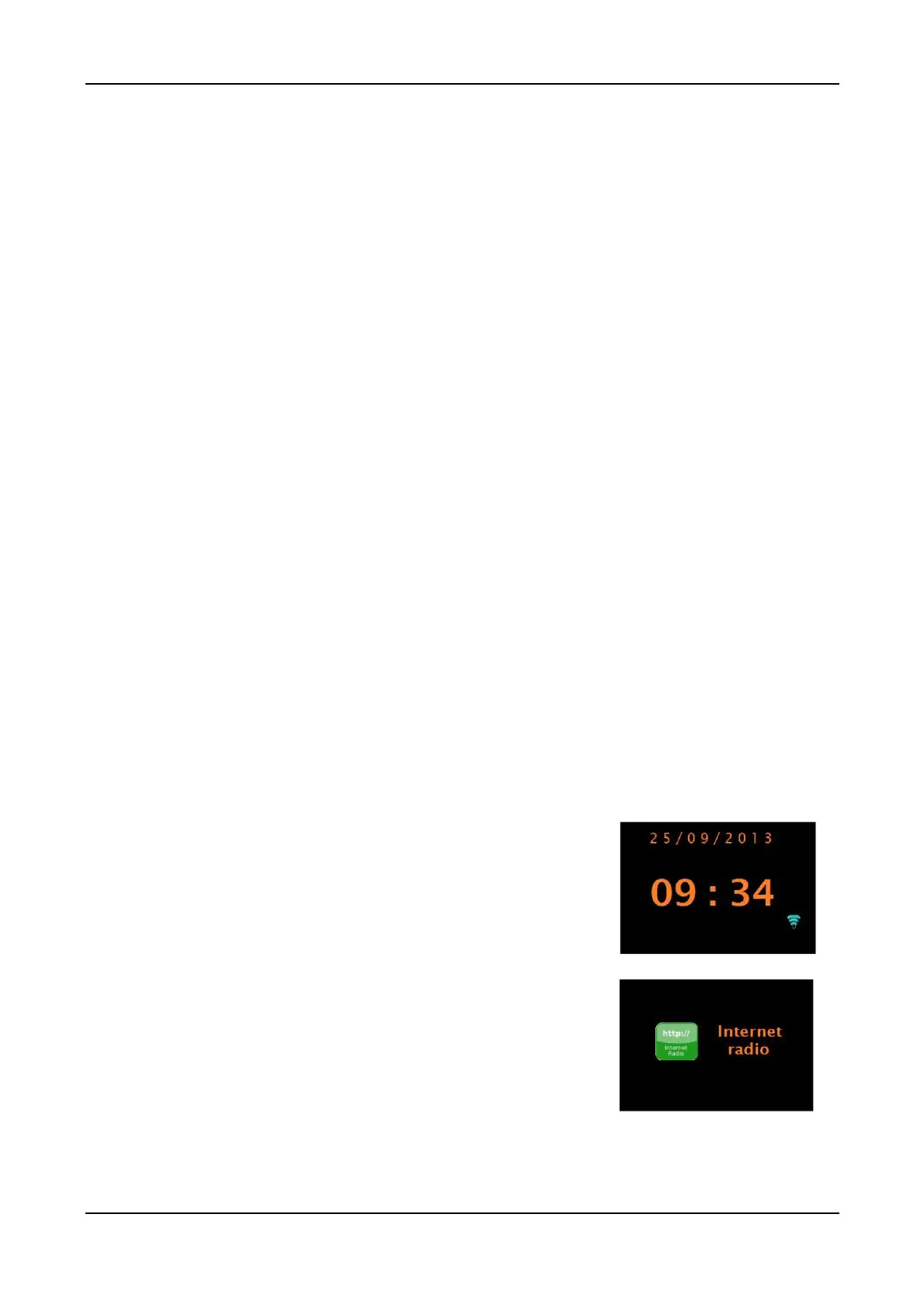
The Standby screen shows the time and date (if digital
clock format is selected) and any active alarm times.
If the WiFi network is set to be active during Standby,
the WiFi icon is shown in the lower right corner.
A splash screen is displayed for each source mode.
10


 To Next Page