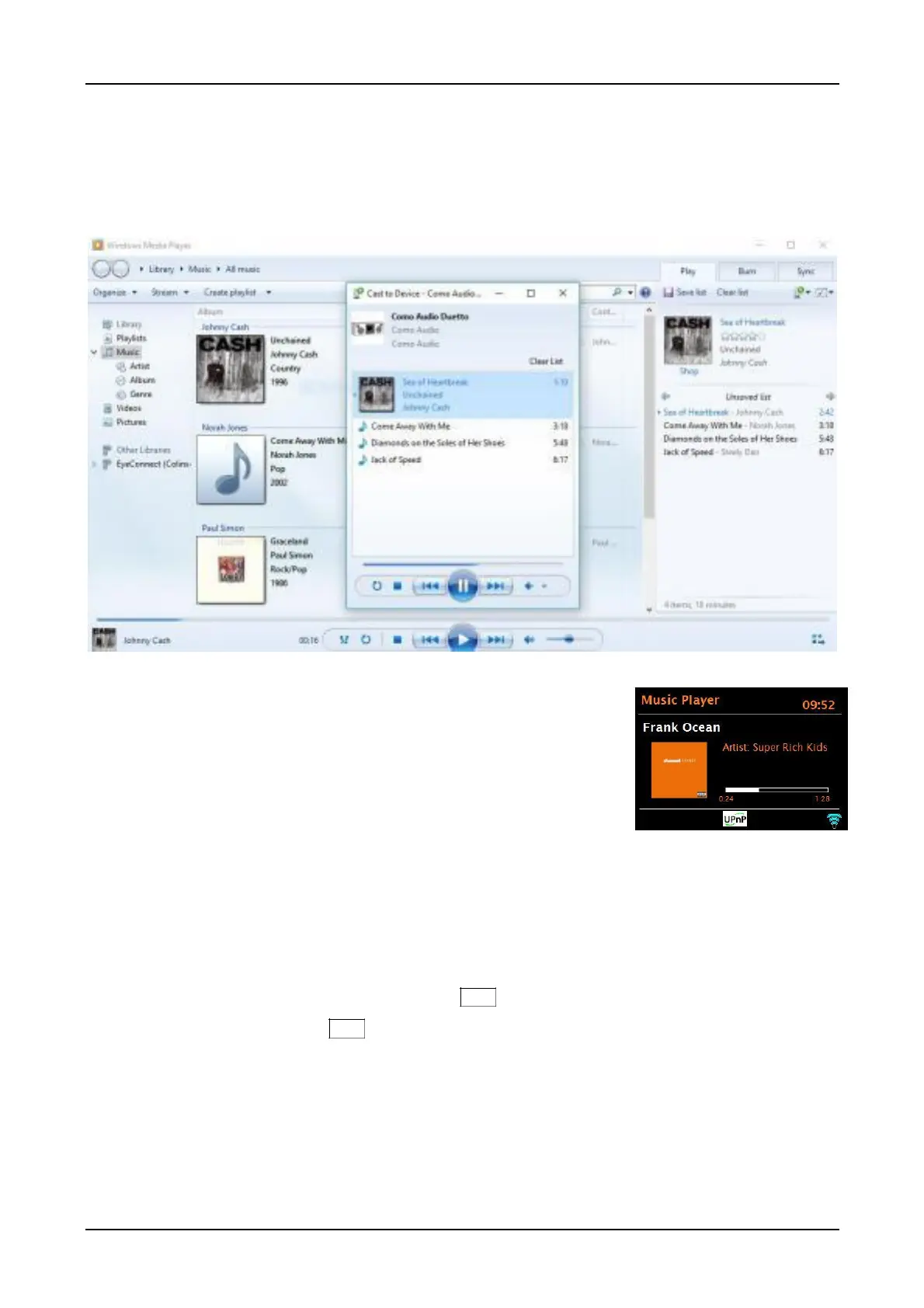
pane into the list pane.
Click the Play to button at the top of the list pane, click the device on your network that will
receive the media.
In the Play To dialog box, use the playback controls to play, pause, or stop the media stream, and
to change to the next or previous item in the list.
Use “Play To” elsewhere in Windows 7
Outside of Windows Media Player, you can stream media to the
unit with “Play To” by right-clicking music files. To select music files
and stream them to the unit, follow these steps:
Click the files you want to stream.
Right-click the selected files, point to “Play to”, and then click
the device on the network that will receive the media.
In the Play To dialog box, use the playback controls to play, pause, or stop the media stream, and
to change to the next or previous item in the list.
Now playing information
While a track is playing, the screen shows its track name (UPnP). There is also a progress bar with
figures for elapsed and total track time. At the bottom of the screen, an icon indicates UPnP. To
view further information, press the remote’s Info key.
Each time you press the Info key, another set of information is displayed, cycling through the
following:
• Artist, album, codec/sampling rate, playback buffer
DLNA
Music player mode allows navigation and playback through a USB or network-shared library of music files
including AAC+, MP3, WMA, WAV, FLAC, and ALAC (the latter is Apple’s lossless format).


 To Next Page