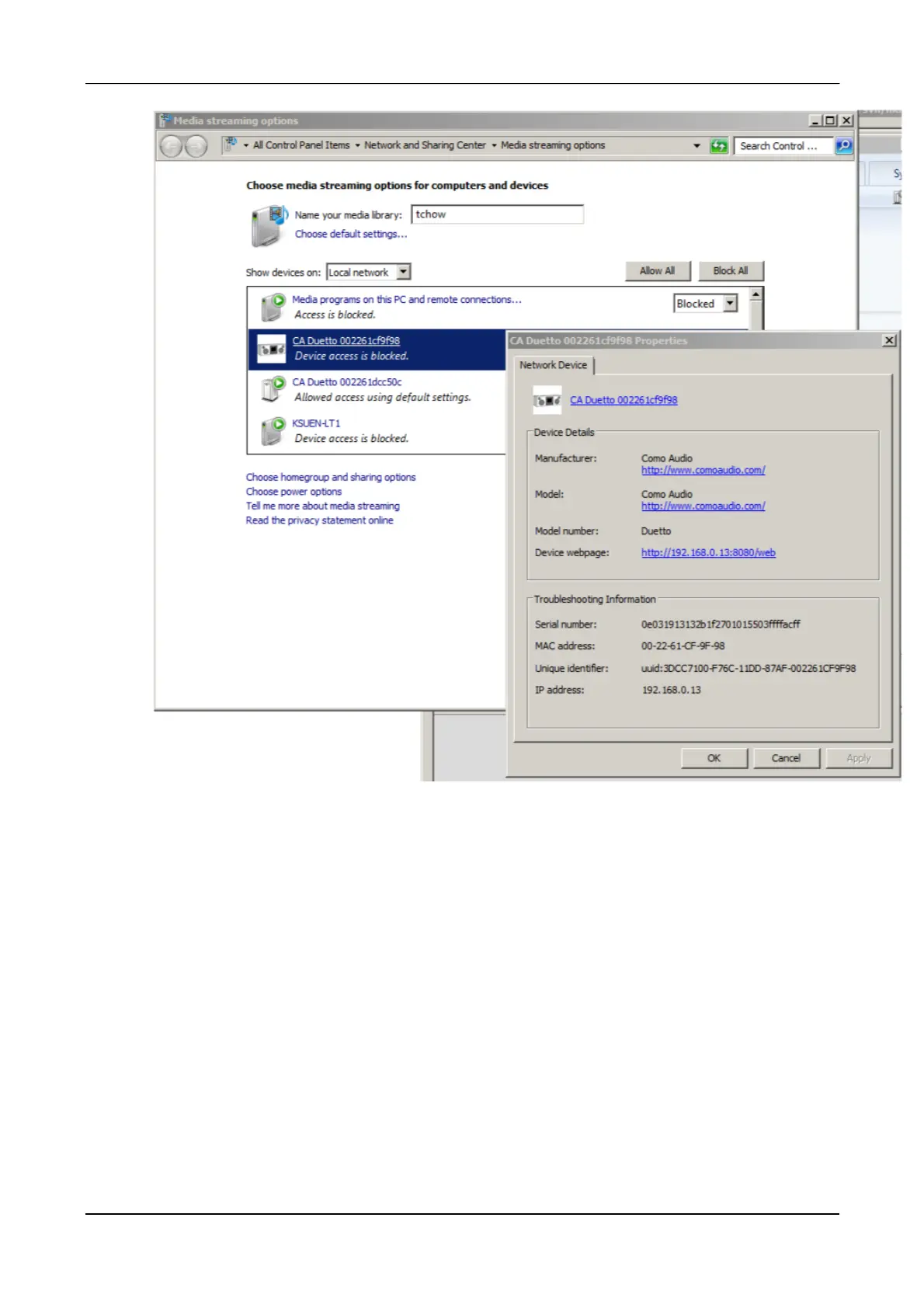
The PC is now ready to stream the music to the radio. The WMP UPnP service runs in
the background; there is no need to start WMP explicitly.
Using the “Play To” feature in Windows 7 to stream media
One of the new Windows 7 features includes a feature called “Play To” and this lets your PC running
Windows 7 to push media and use as a universal remote control for your media collection.
Use “Play To” in Windows Media Player
Windows Media Player can be used to manage your media, find items you want to play, and open
Play To. To select items you want to play from your computer, follow these steps:
Click the Start button, click All Programs, and then click Windows Media Player.
If the Player is currently open and you’re in Now Playing mode, click the Switch to Library button
in the upper-right corner of the Player.
If the list pane is closed or if the Burn or Sync tabs are exposed, click the Play tab.
Find the items you want to play in the Player Library, and then drag those items from the details
40


 To Next Page