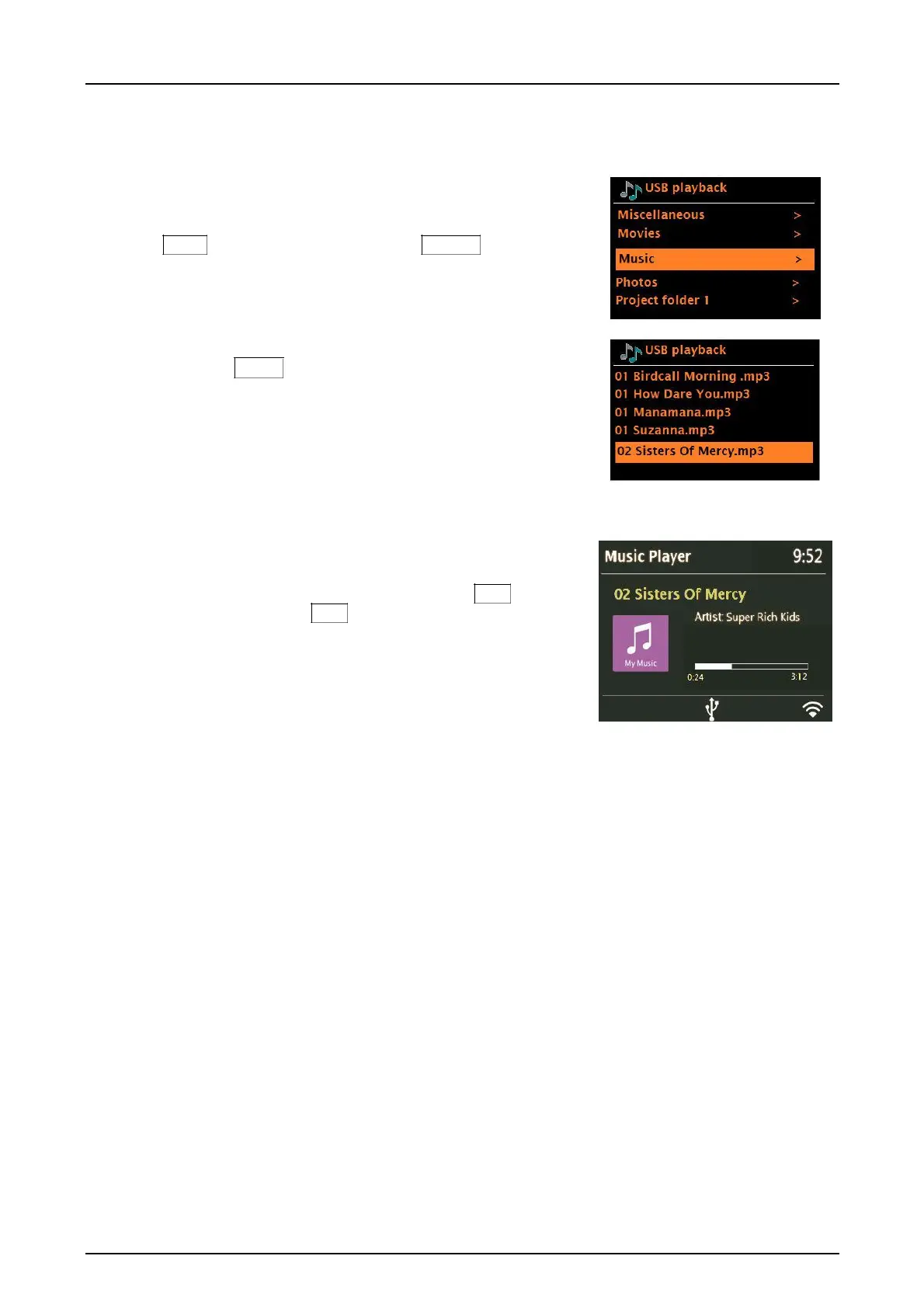
Browsing folders
From this point on, menus are generated from the
folders on the USB device itself. Browse folders with the
Menu knob and briefly pressing the Source knob to go
Back. The display shows folder and file names (not
necessarily track names).
Once you have found a track that you want to play, briefly
press the Menu knob to select. A short press plays the
track immediately.
Viewing track metadata
While a track is playing, you can view extra information
about it (metadata) by pressing the remote’s Info key.
Each time you press Info , a different item of metadata is
displayed.
My Playlist
To create a playlist, highlight a song from the track list shown on the display and press and hold the
remote’s Play/Pause key to add the song to the playlist. To remove a song, select My playlist in the menu,
highlight the song, then press and hold the remote’s Play/Pause key to remove that song.
Note a playlist is limited to a maximum of 200 songs. Playlist files on your USB stick or computer
are not supported. The only way to create and play a Playlist is following the above procedure.
➢
The USB will also charge most smart devices such as smart phones. Please be sure not to
exceed the USB’s power limit of 5V 1A.


 To Next Page