FM radio mode
To enter FM mode, press and hold the Menu knob > Main menu > FM, or rotate the Source knob to scroll
through the mode icons until FM Radio is highlighted and press the Source knob in to select.
Note: Some FM stations use compression to make their stations louder, so you may sometimes notice an
obvious level difference when tuning different FM stations or switching between FM and other sources.
Now playing information/RDS/RBDS
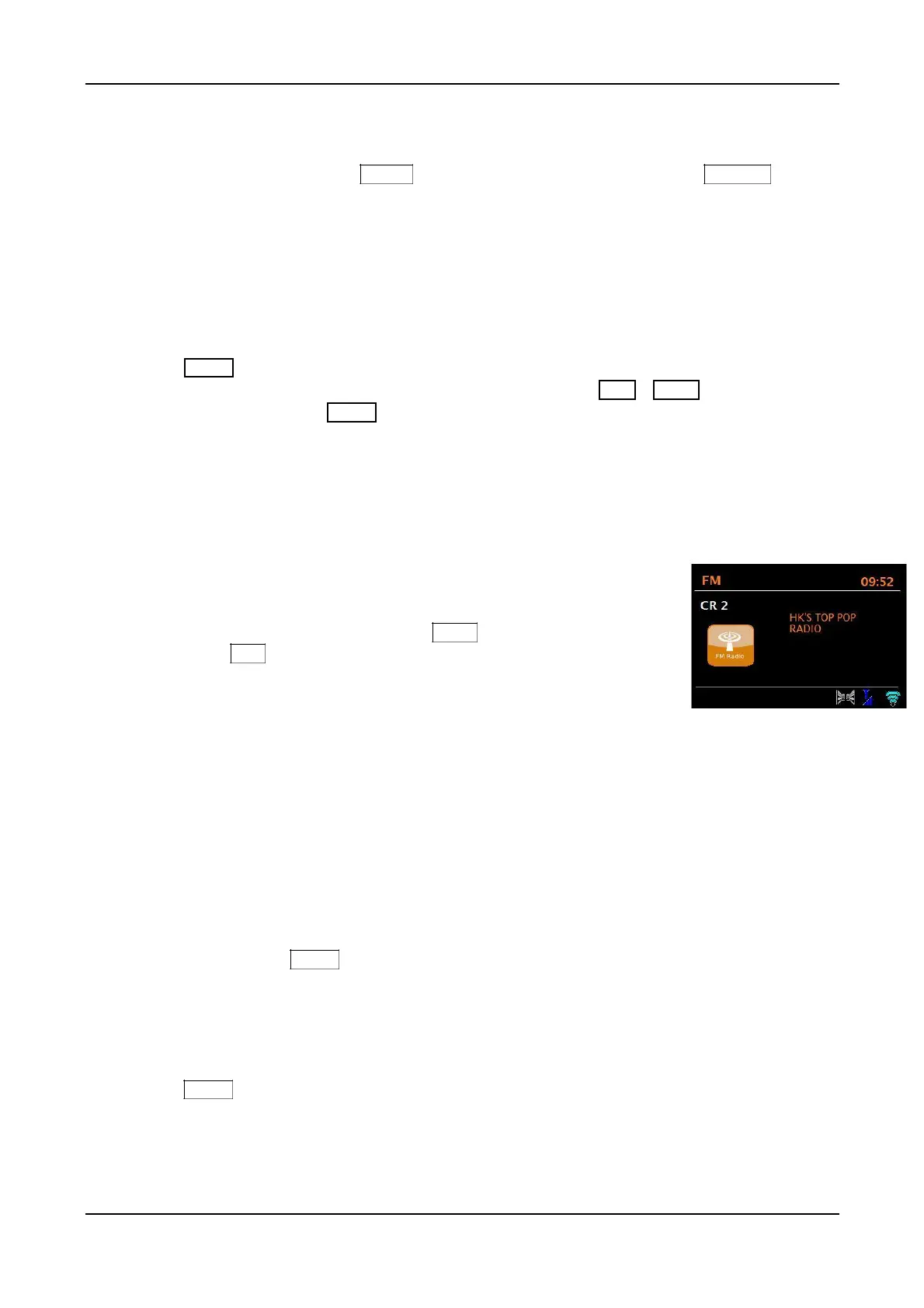
While an FM station is playing, the screen shows one of the two following
sets of data:
• If RDS/RBDS information is available, by default the service name (i.e.
station name) is displayed. You can cycle through further RDS/RBDS
information by pressing the remote’s Info key. Each time you
press Info , another set of information is displayed (if available), cycling
through radio text, RDS programme type, frequency, and today’s date.
Also, “RBDS” or the RDS logo will be shown at the bottom of the display.
Each FM station is responsible for the accuracy of the RDS/RBDS
information they broadcast.
Note: Not all FM radio stations support RDS/RBDS. If no RDS/RBDS information is
available, the currently tuned frequency is shown.
FM Settings
Scan settings
By default, FM scans stop at any available station. This may result in stopping on weak stations or
noise. To change the scan settings to stop only on stations with good signal strength, in FM mode
press and hold the Menu knob > Scan setting > Strong stations only? > Yes.
Audio settings
By default, all FM stereo stations are reproduced in stereo. FM stereo is indicated by two speaker
icons in the lower right corner of the display. For weak stations, this may result in a poor signal-to-
noise ratio (hiss). To play weak stations in mono for less noise, in FM mode press and hold
the Menu knob > Audio setting > Listen in mono only > Yes.
Presets
FM stations can be stored and recalled as Presets as described in Front panel controls. The
Presets can also turn the unit on from standby mode if a station is saved.
44


 To Next Page