Controlling Spotify from the unit
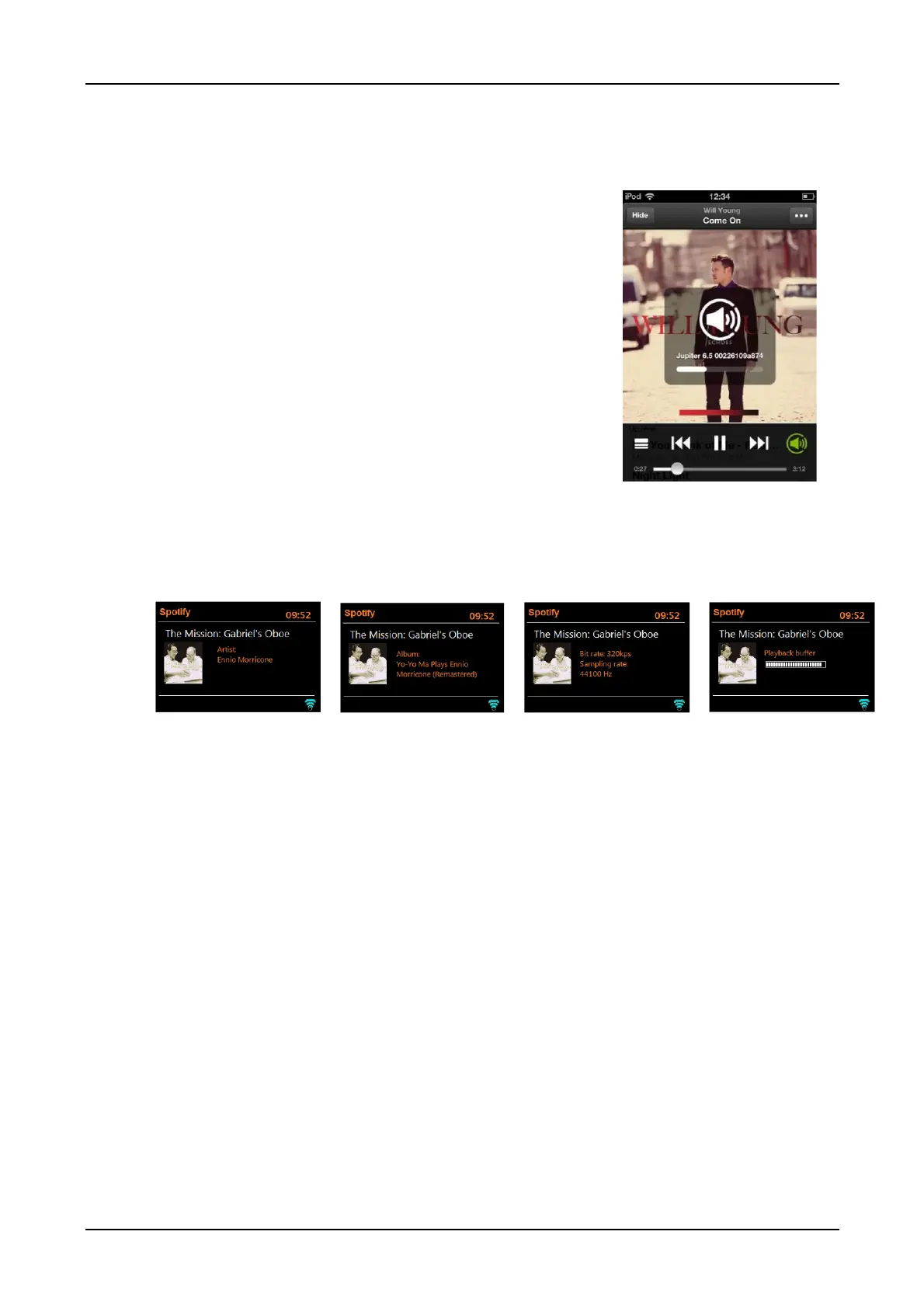
You can change volume, play/pause the audio, and jump
forwards and backwards through your playlist using the Como
Audio remote control or the Como Control app.
Changes made by the remote are reflected on the
Spotify Connect App and the unit.
As long as the Spotify App is connected to the unit on the
same network, and “Keep network connected” has been
selected, you can power on the unit when you start playing
from the Como Control or Spotify App.
Spotify Info
Pressing the Info button on the remote cycles through extra information in the following sequence:
Artist Album Streaming data Playback buffer capacity
Spotify Info messages
Messages are displayed when appropriate to show the current
play status. For example, should the audio stream from Spotify
Connect be interrupted or stopped (for example, when the
audio playback is moved by the Spotify App to a different
audio speaker or the smart device itself), the message “Start
Spotify, Select Device” is displayed.
Shuffle and Repeat icons are also displayed when
appropriate along the bottom of the screen.
If the display shows a song playing but you don’t hear any
sound, perform a System reboot in the System settings menu.
Presets
Spotify can be stored and recalled as a Preset as described in front panel controls. The Presets will
also turn on the unit from standby if a station or source has been save to that Preset. Note per
Spotify, when accessing a Spotify Playlist from a Preset, playback starts from the start of the list.


 To Next Page