D I S P L A Y L A T C H
— Keeps the display closed.
D ISPL A Y
— For more information about your display, see "Using the
Display"
on page 43.
PO WER BUTT O N
— Press the power button to turn on the computer or exit a power
management
mode (see "Power
Management Modes" on page
31).
NOTICE:
To
avoid losing data, turn off your computer by performing
a
Microsoft
®
Windows
®
operating
system
shutdown rather than by pressing the power
button.
If the computer stops responding, press and hold the power button until the computer turns off completely
(which
may take several
seconds).
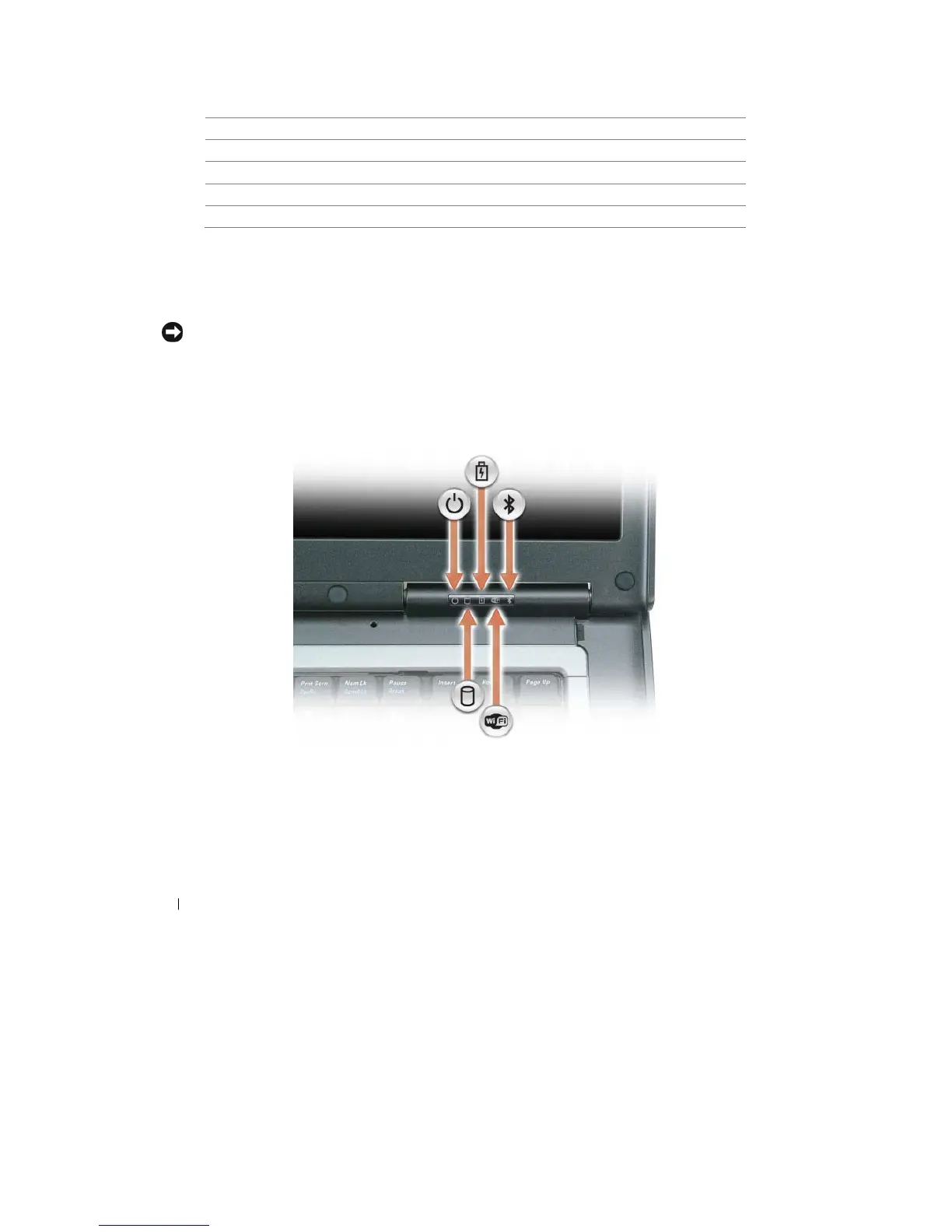
D E V I C E
S T A T U S
L I G H T S
16
About Your Computer










 To Next Page