Windows logo key
and
<Ctrl><f>
Windows logo key
and
<P
ause>
Opens the
Search
Results-Computer
dialog box
(if
the computer is connected to a
network).
Opens the
System Properties
dialog
box.
To
adjust keyboard operation, such
as
the
character repeat rate,
click→Control
Panel→Printers
and
Other
Hardware→Keyboard.
For information
about
the Control
Panel, see
the Windows Help and
Support Center
(click the Start button or the Windows
V
i
s
t
a®
Start button →Help
and
Support
.
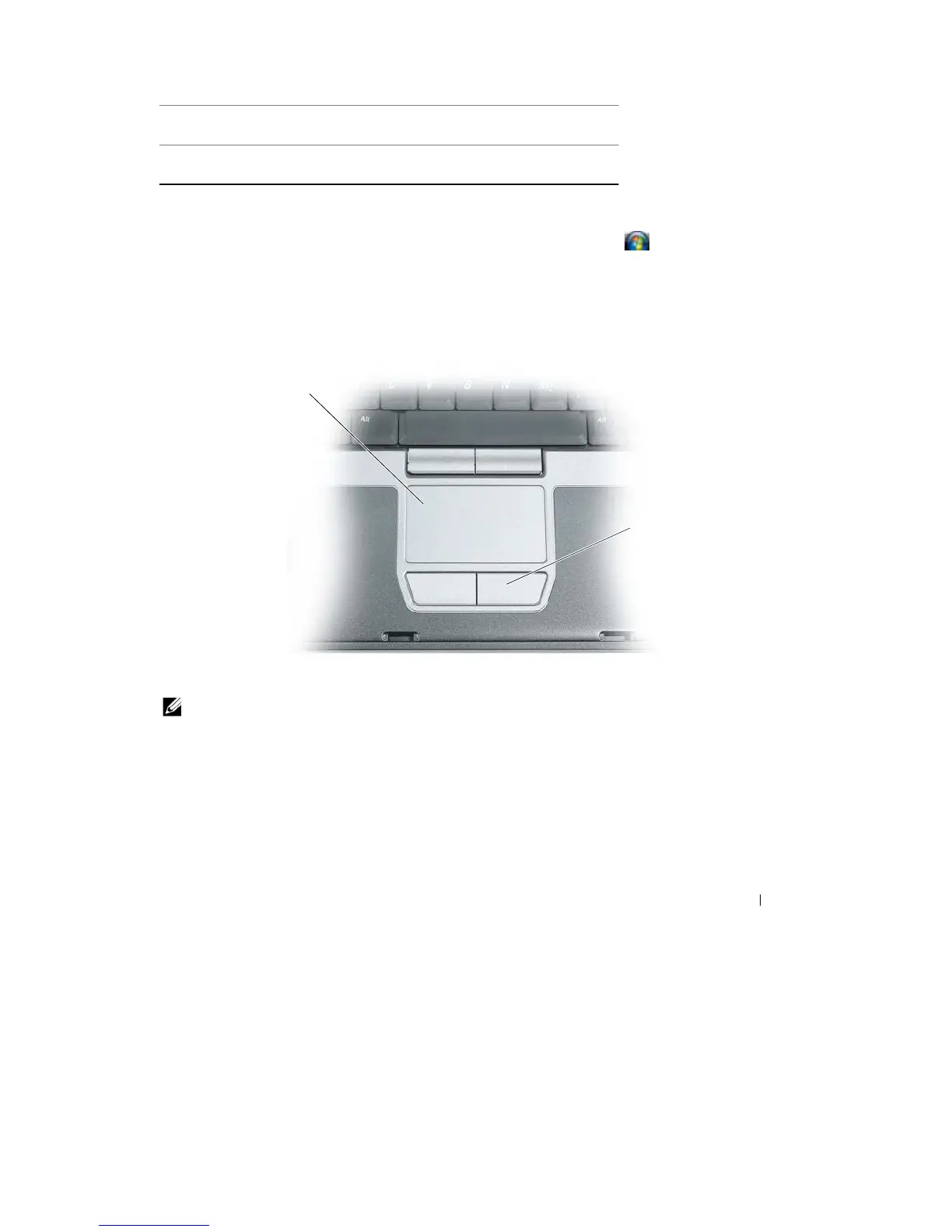
Touch
Pad
The touch
pad detects
the
pressure and movement
of
your finger
to
allow you
to
move
the
cursor
on the
display. Use
the touch
pad and
touch
pad
buttons
as you would use a
mouse.
1
2
1
touch pad
2
touch pad
buttons
NOTE:
If
you ordered the optional fingerprint reader with your computer, the reader is located between the touch
pad
buttons.
•
To
move
the
cursor,
lightly
slide your finger over
the
touch
pad.
•
To
select an object,
lightly
tap once on the surface
of
the touch pad or use your
thumb to
press the
left
touch-pad
button.
•
To
select and move
(or
drag) an object, position the cursor on
the
object and tap twice on
the touch
pad.
On the
second tap, leave your finger on the touch pad and move
the
selected object by
sliding
your finger over
the surface.
Using the Keyboard
37










 To Next Page