•
To
double-click an object,
posi
ti
on
the cursor on the object and tap twice on the touch pad or use
your
thumb to
press
the left
touch-pad
button twice.
You can also use
the
track stick
to
move
the
cursor. Press
the
track stick
left, right, up, or
down
to change
the
direction
of the
cursor
on the
display. Use
the
track stick and track stick
buttons
as you would use a
mouse.
Customizing the Touch Pad and Track
Stick
You can use
the
Mouse Properties window
to
disable
the touch
pad and track stick
or
adjust
their
settings.
1
Click
Control Panel
→
Mouse
. For information
about
the Control
Panel, see
the Windows Help and
Support Center.
Click the Start button or the Windows
V
i
sta
®
Start
button →Help and
Support
.
2
In the
Mouse Properties
window:
•
Click
Device Select
to
disable
the
touch pad and track
stick.
•
Click
Touch Pad
to
adjust touch pad and track stick
settings.
3
Click
OK
to
save
the
settings and close
the window.
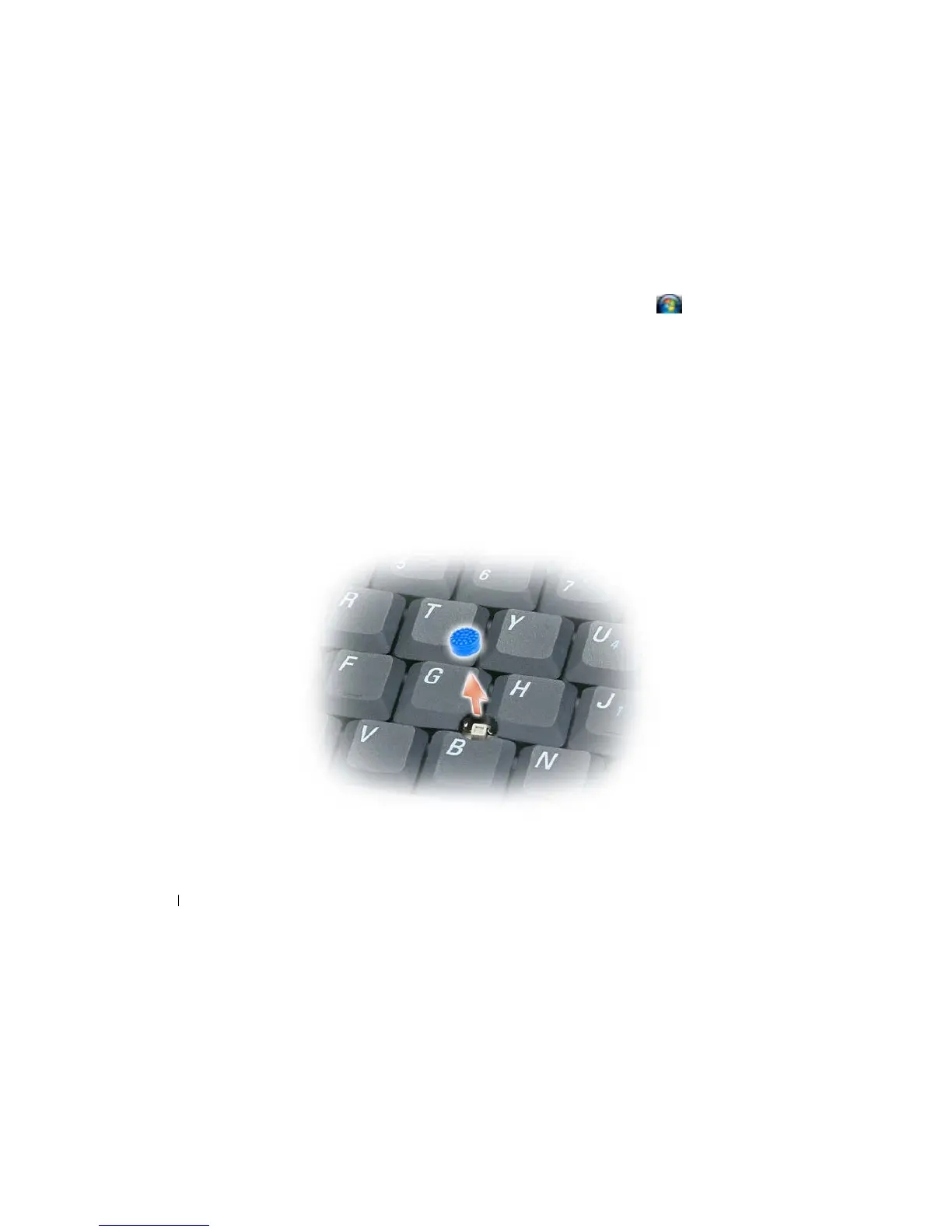
Changing the Track Stick
Cap
You can replace your track stick cap
if it
wears down
from
prolonged use
or if
you prefer a
different color.
You can purchase
additional
caps by
visiting the Dell
website
at www.dell.com.
1 Pull
the
cap
off the
track
stick.
38
Using the
Keyboard










 To Next Page