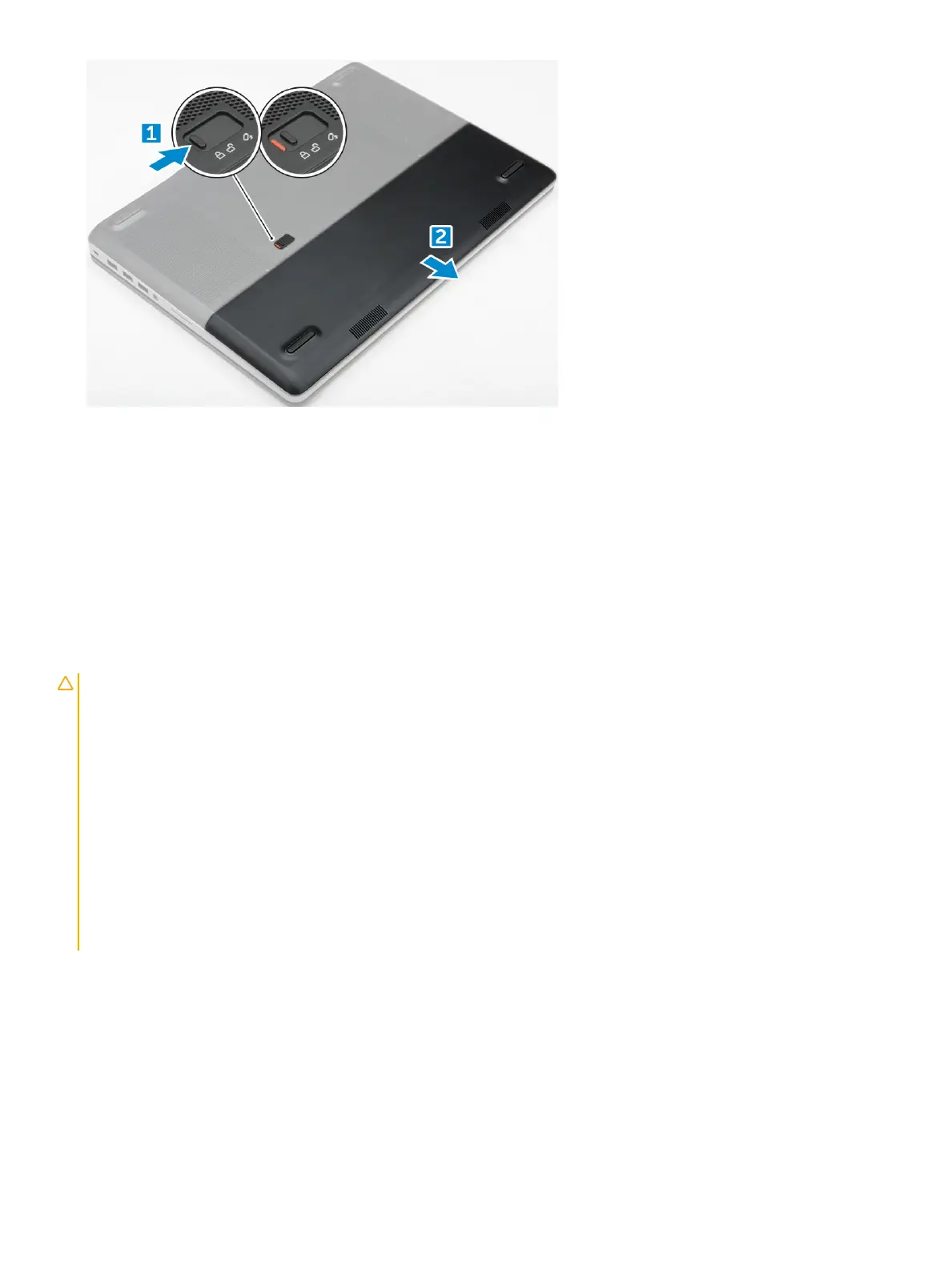
Installing the battery cover
1 Slide the battery cover into its slot until it clicks into place.
2 Follow the procedure in After working inside your computer.
Battery
Lithium-ion battery precautions
CAUTION
:
• Exercise caution when handling Lithium-ion batteries.
• Discharge the battery as much as possible before removing it from the system. This can be done by disconnecting the AC adapter
from the system to allow the battery to drain.
• Do not crush, drop, mutilate, or penetrate the battery with foreign objects.
• Do not expose the battery to high temperatures, or disassemble battery packs and cells.
• Do not apply pressure to the surface of the battery.
• Do not bend the battery.
• Do not use tools of any kind to pry on or against the battery.
• If a battery gets stuck in a device as a result of swelling, do not try to free it as puncturing, bending, or crushing a Lithium-ion
battery can be dangerous. In such an instance, the entire system should be replaced. Contact https://www.dell.com/support for
assistance and further instructions.
• Always purchase genuine batteries from https://www.dell.com or authorized Dell partners and re-sellers.
Removing the battery
1 Follow the procedure in Before working inside your computer.
2 Remove the battery cover.
3 To remove battery:
a Slide the release latch towards from the unlock icon to unlock the battery[1].
b Lift and remove the battery from the computer [2].
10
Disassembly and reassembly






 To Next Page