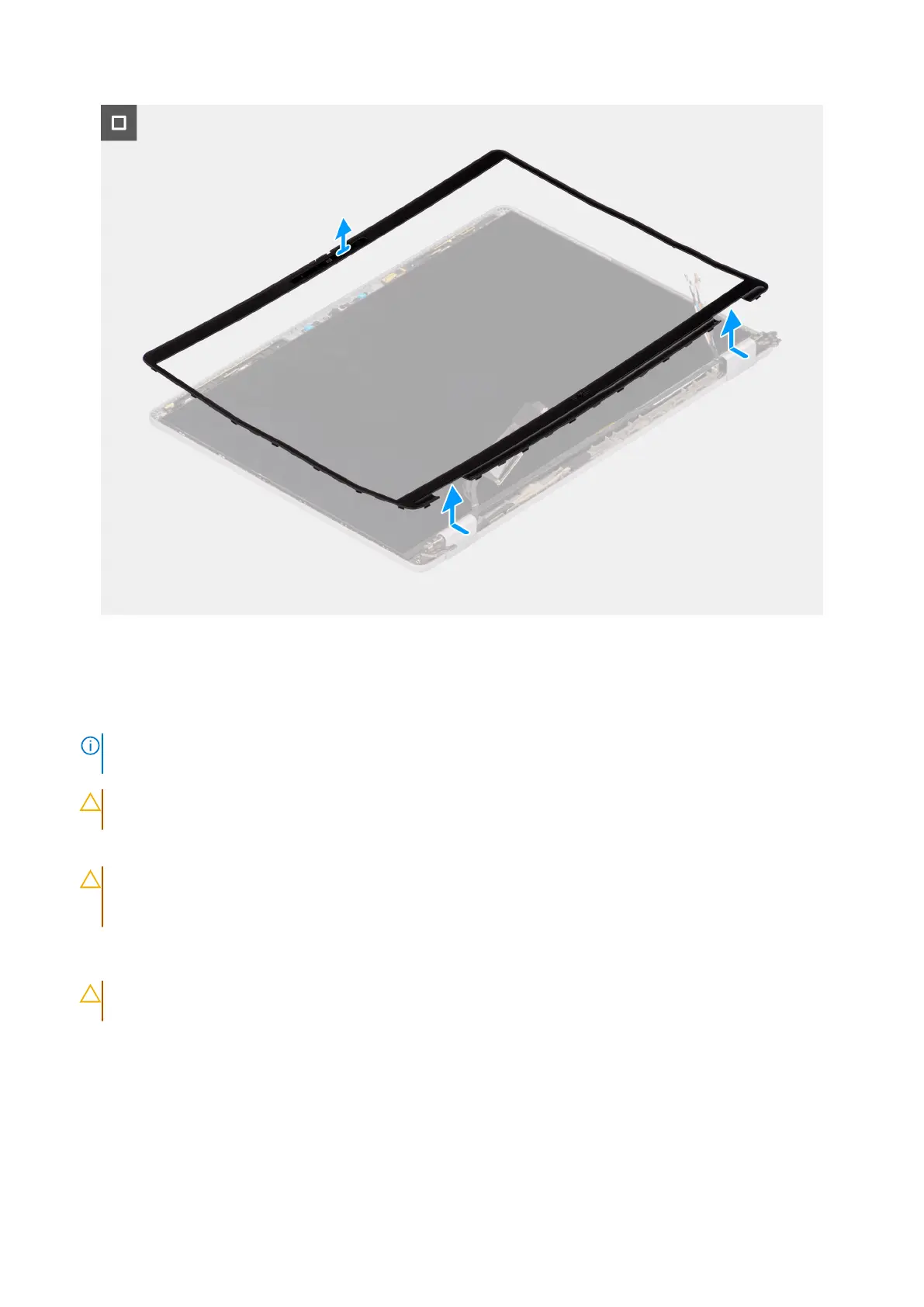
Figure 28. Removing the display bezel
Steps
1. Insert a flat-head screwdriver (maximum width: 4 mm) into the recess on the display bezel near the hinges, and gently apply
pressure to release the bezel at both ends, creating a gap.
NOTE:
The bezel will be deformed from this process. This is acceptable because the bezel is defined as a consumable
part and should be replaced with a new one.
CAUTION: Do not use the flat head (slotted) screwdriver to pry up the rest of bezel. Switch to the plastic
scribe to continue prying along the bezel.
2. Insert the flat end of the scribe into the gap created under the display bezel.
CAUTION:
When inserting the scribe into the bezel, keep it parallel to the display. Pressing it downward can
damage the display. Do not use the flat head (slotted) screwdriver to pry up the rest of bezel. Switch to the
plastic scribe to continue prying along the bezel.
3. Keeping the scribe parallel to the display, carefully slide it along the bottom edge of the bezel to release the adhesive and the
lower side.
CAUTION:
Do NOT lift the scribe up vertically as that will damage the LCD. Slide the scribe horizontally to
release the adhesive and pry the bezel up.
4. Insert the scribe diagonally into the hinge section to carefully pry up the portion of the bezel above the hinge.
5. Insert the scribe into the corner of the display bezel near the hinge. Keeping the scribe parallel to the display, carefully slide
the scribe along the edges from one corner to the other (right to left or left to right). As you do this, use your fingers to
assist in prying the bezel from the clips and adhesive.
6. Lift the display bezel from the display assembly.
74
Removing and installing Field Replaceable Units (FRUs)








 To Next Page