20
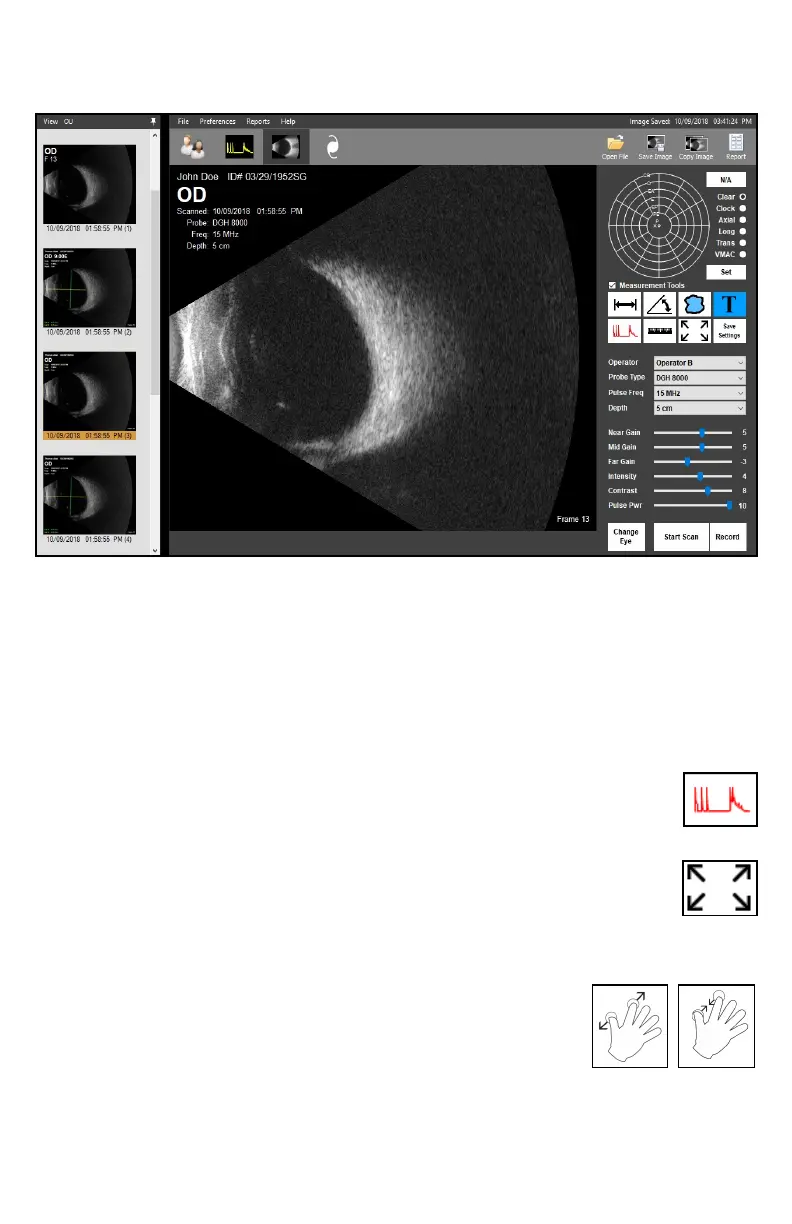
B-SCAN/UBM SCREEN
The B-Scan/UBM Screen allows the user to perform B-Scan/UBM procedures and review the
loaded paent’s B-Scan/UBM records.
Open File: To view B-Scan/UBM images, videos and records associated with the
current paent, click the [OPEN FILE]† buon in the upper right-hand
corner. Load the desired le from the window by double-clicking the
corresponding icon.
Posion Map: The Posion Map in the upper right-hand corner allows the user to
record the probe orientaon informaon in the image or video. It
can be set before or aer scanning. Click on the map to place an
indicator and then click the [SET] buon.
A-Scan Overlay: Enabling the A-Scan Overlay will superimpose an A-Scan
waveform over the B-Scan image or video. Use a le-click to
place the vector in the desired posion.
Zoom: Double-click the le mouse buon on the video/image or
click the ZOOM icon to zoom in†. Double-clicking will zoom to
the cursor locaon. Clicking the ZOOM icon will zoom to the
video/image center. To zoom in further, double-click the le
mouse buon again or use the mouse scroll wheel to zoom in and out†.
To reset the zoom, click the ZOOM icon.
If the PC has a touch-capable display, zooming
may be performed using “pinch zoom” touch
controls.
To pan a zoomed image, place one nger on the
B-scan image being displayed and move it in the
desired pan direcon.
†This command may be executed through voice control. Refer to the B-Scan and UBM Voice Controls secon.
Zoom In Zoom Out



 To Next Page