Page 54 of 87 DGH 55B-INS-OMENG Rev: 3
14.2.4 Press the ENT key two more times to navigate to
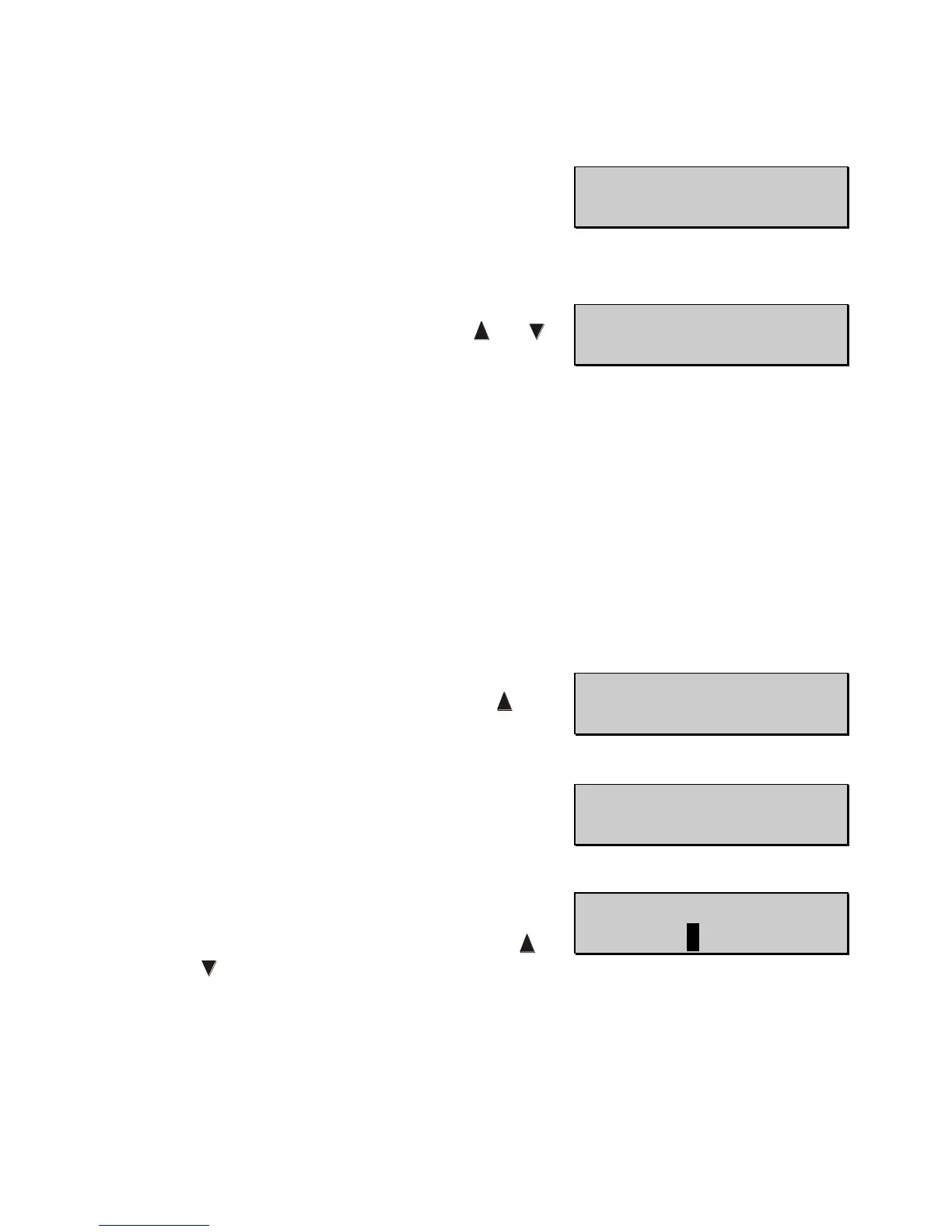
‘Add PC/Printer’ parameter. Press the OD button to
initiate a scan. The scan may take up to a minute.
14.2.5 The Pachmate 2 will populate a list of all
discovered Bluetooth
®
devices. Use the and
keys to scroll through the list of available devices.
o NAME is the name of the device discovered.
o #
A
is the list number of the device shown.
o #
B
is the total number of devices discovered. Up to 5 devices can be discovered at
a time.
o ←ReScan indicates that pressing the OS key will cause the Pachmate 2 to re-
scan for devices.
o Add → indicates that pressing the OD key will cause the Pachmate 2 to attempt
to pair with the displayed device.
14.2.6 With the desired device displayed, select ‘Add’ by pressing the OD key.
14.2.7 The Pachmate 2 will prompt the operator to
confirm the device being paired to. Use the key
to select ‘Yes’ when prompted.
14.2.8 The Pachmate 2 will display a message indicating
that it is in the process of pairing. It will then
prompt the user for the printer’s Pin Code.
14.2.9 The Pachmate 2 will display ‘Enter Pin Code’ and
show a blinking black cursor. Use the OS and OD
keys to move the cursor left and right. Use the
and keys to change the value.
• The necessary Pin Code is provided with the printer. Typically the manufacturer will
include the Pin Code in the user documentation.



 To Next Page