Page 56 of 87 DGH 55B-INS-OMENG Rev: 3
14.3.4 Press the key to select ‘Yes’ and save the configuration. The Pachmate 2 will return
to Measurement Mode.
14.3.5 Press and hold the ENT key until the Pachmate 2
displays the “Connecting to BT Device’. Printing
will begin automatically.
• When printing in Single Patient Mode, only the Single Patient information will be
printed. The measurements will be retained until cleared by the user or until
Measurement Mode or Patient Mode is changed.
• When printing in Multi Patient Mode, all patient measurements in Non-Volatile
Memory will be printed. The measurements will be retained until cleared by the user
or until the Measurement Mode is changed.
14.3.6 The Pachmate 2 will store the printer configuration. This allows the user to print from
this device directly at any time by pressing and holding the ENT key.
14.4 Pairing with a Bluetooth
®
enabled PC
The Pachmate 2 can be paired with PCs that are equipped with Bluetooth
®
wireless technology.
This can be via integrated Bluetooth
®
modules or USB adapters/dongles. Once the Pachmate 2
is properly paired with the PC, the operator can use the DGH Connect Software to input patient
information and retrieve measurement reports.
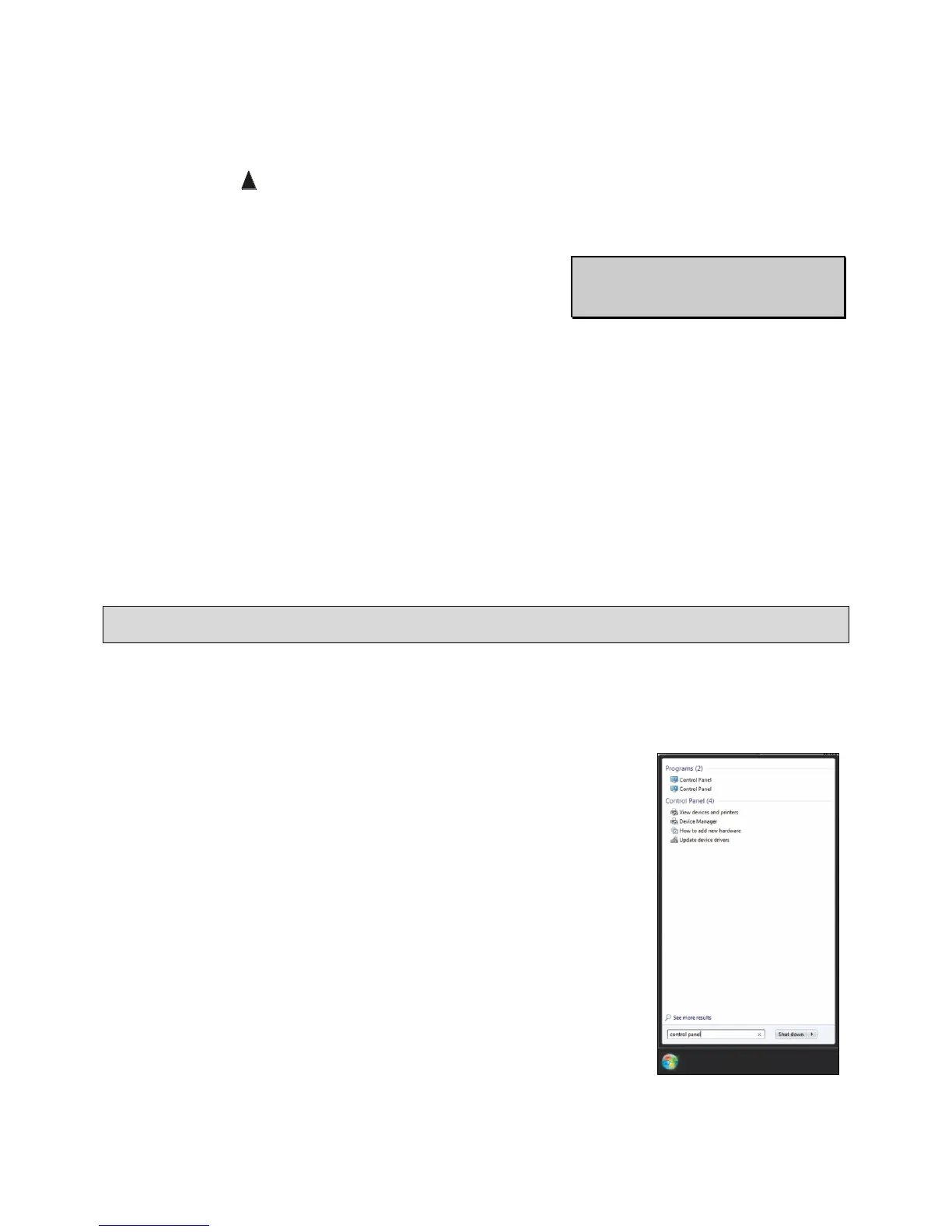
14.4.1 Navigate to the Windows Control Panel by going to the Start
menu and type ‘Control Panel’ in the search bar. The Start
menu will list the Control Panel item. Click the list item to
open the Control Panel. Find the ‘Bluetooth Settings’ item and
click it to open the dialog box.
• Depending on the version of the operating system, the Start
Menu may appear differently.



 To Next Page