Page 65 of 87 DGH 55B-INS-OMENG Rev: 3
15.3 Configuring the Software
Once the software has been installed, and the Pachmate 2 has been paired with the PC (See
section 14.4) the DGH Connect software is ready to use. The operator determines how the
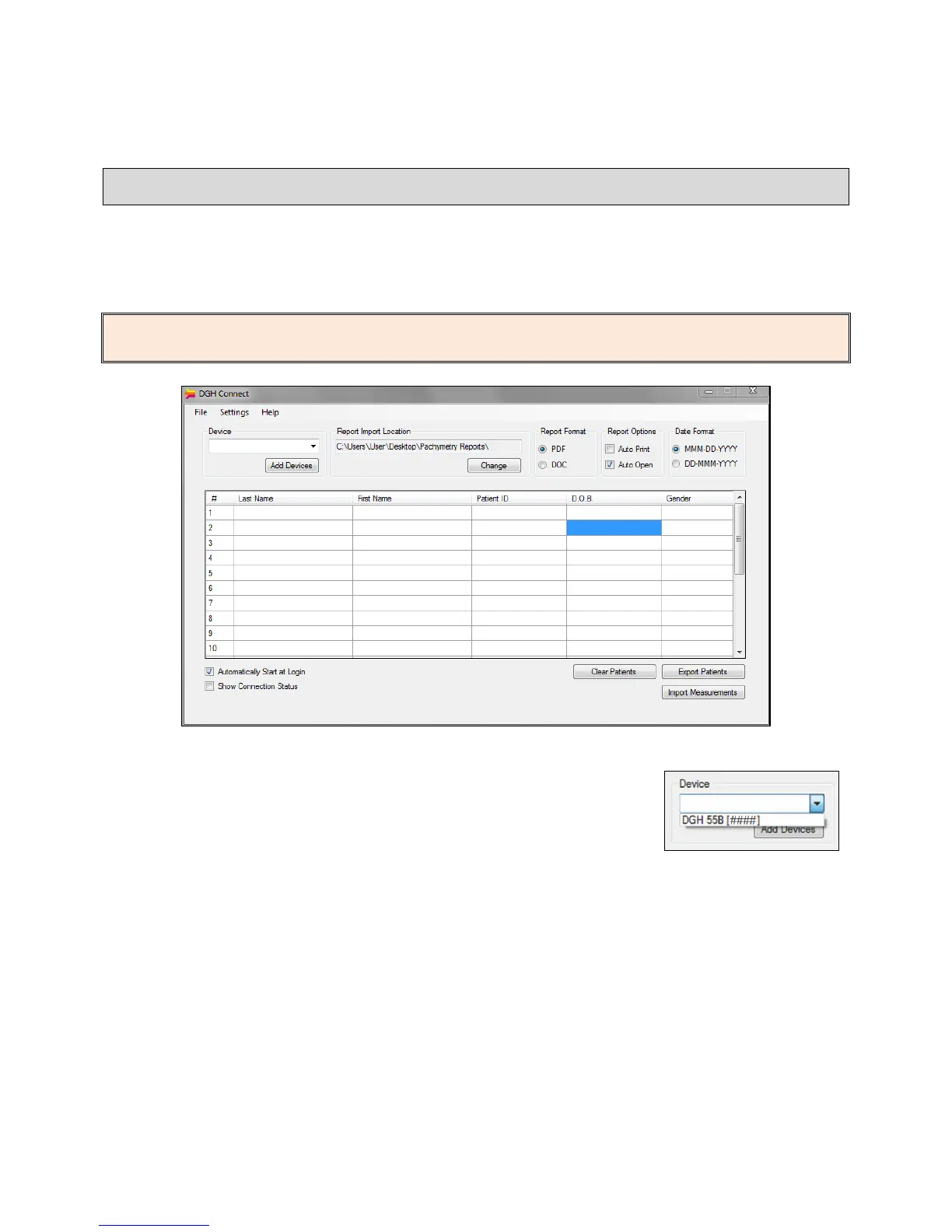
patient records are imported. Below is a screenshot that shows the DGH Connect Software, with
no patients added.
NOTE: The Pachmate 2 must be paired with the PC and COM Ports must be created before it
can communicate with the DGH Connect Software (See section 14.4 and 14.5).
15.3.1 The Device selection box allows the user to select which DGH
Bluetooth
®
enabled device to interact with. The Device box will
list all devices that are associated with the DGH Connect
Software by showing the model number and serial number.
• If no devices are shown in the list, it is necessary to add the device to the software’s
memory. See section 15.4 for information on adding the device.
• To check the serial number of the Pachmate 2, press and hold the CFG key.



 To Next Page