Page 53 of 87 DGH 55B-INS-OMENG Rev: 3
14. Configuring Bluetooth
®
Connections
Bluetooth
®
wireless features can only be enabled if your device has an optional Bluetooth
®
module installed. Only Devices with a Bluetooth
®
Wireless Technology Logo printed on the
front (in the bottom left-hand corner) have a module installed.
14.1 Enabling Bluetooth
®
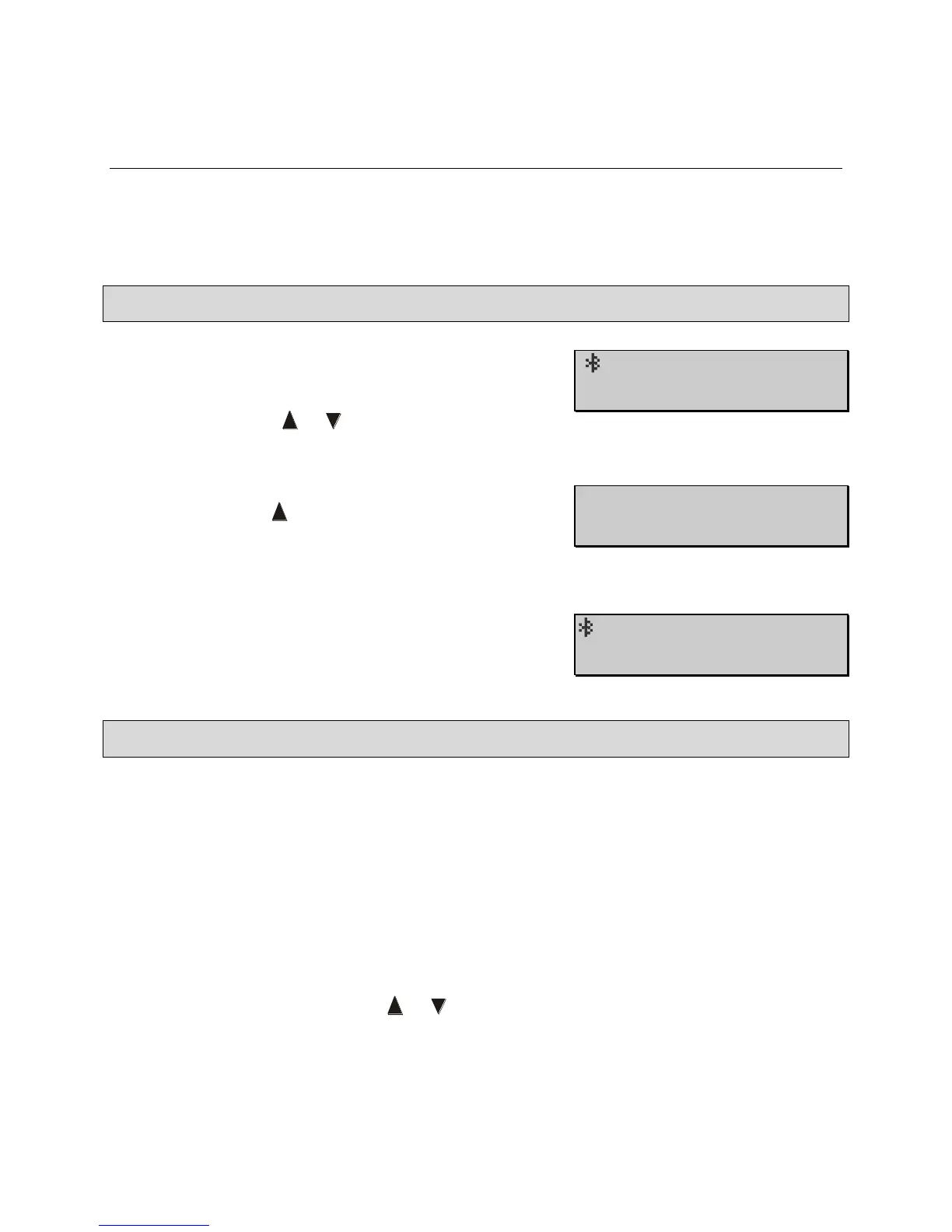
14.1.1 To turn on the Bluetooth
®
wireless module, press
the CFG key, then press the ENT one time to
navigate to the Bluetooth parameter and set it to
‘On’ using the or key.
14.1.2 Press the CFG key to exit the Configuration menu
and press the key to select ‘Yes’ when prompted
to save the configuration. The Pachmate 2 will
return to Measurement Mode.
14.1.3 An icon will appear in the upper left-hand corner to
indicate that the Bluetooth
®
module is enabled.
14.2 Pairing with a Bluetooth
®
enabled printer
The Pachmate 2 can be paired directly to a Bluetooth
®
enabled printer. Once paired, the
operator can print measurements directly from the device, without the need for a PC.
14.2.1 Turn on the printer and put it in the discoverable mode. Refer to the printer’s user manual
for instructions on using the printer’s Bluetooth
®
features.
14.2.2 Turn on the Pachmate 2 and enter the Configuration Menu by pressing the CFG key.
14.2.3 Press the ENT key one time to navigate to the ‘Bluetooth’ parameter. Confirm that it is
turned ‘On’. If not, press the or key to enable Bluetooth. (See Section 14.1)



 To Next Page