Page 58 of 87 DGH 55B-INS-OMENG Rev: 3
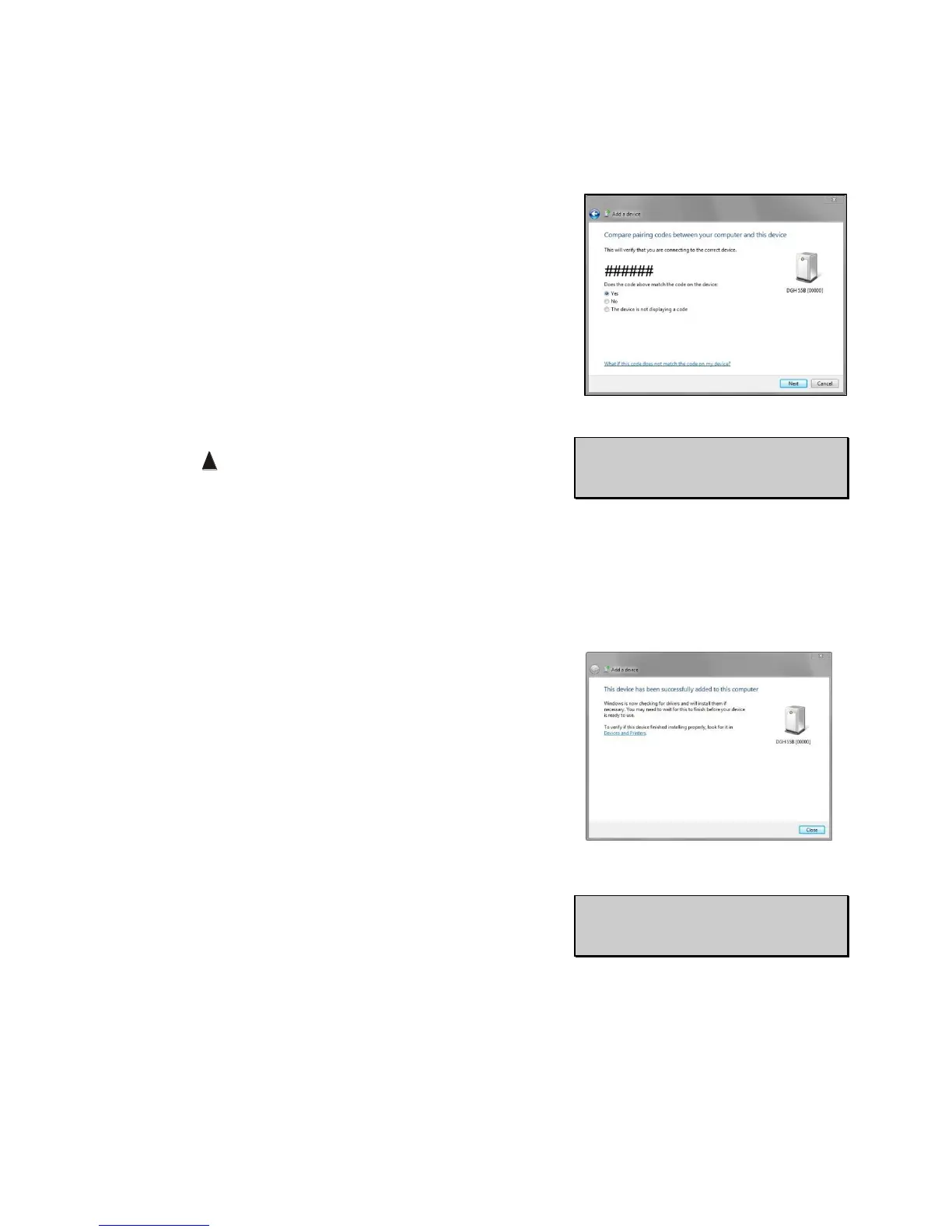
14.4.8 Both the Pachmate 2 and Windows will display a
screen requiring confirmation of a passkey.
14.4.9 When Windows displays the passkey, select ‘Yes’
and click the ‘Next’ button.
• The passkey must be accepted on both devices
within 30 seconds or a timeout error is produced.
14.4.10 When the Pachmate 2 displays the passkey, press
the key to accept.
14.4.11 Pairing is now complete. Both Windows and the
Pachmate 2 will display a message indicating that
the process was completed.
• After pairing, newer versions of Windows will
automatically configure COM Ports. This may be
indicated by a ‘Driver Software Installation’
message. Older versions of Windows may require
the user to manually configure COM Ports (see
section 14.5)
14.4.12 Press the CFG key on the Pachmate 2 to exit the
configuration menu.



 To Next Page