OPERATOR’S MANUAL
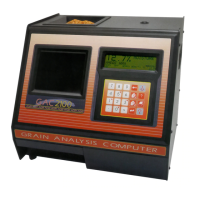
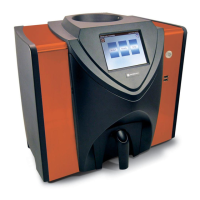
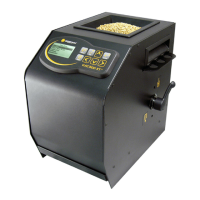
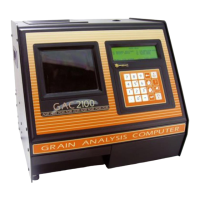
GAC® 2100 Grain Analysis Computer (Blue, Gray, Agri Models)
11001-1688-201609
22 MEASURE MOISTURE
GRAIN SAMPLE ID NUMBERS
Three sample ID options may be selected to number grain samples:
1. Automatic number sequencing (e.g., 1, 2, 3...)
2. Manual entry (numbers may be manually entered or skipped)
3. ENTER REQUIRED FOR ID (produces the Enter Sample ID screen)
which prompts a required entry before proceeding. The ID field may be
either numeric or alphanumeric. If numeric only, the digits 0-9, the
decimal point, and the minus sign are entered with the keyboard. Other
characters are entered from an alpha screen.
ENTER NUMBERS AND ALPHA CHARACTERS
Entering alpha characters (letters) into certain screens, such as an ENTER
SAMPLE ID number, is accomplished through a special alpha screen.
To Access the Alpha Screen:
1. From the Enter Sample ID screen, press the Next Page key. The Next
Page key only functions if an alpha entry is possible.
To View and/or Use the Alpha Screen:
1. Prepare for a moisture test. When the PRESS LOAD TO BEGIN
message appears, stop and observe the screen. The ID field on the
lower left corner below the grain type appears and a small cursor will
blink. If necessary, use the Down Arrow key to position the cursor
next to the ID field (ID: _ ). Numbers are entered directly from the
keypad and completed by selecting the Enter key.
2. To enter letters, select the Next Page key to access the Alpha screen.
The Alpha screen displays the alphabet, special characters, and a
string of S numbers (S1…S10). On the lower left corner, the word
TEXT displays (Figure 16).
Figure 16
Alpha Screen
3. Move the vertical pointer (center of screen) to the first letter. The small
vertical pointer identifies the selected character. The pointer is moved
around the screen by using the four arrow keys (Left/Right and Up/
Down).
4. After selecting a letter, press the Enter key. The letter appears next to
the word TEXT: on the lower corner. Repeat the process until the
ABCDEFGHIJKLMNOPQRSTUVQXYZ _ #$%&'( ) *,-.+
ÇOZÄCÉLLS ÖÜTLANZECAAES ADD ËNIITUO ßONSRUU
Y§R S1 S2 S3 S4 S5 S6 S7 S8 S9 S10
TEXT: -
“
“
´´
´
´´´´´´´´
ˆˆˆ°
~
±
Enter Key
Next Page Key
Left and Right Arrow Keys
Up and Down Arrow Keys
Backspace Key


 To Next Page
 Loading...