* Update rmware to the latest version. Otherwise, the function may not be supported.
• When using DirectionTrack for the rst time, connect DJI Neo to the DJI Fly app
and follow the tutorial to unlock this mode.
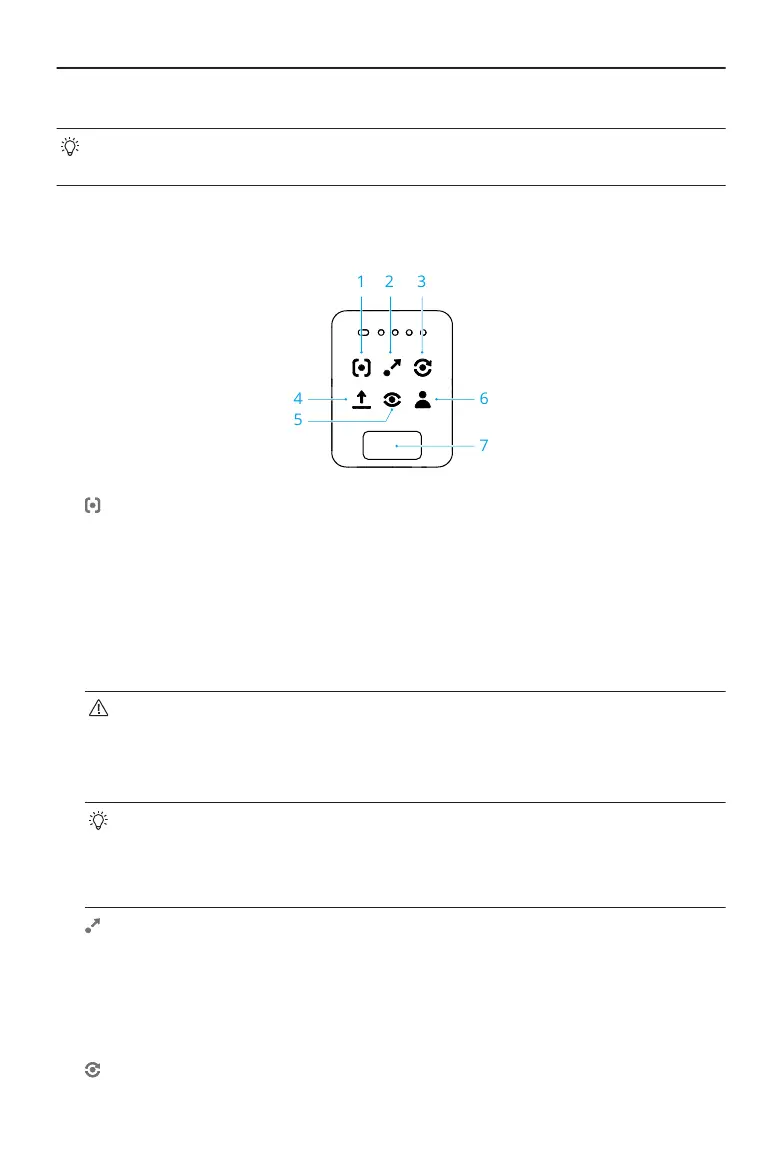
After switching the mode, the aircraft will voice prompt the selected mode, and the
corresponding mode indicator on top of DJI Neo will light up.
1. Follow
DJI Neo will follow the subject from behind while recording automatically. When the
subject moves away from DJI Neo, it will follow the subject and y forward. When
the subject moves toward DJI Neo, it will hover in place and does not y backward.
Perform with caution to avoid collision. The max horizontal ight speed in Follow
mode is 5.5 m/s.
You can set the follow distance and height in the DJI Fly app.
• DJI Neo does not support obstacle sensing. To ensure ight safety, it is
recommended to y within visual line of sight.
• Make sure the ight environment is open and unobstructed with sucient
lighting.
• When the subject is not in the camera eld of view, such as when a sharp
turn is made or the subject is obstructed by an obstacle, DJI Neo will hover
due to losing the subject. The subject should return to the camera eld of
view for successful subject conrmation.
2. Dronie
DJI Neo will keep the camera facing the original position of the subject, record a
video while ying backward, and then record another video while ying forward. It will
hover at the takeo point after recording.
You can set the max distance and height in the DJI Fly app.
3.
Circle
DJI Neo User Manual
24 © 2024 DJI All Rights Reserved.



 To Next Page